# Allegro Audience
> Documentation for the Allegro Audience CDP, an open source API-driven customer data platform.
## Developer
### Developer Platform Overview
The Allegro SDK is a lightweight JavaScript library for event tracking, session management, and member authentication. It loads asynchronously and exposes its API on `window.allegro`.
#### Installation[](#installation "Direct link to Installation")
Add the loader script to your page:
```html
```
For more information, see [the script tag documentation](/developer/guides/script-tag.md).
#### Core Concepts[](#core-concepts "Direct link to Core Concepts")
##### Async Queue[](#async-queue "Direct link to Async Queue")
The SDK uses an async queue pattern so you can start using it before it finishes loading:
```html
```
When the SDK loads, it replaces the array with the full SDK, drains the queue, and executes each callback.
##### `allegro.push(callback)`[](#allegropushcallback "Direct link to allegropushcallback")
Queue a function to run when the SDK is ready. If the SDK has already loaded, the callback executes immediately.
```js
window.allegro.push(function (allegro) {
// SDK is ready — use allegro.track(), allegro.member, etc.
});
```
#### What's Available[](#whats-available "Direct link to What's Available")
| Namespace | Description |
| --------------------- | --------------------------------------------------------- |
| `allegro.track()` | Track events with automatic session and device management |
| `allegro.member` | Authenticate members, get user info and entitlements |
| `allegro.interaction` | Trigger interaction events |
See the [Quick Start](/developer/getting-started/quick-start.md) guide for a complete working example, or browse the [API Reference](/developer/api-reference.md) for full type documentation.
#### Session & Device Management[](#session--device-management "Direct link to Session & Device Management")
The SDK manages two cookies automatically:
| Cookie | Lifetime | Purpose |
| -------------------- | ---------- | ---------------------------------------- |
| `allegro_device_id` | 10 years | Persistent device identifier (UUID v4) |
| `allegro_session_id` | 30 minutes | Session identifier, extended on activity |
Sessions are created automatically on the first `track()` or `member.login()` call.
#### Error Handling[](#error-handling "Direct link to Error Handling")
API errors throw an `AllegroApiError` with the HTTP status and response body:
```js
try {
await allegro.member.login('bad@email.com', 'wrong');
} catch (error) {
console.error(error.status); // e.g. 401
console.error(error.body); // server response
}
```
Errors inside `push()` callbacks are caught and logged to the console — they won't break the queue or prevent other callbacks from running.
---
### Browser Settings
Browser Settings control how the Allegro SDK is allowed to talk to the tenant API from a browser. They govern two things:
* **CORS Allowed Origins** — which sites may make cross-origin API requests.
* **Cookie Domain** — how far the SDK's session cookie is shared across your subdomains.
These are organization-wide settings configured under **Organization Settings → Browser** in the Allegro dashboard.
Administrator access required
Browser Settings are managed by an Allegro administrator. If your site cannot reach the API, or you need a session shared across subdomains, ask your administrator to update these values for you.
#### CORS Allowed Origins[](#cors-allowed-origins "Direct link to CORS Allowed Origins")
The browser blocks cross-origin requests unless the API explicitly allows the requesting origin. Every site that embeds the SDK — and therefore calls the tenant API from the browser — must have its origin on the allowed list.
Origins are entered one per line. Two formats are supported:
| Format | Example | Matches |
| ------------------ | ------------------------- | ----------------------------------- |
| Exact origin | `https://app.example.com` | Only that exact scheme, host, port |
| Subdomain wildcard | `https://*.example.com` | Any single-level subdomain over TLS |
When the list is left blank, the application defaults apply. A configured [custom domain](/developer/administration/custom-domain.md) is always included automatically, so you do not need to add it here.
Origins also gate return URLs
The allowed-origin list is also used to validate return URLs. The `returnUrl` sent with [magic link](/developer/guides/authentication/magic-links.md) requests and the return URL passed to [checkout](/developer/guides/payment/purchases.md) must resolve to one of these origins, or the request is rejected. This prevents sign-in and purchase tokens from being redirected to domains you do not control.
#### Cookie Domain[](#cookie-domain "Direct link to Cookie Domain")
The SDK stores its session in a cookie. By default that cookie is scoped to the exact hostname that served `client.js`, so a session created on `www.example.com` is not visible on `app.example.com`.
Set a parent domain to share the session across subdomains:
```text
.example.org
```
With `.example.org` configured, a member who signs in on `www.example.org` stays signed in on `app.example.org` and any other `*.example.org` subdomain running the SDK. Leave the field blank to keep the default (current hostname only).
#### Related[](#related "Direct link to Related")
* [Custom Domain](/developer/administration/custom-domain.md) — Serve the SDK from your own domain
* [Script Tag](/developer/guides/script-tag.md) — Embedding the SDK on your site
* [Member Authentication](/developer/guides/authentication.md) — How sessions work
---
### Custom Domain
By default, the Allegro SDK loads from the tenant subdomain:
```text
https://acme.allegrocdp.com/client.js
```
A custom domain lets you serve the SDK and its API endpoints from a domain you control instead:
```text
https://cdn.acme.com/client.js
```
This keeps SDK traffic on your own brand and origin, which is useful when you want the embed and its API requests to appear first-party to the browser.
Set by your platform administrator
A custom domain is provisioned and assigned by a platform administrator from the Allegro Admin — as the tenant's own domain, or to one of its properties — and DNS is pointed at the Allegro instance as part of that setup. You cannot set it from the SDK or the browser. Once it is in place, the steps below describe how the SDK uses it. For how domains are provisioned and assigned, see [Custom Domain (Platform)](/developer/platform/setup/custom-domain.md).
#### How the SDK Uses It[](#how-the-sdk-uses-it "Direct link to How the SDK Uses It")
The SDK determines its API base URL from the `src` attribute of the `
```
#### CORS and Return URLs[](#cors-and-return-urls "Direct link to CORS and Return URLs")
When a custom domain is configured, Allegro automatically includes it in the list of allowed [browser origins](/developer/administration/browser-settings.md) alongside the subdomain — you do not need to add it manually. That same list validates the return URLs used by [magic link](/developer/guides/authentication/magic-links.md) and [checkout](/developer/guides/payment/purchases.md) flows, so those redirects work on the custom domain out of the box.
#### Related[](#related "Direct link to Related")
* [Browser Settings](/developer/administration/browser-settings.md) — Allowed origins and cookie scope
* [Custom Domain (Platform)](/developer/platform/setup/custom-domain.md) — DNS, routing, and hosting configuration
* [Script Tag](/developer/guides/script-tag.md) — Embedding the SDK on your site
---
### API Authentication
The Allegro REST API authenticates requests using Bearer tokens. You generate these API keys in the Allegro admin UI.
API keys belong to the **organization**, not to an individual user. Everyone with the **Admin** role manages the same shared list of keys, and a key keeps working as team members come and go. A key is scoped to its own organization: it is rejected if used against another organization's domain. You narrow what a key can do by choosing which [scopes](#token-scopes) it carries.
#### Creating a key[](#creating-a-key "Direct link to Creating a key")
1. Sign in to your Allegro instance as an organization **Admin**.
2. Open **Organization Settings → API Keys**.
3. Click **Create Key** and give it a descriptive name (e.g. `data-pipeline`).
4. Choose when the key should **expire** — 30 days (the default), 90 days, 1 year, a custom date, or never.
5. Choose the [scopes](#token-scopes) the key should carry, then confirm.
6. Copy the key value that appears — it is only shown once.
Prefer a dated expiry
A key set to expire stops authenticating at the end of its expiry day and cannot be extended. Give keys the shortest lifetime your integration can tolerate, and rotate them before they lapse rather than choosing **Never**.
Store your token securely
The token value is displayed only at creation time. If you lose it, delete the token and create a new one.
#### Token scopes[](#token-scopes "Direct link to Token scopes")
A scope controls what a token is allowed to do. Scopes follow a `resource:action` shape — for example `audience-members:read` lets a token read audience members, and `products:write` lets it create and update products.
When you create a key, the form groups the available scopes by resource. For each resource you can select individual actions, or use **Select all** to grant the whole resource (a `resource:*` bucket that also covers any actions added to that resource later). Two toggles at the top of the form grant scopes in bulk:
* **Full access (all scopes)** carries `*` — every scope on every resource, read and write, including any added later.
* **Full read access (all read scopes)** carries `*:read` — every `:read` scope on every resource, including read scopes added later, and nothing that writes.
Selecting either toggle locks the per-resource checkboxes, since the wildcard already covers them. A key saved with **Full read access** stores just `*:read`: the individual read scopes it covers are dropped, while any resource buckets you also picked (which carry write access) are kept alongside it.
The scopes a key carries are shown as badges next to it in the key list, and you can edit a key later to change its name, expiration, or scopes. Once a key has expired it becomes read-only — replace it with a new key rather than editing it.
The resources you can scope to are:
| Resource | Read scope | Write scope |
| ----------------- | ------------------------ | ------------------------- |
| Analytics | `analytics:read` | `analytics:write` |
| Audience Members | `audience-members:read` | `audience-members:write` |
| Events | `events:read` | — |
| Products | `products:read` | `products:write` |
| Recommendations | `recommendations:read` | `recommendations:write` |
| Entitlements | `entitlements:read` | `entitlements:write` |
| External Profiles | `external-profiles:read` | `external-profiles:write` |
| Foreign Keys | `foreign-keys:read` | `foreign-keys:write` |
| Templates | `templates:read` | — |
| Sessions | `sessions:read` | — |
| Health | `health:read` | — |
One scope has no read/write split. `authentication:passwordless` lets a key sign audience members in on their behalf: it requests and validates magic links and one-time passcodes through `/api/v1/authentication/*` and returns the member's JWT. Grant it only to a trusted server, such as your own sign-in gateway, because those endpoints skip the captcha check that the browser endpoints run. A **Full access** key also carries it.
The key-creation form always lists the scopes currently available, so treat that form as the source of truth if this table drifts.
Scopes bound what a key can reach
A key's scopes limit what it can do within its organization. A key minted with **Full access** can reach every endpoint the organization exposes; one minted with **Full read access** can reach every read endpoint but is refused on any write; a narrower key is limited to the resources and actions you granted it.
If a request uses a key that lacks the scope for the endpoint it calls, Allegro rejects it with a `403 Forbidden` response even though the key is otherwise valid.
#### Using the key[](#using-the-key "Direct link to Using the key")
Include the key as a `Bearer` value in the `Authorization` header of every request:
```http
Authorization: Bearer
```
**Example with curl:**
```bash
curl https://your-instance.allegrocdp.com/api/v1/audience-members \
-H "Authorization: Bearer " \
-H "Accept: application/json"
```
#### Revoking a key[](#revoking-a-key "Direct link to Revoking a key")
To revoke a key, return to **Organization Settings → API Keys**, find the key in the list, and click **Revoke**. The key stops working immediately, and the revocation is recorded in the page's activity log.
A key can also lapse on its own: when it reaches the expiration you set, it stops authenticating automatically and cannot be extended. Rotate keys before they expire to avoid an interruption.
---
### Allegro Platform API
Version: 1.0
Export
* [OpenAPI Spec](/openapi/landlord.json)
Endpoints for platform operators. These routes are served only from the platform host and require a platform-owned API key — organization API keys cannot access them.
#### Authentication[](#authentication "Direct link to Authentication")
* HTTP: Bearer Auth
| Security Scheme Type: | http |
| -------------------------- | ------ |
| HTTP Authorization Scheme: | bearer |
---
### Platform Health Summary
Report the pending job count for each configured queue, plus the failed job count, for consumption by an external monitor. Returns a 503 when the queue backend cannot be reached so naive HTTP checks trip on a degraded state.
#### Responses[](#responses "Direct link to Responses")
* 200
* 401
Unauthenticated
---
### List Tenants
Return every tenant on the platform. Restricted to super admins and only available in the landlord context.
#### Request[](#request "Direct link to request")
#### Responses[](#responses "Direct link to Responses")
* 200
* 401
Array of `TenantResource`
Unauthenticated
---
### Platform API Access
The Platform API is for **platform operators** — the people who run an Allegro installation, not the organizations hosted on it. Its endpoints report on the platform as a whole: the tenants it hosts and the health of its queues.
Not part of the organization-facing API
These endpoints are not available to organizations. If you are integrating an application against a single organization's data, you want the [REST API](/rest-api/) instead.
#### Where it is served[](#where-it-is-served "Direct link to Where it is served")
The Platform API is served only from the platform host, never from an organization subdomain:
```text
https://allegrocdp.com/api/v1/landlord/...
```
A request to an organization host such as `acme.allegrocdp.com` is rejected with `403 Forbidden`, even with a valid key.
#### Platform keys only[](#platform-keys-only "Direct link to Platform keys only")
Every Platform API request must carry a **platform-owned** API key. Allegro rejects all other credentials with `403 Forbidden`:
| Credential | Result |
| ------------------------------------------------------- | --------------- |
| Platform key | Allowed |
| Organization key (**Organization Settings → API Keys**) | `403 Forbidden` |
| Key belonging to an individual user | `403 Forbidden` |
The last row applies even when that user is a super admin. Being a super admin grants access to the Allegro admin; it does not grant an individual's API key access to the Platform API.
#### Creating a platform key[](#creating-a-platform-key "Direct link to Creating a platform key")
1. Sign in to the Allegro admin as a super admin.
2. Open **Global Settings → API Keys**.
3. Click **Create Key**, give it a descriptive name (e.g. `platform-monitor`), choose its scopes, and confirm.
4. Copy the key value that appears — it is only shown once.
Store your key securely
The key value is displayed only at creation time. If you lose it, revoke the key and create a new one.
Platform keys carry the same `resource:action` scopes described in [API Authentication](/developer/api/authentication.md#token-scopes). A key whose scopes do not cover the endpoint it calls is rejected with `403 Forbidden` even though it is otherwise valid.
#### Using the key[](#using-the-key "Direct link to Using the key")
Send the key as a `Bearer` value in the `Authorization` header:
```bash
curl https://allegrocdp.com/api/v1/landlord/health \
-H "Authorization: Bearer " \
-H "Accept: application/json"
```
#### Revoking a key[](#revoking-a-key "Direct link to Revoking a key")
Return to **Global Settings → API Keys**, find the key, and click **Revoke**. It stops working immediately.
---
### Allegro Browser SDK API
Version: 0.0.1
Export
* [OpenAPI Spec](/openapi/session.json)
Endpoints used by the Allegro Browser SDK.
#### Authentication[](#authentication "Direct link to Authentication")
* HTTP: Bearer Auth
| Security Scheme Type: | http |
| -------------------------- | ------ |
| HTTP Authorization Scheme: | bearer |
| Bearer format: | JWT |
---
### Record Heartbeat
Push the page\_view event id onto the tenant's Redis FIFO list with a server timestamp and the cumulative active time on the page. The event id is trusted (UUID format only — no lookup). Each beat carries the running total of active whole seconds, so the latest beat for an event id supersedes earlier ones. No-op (204, before validation) when the SdkHeartbeat feature is disabled, so the endpoint is unobservable while off.
#### Request[](#request "Direct link to request")
#### Responses[](#responses "Direct link to Responses")
* 204
* 422
No content
Validation error
---
### allegro.interactionEvaluate
allegro.interactionEvaluate
#### Request[](#request "Direct link to request")
#### Responses[](#responses "Direct link to Responses")
* 200
* 422
Validation error
---
### allegro.interactionEvaluateDebug
allegro.interactionEvaluateDebug
#### Request[](#request "Direct link to request")
#### Responses[](#responses "Direct link to Responses")
* 200
* 403
* 422
An error
Validation error
---
### Entitlement Check
Check whether the authenticated member has an active entitlement for the given product slug.
#### Request[](#request "Direct link to request")
#### Responses[](#responses "Direct link to Responses")
* 200
---
### List Active Entitlements
List all active entitlements for the authenticated audience member.
#### Request[](#request "Direct link to request")
#### Responses[](#responses "Direct link to Responses")
* 200
Array of `EntitlementResource`
---
### Get a single external profile for the authenticated audience member by provider
Get a single external profile for the authenticated audience member by provider
#### Request[](#request "Direct link to request")
#### Responses[](#responses "Direct link to Responses")
* 200
`AudienceMemberExternalProfileResource`
---
### Identify Session
Create or retrieve an audience device session for the given email and device ID. If the audience member does not exist, they will be created. Always returns an unauthenticated session JWT, even if the device was previously authenticated. A device already identified as a different member is moved to the member for the given email.
Optional `attributes` are stored against the member, keyed by user attribute slug. Because identify is unauthenticated, a value is only written when the member has no value for that attribute yet; existing values are never overwritten. Every slug must be a defined, member-editable attribute and every value must pass its type and rules, or the request fails before the member is created: a 404 `USER_ATTRIBUTE_NOT_FOUND`, a 403 `USER_ATTRIBUTE_NOT_EDITABLE`, or a 422 with errors keyed `attributes.`.
#### Request[](#request "Direct link to request")
#### Responses[](#responses "Direct link to Responses")
* 200
* 422
Validation error
---
### Initiate Checkout
Creates a hosted checkout session for a term and returns the provider URL. JWT is optional — authenticated members get their details pre-filled. Returns a 422 with code CHECKOUT\_UNAVAILABLE when the tenant has no payment provider capable of checkout active.
#### Request[](#request "Direct link to request")
#### Responses[](#responses "Direct link to Responses")
* 200
* 422
Validation error
---
### Exchange Purchase Token
Exchange a one-time allegro\_purchase\_token for a JWT and entitlement data. The token works once and expires 10 minutes after checkout returns. The JWT is for the purchase's device session, or a new unauthenticated session when the buyer checked out as a guest.
#### Request[](#request "Direct link to request")
#### Responses[](#responses "Direct link to Responses")
* 200
* 422
Validation error
---
### Create Event
Record a new event with the provided request data.
#### Responses[](#responses "Direct link to Responses")
* 201
---
### Get Form
Fetch a form definition by its slug for rendering in the browser. Fields are resolved against the tenant's user attributes: each field carries its effective label plus the attribute's type, options, and validation rules. Fields whose attribute no longer exists or is no longer user-editable are omitted.
#### Request[](#request "Direct link to request")
#### Responses[](#responses "Direct link to Responses")
* 200
---
### Submit Form
Submit values for a form on behalf of the authenticated audience member. Only fields whose display conditions are currently met are validated and written: required fields must be present, and each value must pass the attribute's type and configured validation rules. A `null` value clears the member's stored value. Returns the updated values for the form's fields and a refreshed JWT.
#### Request[](#request "Direct link to request")
#### Responses[](#responses "Direct link to Responses")
* 200
* 422
Validation error
---
### Verifies a Fundraise Up delivery against the connection the request host resolves to and queues it for
processing by its identifiers only. Returns 404 without a connection, 400 (with an error log line) without a
signing secret, for a bad signature, or for a body without an id, type and data.object.id, and 200
otherwise; ping and test events, and events from the mode the connection is not in, are logged and not queued
### Verifies a Fundraise Up delivery against the connection the request host resolves to and queues it for processing by its identifiers only. Returns 404 without a connection, 400 (with an error log line) without a signing secret, for a bad signature, or for a body without an id, type and data.object.id, and 200 otherwise; ping and test events, and events from the mode the connection is not in, are logged and not queued
Verifies a Fundraise Up delivery against the connection the request host resolves to and queues it for processing by its identifiers only. Returns 404 without a connection, 400 (with an error log line) without a signing secret, for a bad signature, or for a body without an id, type and data.object.id, and 200 otherwise; ping and test events, and events from the mode the connection is not in, are logged and not queued
#### Responses[](#responses "Direct link to Responses")
* 200
* 400
* 404
Not found
---
### Get Interaction
Retrieve a single interaction by its ID or slug. Published interactions are publicly accessible; unpublished interactions require authorization.
#### Request[](#request "Direct link to request")
#### Responses[](#responses "Direct link to Responses")
* 200
* 403
`InteractionResource`
Authorization error
---
### Request a combined magic link and one-time code
Sends a single email containing both a magic sign-in link and a six-digit one-time code. The reader can click the link (in any browser) or enter the code on this device. Creates the audience member if they do not already exist. Rate limited to 3 requests per email per minute. Both the link and the code expire in 30 minutes. Issuing a new request invalidates any prior code for the session.
When `registration.form` names a form and the email has no account yet, nothing is created or sent: the response is `registration_required` with that form. Sending the form's answers in `registration.values` creates the account with them and continues.
#### Request[](#request "Direct link to request")
#### Responses[](#responses "Direct link to Responses")
* 200
* 422
Validation error
---
### Request Magic Link
Send a magic link email to the provided address for passwordless authentication. Creates the audience member if they do not already exist. Rate limited to 3 requests per email per minute.
When `registration.form` names a form and the email has no account yet, nothing is created or sent: the response is `registration_required` with that form. Sending the form's answers in `registration.values` creates the account with them and continues.
#### Request[](#request "Direct link to request")
#### Responses[](#responses "Direct link to Responses")
* 200
* 422
Validation error
---
### Validate Magic Link
Validate a magic link token and authenticate the device session. Only the device that opens the link is authenticated. The audience member's email is marked as verified upon success.
#### Request[](#request "Direct link to request")
#### Responses[](#responses "Direct link to Responses")
* 200
* 422
Validation error
---
### Request OTP
Email a six-digit one-time passcode for passwordless authentication. Creates the audience member if they do not already exist. Rate limited to 3 requests per email per minute. Issuing a new code invalidates any prior code for the session.
When `registration.form` names a form and the email has no account yet, nothing is created or sent: the response is `registration_required` with that form. Sending the form's answers in `registration.values` creates the account with them and continues.
#### Request[](#request "Direct link to request")
#### Responses[](#responses "Direct link to Responses")
* 200
* 422
Validation error
---
### Validate OTP
Validate a six-digit code against the latest unexpired code for the requesting device session and authenticate that session synchronously.
#### Request[](#request "Direct link to request")
#### Responses[](#responses "Direct link to Responses")
* 200
* 422
Validation error
---
### Record Recommendation Click
Reports that the reader clicked one served recommendation, keyed to the `request_id` the serving call returned. Always answers 204: the reader is navigating away and has no recourse, so a failed report is logged rather than surfaced.
#### Request[](#request "Direct link to request")
#### Responses[](#responses "Direct link to Responses")
* 204
* 422
No content
Validation error
---
### Get Recommendations
Ranked article recommendations for the reader's device, from the tenant's configured engine. Answers an empty set rather than an error when the engine is unreachable: a reader cannot act on the difference, and a dead widget is a visible defect where an empty one is not.
#### Request[](#request "Direct link to request")
#### Responses[](#responses "Direct link to Responses")
* 200
* 422
Validation error
---
### Destroy Session
Log out and delete the current device session. A `logout` event is recorded before the session is removed.
#### Responses[](#responses "Direct link to Responses")
* 204
No content
---
### Get Session
Retrieve the current authenticated device session details.
#### Request[](#request "Direct link to request")
#### Responses[](#responses "Direct link to Responses")
* 200
`AudienceDeviceSessionResource`
---
### Update Profile
Update the authenticated audience member's own record. Fields the request omits are left as they are, so a caller can send only what changed. Only `name` is writable; the member's email is changed through its own verification flow. A refreshed JWT carrying the updated `audience_member` claim is returned.
#### Request[](#request "Direct link to request")
#### Responses[](#responses "Direct link to Responses")
* 200
* 422
Validation error
---
### Refresh Session Token
Generate a new JWT for the current device session.
#### Responses[](#responses "Direct link to Responses")
* 200
---
### Delete User Attribute
Clear the authenticated audience member's stored value for a user attribute. The attribute itself remains defined for the tenant and will continue to be returned with a `null` value. A refreshed JWT is returned. Returns a 403 `USER_ATTRIBUTE_NOT_EDITABLE` error if the attribute is not editable by the member, or a 404 `USER_ATTRIBUTE_NOT_FOUND` error if it is not defined or is private.
#### Request[](#request "Direct link to request")
#### Responses[](#responses "Direct link to Responses")
* 200
---
### List User Attributes
List every user attribute defined for the tenant along with the authenticated audience member's value for it. Attributes the member has never been given a value for are returned with a `null` value. Private attributes are omitted.
#### Responses[](#responses "Direct link to Responses")
* 200
Array of `UserAttributeResource`
---
### Set User Attribute
Set the value of a single user attribute for the authenticated audience member. The value is validated against the attribute's type: `string` accepts any string, `number` accepts any numeric value, `boolean` accepts a boolean, and `enum` accepts one of the attribute's configured options. A refreshed JWT containing the updated attribute claims is returned. Returns a 403 `USER_ATTRIBUTE_NOT_EDITABLE` error if the attribute is not editable by the member, or a 404 `USER_ATTRIBUTE_NOT_FOUND` error if it is not defined or is private.
#### Request[](#request "Direct link to request")
#### Responses[](#responses "Direct link to Responses")
* 200
---
### Set User Attributes
Set the values of several user attributes for the authenticated audience member in one request, keyed by attribute slug. A `null` value clears the member's stored value for that attribute. Every slug is resolved and every value validated against its attribute's type and configured rules before anything is written, so the whole request fails without saving if one entry is bad: a 404 `USER_ATTRIBUTE_NOT_FOUND` error listing the unknown slugs, a 403 `USER_ATTRIBUTE_NOT_EDITABLE` error listing the slugs the member may not edit, or a 422 with errors keyed `values.`. A refreshed JWT containing the updated attribute claims is returned.
#### Request[](#request "Direct link to request")
#### Responses[](#responses "Direct link to Responses")
* 200
---
### Exchange Social Login Code
Exchange the one-time `allegro_social_code` a redirect-based social login appends to the returning page for the member's JWT. Each code works once, expires after five minutes, and only for the device that started the login.
#### Request[](#request "Direct link to request")
#### Responses[](#responses "Direct link to Responses")
* 200
* 422
Validation error
---
### Get a published template by its slug
Used by the SDK to resolve `` children.
#### Request[](#request "Direct link to request")
#### Responses[](#responses "Direct link to Responses")
* 200
`TemplateResource`
---
### Describe the authenticated identity behind the current request
A first-party session or a legacy user token returns the user as before. Organization- and platform-owned API keys authenticate as the Tenant or Platform, so a whitelisted shape is returned instead of the raw model to avoid leaking internal fields (e.g. the tenant's database name).
#### Responses[](#responses "Direct link to Responses")
* 200
* 401
`User`
Unauthenticated
---
### Allegro REST API
Version: 1.0
Export
* [OpenAPI Spec](/openapi/token.json)
Endpoints that use authenticated user tokens.
#### Authentication[](#authentication "Direct link to Authentication")
* HTTP: Bearer Auth
| Security Scheme Type: | http |
| -------------------------- | ------ |
| HTTP Authorization Scheme: | bearer |
---
### Get Story Analytics
Returns how one story performed, by its `path` (e.g. `/news/story`), over a `window`: `publish` (since it was published, capped at a year; the default), `24h` or `7d`. Sections are `details` (catalog entry, null when the page isn't indexed yet), `performance` (against the site baseline, with a series), `sources`, `time_on_page`, `next_pages` and `gates`. Narrow with `include`. The `range`, `start` and `end` filters don't apply; `meta.range` is the range the window resolved to.
#### Request[](#request "Direct link to request")
#### Responses[](#responses "Direct link to Responses")
* 200
* 401
* 422
`AnalyticsResource`
Unauthenticated
Validation error
---
### List Analytics Events
Returns the explorer's event stream, newest first, 50 per page. Pass `next_cursor` back as `before` for the next page. Narrow with `types`, `where[]` filters, or a `session` UUID.
#### Request[](#request "Direct link to request")
#### Responses[](#responses "Direct link to Responses")
* 200
* 401
* 422
`AnalyticsResource`
Unauthenticated
Validation error
---
### Explore Events
Returns the Events explorer's chart and breakdown: event counts per type (up to six types, bucketed by hour, day or week to suit the range) and event counts by the `by` dimension (top 10, default `referrer`). Narrow with comma-separated `types` and `where[]` filters (`where[0][dimension]`, `where[0][operator]`, `where[0][value]`).
#### Request[](#request "Direct link to request")
#### Responses[](#responses "Direct link to Responses")
* 200
* 401
* 422
`AnalyticsResource`
Unauthenticated
Validation error
---
### Run Analytics Query
Runs a report definition, the same shape saved reports store, and returns its totals and bucketed series. This is read-only; it is a POST only because the definition is a nested body. The definition's preset `range` is used unless `start` and `end` are given.
#### Request[](#request "Direct link to request")
#### Responses[](#responses "Direct link to Responses")
* 200
* 401
* 422
`AnalyticsResource`
Unauthenticated
Validation error
---
### Get Reader Analytics
Returns one registered reader's sessions and the event timeline of the selected one, built from their latest 500 events (`timeline.truncated` is true when there are more). Pass a `session` UUID to select another of their sessions. The reader's `name` and `email` are included only when the key also has the `audience-members:read` scope.
#### Request[](#request "Direct link to request")
#### Responses[](#responses "Direct link to Responses")
* 200
* 401
* 422
`AnalyticsResource`
Unauthenticated
Validation error
---
### Get Realtime Analytics
Returns the Pulse: `counts` (readers now, last-hour page views and sign-ups, and last-hour counts per event type against the same hour a week ago), `minutes` (page views and sessions for each of the last 60 minutes), `sources` (last-hour channels and referrers) and `spiking` (stories well above their typical traffic). Narrow with `include`, e.g. `include=counts,spiking`. The date range filters don't apply; realtime data always covers the last hour.
#### Request[](#request "Direct link to request")
#### Responses[](#responses "Direct link to Responses")
* 200
* 401
* 422
`AnalyticsResource`
Unauthenticated
Validation error
---
### List Analytics Reports
Lists the built-in reports, each naming the API endpoint (and `include` section) that returns its data, and one page of the tenant's saved reports. `search` matches names and descriptions; `area` narrows the built-ins to one area. Saved reports are paginated with `per_page` (1-100, default 20) and `page`; `meta.saved` describes the page.
#### Request[](#request "Direct link to request")
#### Responses[](#responses "Direct link to Responses")
* 200
* 401
* 403
* 422
`AnalyticsResource`
Unauthenticated
Authorization error
Validation error
---
### Run Analytics Report
Runs a saved report and returns it with its result, over its own preset range unless `range` or `start` and `end` are given.
#### Request[](#request "Direct link to request")
#### Responses[](#responses "Direct link to Responses")
* 200
* 401
* 422
`AnalyticsResource`
Unauthenticated
Validation error
---
### Get Analytics Report
Returns one saved report: its name, description, definition (the same shape `POST /analytics/query` accepts) and a one-line summary.
#### Request[](#request "Direct link to request")
#### Responses[](#responses "Direct link to Responses")
* 200
* 401
`AnalyticsResource`
Unauthenticated
---
### Create Analytics Report
Saves a report the whole team can open from Analytics → Reports: a `name`, an optional `description`, whether it is `pinned` to the Pulse, and a `definition` in the same shape `POST /analytics/query` runs. Run it afterwards with `GET /analytics/reports/{id}/results`.
#### Request[](#request "Direct link to request")
#### Responses[](#responses "Direct link to Responses")
* 201
* 401
* 403
* 422
`AnalyticsResource`
Unauthenticated
Authorization error
Validation error
---
### Get Analytics Schema
Lists what analytics can be asked for: event types seen in the range (with event, session and reader counts, narrowed by `where[]` filters), plus the measures, dimensions, filter operators, report resolutions and preset ranges, and the tenant's properties and products.
#### Request[](#request "Direct link to request")
#### Responses[](#responses "Direct link to Responses")
* 200
* 401
* 422
`AnalyticsResource`
Unauthenticated
Validation error
---
### Get Event Counts
Returns the event count behind each Events view over the range: the numbers on the Events tabs.
#### Request[](#request "Direct link to request")
#### Responses[](#responses "Direct link to Responses")
* 200
* 401
* 422
`AnalyticsResource`
Unauthenticated
Validation error
---
### Get Content Gate Analytics
Returns `summary` (headline stats, a series by gate type, and gates by type and article) and `latest` (the 10 most recent gate views).
#### Request[](#request "Direct link to request")
#### Responses[](#responses "Direct link to Responses")
* 200
* 401
* 422
`AnalyticsResource`
Unauthenticated
Validation error
---
### Get Login Analytics
Returns headline stats, a daily login series, and logins by member level, device and article.
#### Request[](#request "Direct link to request")
#### Responses[](#responses "Direct link to Responses")
* 200
* 401
* 422
`AnalyticsResource`
Unauthenticated
Validation error
---
### Get Purchase Analytics
Returns revenue, purchases and average order against the previous period, with purchases by day, status and product.
#### Request[](#request "Direct link to request")
#### Responses[](#responses "Direct link to Responses")
* 200
* 401
* 422
`AnalyticsResource`
Unauthenticated
Validation error
---
### Get Sign-up Analytics
Returns headline stats, a sign-up series by gate type, the sign-up funnel, and sign-ups by article.
#### Request[](#request "Direct link to request")
#### Responses[](#responses "Direct link to Responses")
* 200
* 401
* 422
`AnalyticsResource`
Unauthenticated
Validation error
---
### Get Time on Site Analytics
Returns `summary` (headline stats, a daily engaged time series and the session length distribution) and `top_stories` (top `limit` by engaged time, default 10, max 50).
#### Request[](#request "Direct link to request")
#### Responses[](#responses "Direct link to Responses")
* 200
* 401
* 422
`AnalyticsResource`
Unauthenticated
Validation error
---
### Get Traffic Analytics
Returns the page views view: `overview` (headline stats against the previous period, with a page view and session series), `reading_hours` (a day by hour-of-day grid of the last 28 days), `sections` and `top_stories` (top `limit` by engaged time, default 10, max 50).
#### Request[](#request "Direct link to request")
#### Responses[](#responses "Direct link to Responses")
* 200
* 401
* 422
`AnalyticsResource`
Unauthenticated
Validation error
---
### List Audience Device Sessions
Retrieve all device sessions for a given audience member.
#### Request[](#request "Direct link to request")
#### Responses[](#responses "Direct link to Responses")
* 200
* 401
* 403
Array of `AudienceDeviceSessionResource`
Unauthenticated
Authorization error
---
### List Audience Member Events
Retrieve a paginated timeline of tracked events for an audience member, newest first. Events are read from whichever store the tenant is configured to use, so the results always match the admin dashboard.
The page size can be controlled with `per_page` (1-100).
Note: for tenants whose events are served by the ClickHouse analytics API, the timeline covers the 500 most recent events. `meta.total` reflects that window rather than the member's lifetime event count, and pages beyond it are empty. Tenants served from the database have no such limit.
#### Request[](#request "Direct link to request")
#### Responses[](#responses "Direct link to Responses")
* 200
* 401
* 403
* 422
Paginated set of `AudienceEventResource`
Unauthenticated
Authorization error
Validation error
---
### Delete Audience Member
Soft-delete an audience member by their ID.
#### Request[](#request "Direct link to request")
#### Responses[](#responses "Direct link to Responses")
* 204
* 401
* 403
No content
Unauthenticated
Authorization error
---
### Delete External Profile
Delete the external profile for the given audience member and provider key.
#### Request[](#request "Direct link to request")
#### Responses[](#responses "Direct link to Responses")
* 204
* 401
* 403
No content
Unauthenticated
Authorization error
---
### List External Profiles
List all external profiles for the given audience member.
#### Request[](#request "Direct link to request")
#### Responses[](#responses "Direct link to Responses")
* 200
* 401
* 403
Array of `AudienceMemberExternalProfileResource`
Unauthenticated
Authorization error
---
### Get External Profile
Get a single external profile for the given audience member by provider key.
#### Request[](#request "Direct link to request")
#### Responses[](#responses "Direct link to Responses")
* 200
* 401
* 403
`AudienceMemberExternalProfileResource`
Unauthenticated
Authorization error
---
### Upsert External Profile
Create or update an external profile for the given audience member and provider key.
#### Request[](#request "Direct link to request")
#### Responses[](#responses "Direct link to Responses")
* 200
* 401
* 403
* 422
Unauthenticated
Authorization error
Validation error
---
### Delete Foreign Key
Remove a foreign key from an audience member by its key name.
#### Request[](#request "Direct link to request")
#### Responses[](#responses "Direct link to Responses")
* 204
* 401
* 403
No content
Unauthenticated
Authorization error
---
### List Foreign Keys
Retrieve all foreign keys associated with an audience member.
#### Request[](#request "Direct link to request")
#### Responses[](#responses "Direct link to Responses")
* 200
* 401
* 403
Array of `AudienceMemberForeignKeyResource`
Unauthenticated
Authorization error
---
### Create Foreign Key
Add a new foreign key to an audience member.
#### Request[](#request "Direct link to request")
#### Responses[](#responses "Direct link to Responses")
* 201
* 401
* 403
* 422
`AudienceMemberForeignKeyResource`
Unauthenticated
Authorization error
Validation error
---
### List Audience Members
Retrieve a paginated list of audience members. Supports filtering by `email`, `foreign_key`, `product` (the slug of a product the member holds an active entitlement for), and optionally including soft-deleted members via `include_deleted`. The page size can be controlled with `per_page` (1-1000).
#### Request[](#request "Direct link to request")
#### Responses[](#responses "Direct link to Responses")
* 200
* 401
* 403
* 422
Paginated set of `AudienceMemberResource`
Unauthenticated
Authorization error
Validation error
---
### Patch Audience Member
Partially update an audience member's attributes and meta data. Meta values set to `null` will be removed; all other values will be merged.
#### Request[](#request "Direct link to request")
#### Responses[](#responses "Direct link to Responses")
* 200
* 401
* 403
* 422
`AudienceMemberResource`
Unauthenticated
Authorization error
Validation error
---
### Get Audience Member
Retrieve a single audience member by their ID.
#### Request[](#request "Direct link to request")
#### Responses[](#responses "Direct link to Responses")
* 200
* 401
* 403
`AudienceMemberResource`
Unauthenticated
Authorization error
---
### Create Audience Member
Create a new audience member with the provided attributes and optional meta data.
If a deleted audience member has the same email, they are restored and updated with the provided attributes instead.
#### Request[](#request "Direct link to request")
#### Responses[](#responses "Direct link to Responses")
* 201
* 401
* 403
* 422
`AudienceMemberResource`
Unauthenticated
Authorization error
Validation error
---
### Update Audience Member
Fully replace an audience member's attributes and metadata.
If meta is passed, all existing meta except file attribute values will be removed and replaced with the provided values. Otherwise, it will be left alone.
#### Request[](#request "Direct link to request")
#### Responses[](#responses "Direct link to Responses")
* 200
* 401
* 403
* 422
`AudienceMemberResource`
Unauthenticated
Authorization error
Validation error
---
### Delete User Attribute
Clear the given audience member's stored value for a user attribute. The attribute itself remains defined for the tenant and will continue to be returned with a `null` value.
#### Request[](#request "Direct link to request")
#### Responses[](#responses "Direct link to Responses")
* 204
* 401
* 403
No content
Unauthenticated
Authorization error
---
### List User Attributes
List every user attribute defined for the tenant along with the given audience member's value for it. Attributes the member has never been given a value for are returned with a `null` value. A public File attribute's value is the file's URL. Private File attributes are admin-only and are never listed.
#### Request[](#request "Direct link to request")
#### Responses[](#responses "Direct link to Responses")
* 200
* 401
* 403
Array of `UserAttributeResource`
Unauthenticated
Authorization error
---
### Set User Attribute
Set the value of a single user attribute for the given audience member. The value is validated against the attribute's type: `string` accepts any string, `number` accepts any numeric value, `boolean` accepts a boolean, and `enum` accepts one of the attribute's configured options.
#### Request[](#request "Direct link to request")
#### Responses[](#responses "Direct link to Responses")
* 200
* 401
* 403
Unauthenticated
Authorization error
---
### Revoke Entitlement
Revoke a specific entitlement from an audience member.
#### Request[](#request "Direct link to request")
#### Responses[](#responses "Direct link to Responses")
* 204
* 401
* 403
No content
Unauthenticated
Authorization error
---
### List Entitlements
Retrieve all entitlements for a given audience member, including their associated resources. Supports optional ?status=active|inactive filter.
#### Request[](#request "Direct link to request")
#### Responses[](#responses "Direct link to Responses")
* 200
* 401
* 403
* 422
Array of `EntitlementResource`
Unauthenticated
Authorization error
Validation error
---
### Get Entitlement
Retrieve a specific entitlement for a given audience member.
#### Request[](#request "Direct link to request")
#### Responses[](#responses "Direct link to Responses")
* 200
* 401
* 403
`EntitlementResource`
Unauthenticated
Authorization error
---
### Create Entitlement
Grant a new entitlement to an audience member.
#### Request[](#request "Direct link to request")
#### Responses[](#responses "Direct link to Responses")
* 201
* 401
* 403
* 422
`EntitlementResource`
Unauthenticated
Authorization error
Validation error
---
### Flush Queued Events
Remove exactly `count` events from the front of the Redis list. The caller must pass `?count=N` where N matches the count returned by the list endpoint to prevent deleting events that arrived after the read.
#### Request[](#request "Direct link to request")
#### Responses[](#responses "Direct link to Responses")
* 204
* 401
* 422
No content
Unauthenticated
Validation error
---
### List Queued Events
Return up to 10,000 events from the front of the Redis list.
#### Responses[](#responses "Direct link to Responses")
* 200
* 401
`EventBatchResource`
Unauthenticated
---
### Flush Queued Heartbeats
Remove exactly `count` heartbeats from the front of the Redis list (oldest first). The caller must pass `?count=N` where N matches the count returned by the list endpoint to prevent deleting heartbeats that arrived after the read.
#### Request[](#request "Direct link to request")
#### Responses[](#responses "Direct link to Responses")
* 204
* 401
* 422
No content
Unauthenticated
Validation error
---
### List Queued Heartbeats
Return up to 10,000 heartbeats from the front of the Redis list.
#### Responses[](#responses "Direct link to Responses")
* 200
* 401
`HeartbeatBatchResource`
Unauthenticated
---
### Archive Interaction
Soft-delete an interaction. It stops being served and stops being evaluated, but can be brought back with the restore endpoint.
#### Request[](#request "Direct link to request")
#### Responses[](#responses "Direct link to Responses")
* 204
* 401
* 403
No content
Unauthenticated
Authorization error
---
### Duplicate Interaction
Copy an interaction — actions, journeys, and trigger mode — into a new draft with a generated slug.
#### Request[](#request "Direct link to request")
#### Responses[](#responses "Direct link to Responses")
* 201
* 401
* 403
`InteractionManagementResource`
Unauthenticated
Authorization error
---
### Delete Interaction
Permanently delete an interaction and its revision history. This cannot be undone.
#### Request[](#request "Direct link to request")
#### Responses[](#responses "Direct link to Responses")
* 204
* 401
* 403
No content
Unauthenticated
Authorization error
---
### List Interactions
Retrieve a paginated list of interactions, most recently updated first. Filter with `status` (draft, published), `trigger_mode` (manual, automatic), and `search` (matches title and slug). Archived interactions are excluded unless `include_deleted` is set. Page size is controlled with `per_page` (1-200).
#### Request[](#request "Direct link to request")
#### Responses[](#responses "Direct link to Responses")
* 200
* 401
* 403
* 422
Paginated set of `InteractionManagementResource`
Unauthenticated
Authorization error
Validation error
---
### Restore Interaction
Bring an archived interaction back as a draft. It stays unpublished until its status is set explicitly, so restoring can never resume firing it.
#### Request[](#request "Direct link to request")
#### Responses[](#responses "Direct link to Responses")
* 200
* 401
* 403
`InteractionManagementResource`
Unauthenticated
Authorization error
---
### Get Interaction
Retrieve a single interaction, addressed by its ID or its slug, with its full targeting configuration. Archived interactions are included and carry a `deleted_at`.
#### Request[](#request "Direct link to request")
#### Responses[](#responses "Direct link to Responses")
* 200
* 401
* 403
`InteractionManagementResource`
Unauthenticated
Authorization error
---
### Create Interaction
Create an interaction. A manual interaction needs at least one action; an automatic one may have none, leaving visitors who match no journey untouched. Journeys are only deep-validated for automatic interactions — a manual interaction's journeys are dormant until it is switched over.
#### Request[](#request "Direct link to request")
#### Responses[](#responses "Direct link to Responses")
* 201
* 401
* 403
* 422
`InteractionManagementResource`
Unauthenticated
Authorization error
Validation error
---
### Unpublish Interaction
Return a published interaction to draft, taking it out of the targeting snapshot without archiving it.
#### Request[](#request "Direct link to request")
#### Responses[](#responses "Direct link to Responses")
* 200
* 401
* 403
* 422
`InteractionManagementResource`
Unauthenticated
Authorization error
Validation error
---
### Update Interaction
Replace an interaction's configuration. Omitting `slug` keeps the current one. A `revision_note` is recorded against the revision this save creates.
#### Request[](#request "Direct link to request")
#### Responses[](#responses "Direct link to Responses")
* 200
* 401
* 403
* 422
`InteractionManagementResource`
Unauthenticated
Authorization error
Validation error
---
### Delete Milestone
Permanently delete a milestone by its ID.
#### Request[](#request "Direct link to request")
#### Responses[](#responses "Direct link to Responses")
* 204
* 401
* 403
No content
Unauthenticated
Authorization error
---
### List Milestones
Retrieve milestones, newest date first. Milestones are dated notes shown on analytics charts, optionally limited to some properties. Filter by date range, or by property to get the milestones its charts show.
#### Request[](#request "Direct link to request")
#### Responses[](#responses "Direct link to Responses")
* 200
* 401
* 403
* 422
Array of `MilestoneResource`
Unauthenticated
Authorization error
Validation error
---
### Get Milestone
Retrieve a single milestone by its ID.
#### Request[](#request "Direct link to request")
#### Responses[](#responses "Direct link to Responses")
* 200
* 401
* 403
`MilestoneResource`
Unauthenticated
Authorization error
---
### Create Milestone
Create a milestone. Leave `property_ids` empty to show it on every property's charts.
#### Request[](#request "Direct link to request")
#### Responses[](#responses "Direct link to Responses")
* 201
* 401
* 403
* 422
`MilestoneResource`
Unauthenticated
Authorization error
Validation error
---
### Update Milestone
Update a milestone. Omitted fields keep their values; `property_ids` replaces the whole list when given.
#### Request[](#request "Direct link to request")
#### Responses[](#responses "Direct link to Responses")
* 200
* 401
* 403
* 422
`MilestoneResource`
Unauthenticated
Authorization error
Validation error
---
### Request Magic Link
Email a magic link to the member for passwordless sign-in, creating the audience member if they do not already exist. `return_url` must be on an allowed origin. `data` is passed to `MagicLinkRequested` listeners, such as newsletter subscriptions. Rate limited to 3 requests per email per minute, shared with the browser endpoint.
#### Request[](#request "Direct link to request")
#### Responses[](#responses "Direct link to Responses")
* 200
* 401
* 422
Unauthenticated
Validation error
---
### Request OTP
Email a six-digit one-time passcode to the member, creating the audience member if they do not already exist. A new code replaces any prior code for the device. `data` is passed to `OtpRequested` listeners. Rate limited to 3 requests per email per minute, shared with the browser endpoint.
#### Request[](#request "Direct link to request")
#### Responses[](#responses "Direct link to Responses")
* 200
* 401
* 422
Unauthenticated
Validation error
---
### Validate Magic Link
Redeem a magic link token and authenticate the `device_id` session, returning the member JWT for that session. The member's email is marked as verified.
#### Request[](#request "Direct link to request")
#### Responses[](#responses "Direct link to Responses")
* 200
* 401
* 422
Unauthenticated
Validation error
---
### Validate OTP
Check a six-digit code against the latest code issued to `email` on the `device_id` session and authenticate that session, returning the member JWT. A code locks after 5 incorrect attempts.
#### Request[](#request "Direct link to request")
#### Responses[](#responses "Direct link to Responses")
* 200
* 401
* 422
Unauthenticated
Validation error
---
### Delete Product
Permanently delete a product by its ID.
#### Request[](#request "Direct link to request")
#### Responses[](#responses "Direct link to Responses")
* 204
* 401
* 403
No content
Unauthenticated
Authorization error
---
### List Products
Retrieve all products ordered by most recently created.
#### Request[](#request "Direct link to request")
#### Responses[](#responses "Direct link to Responses")
* 200
* 401
* 403
Array of `ProductResource`
Unauthenticated
Authorization error
---
### Get Product
Retrieve a single product by its ID.
#### Request[](#request "Direct link to request")
#### Responses[](#responses "Direct link to Responses")
* 200
* 401
* 403
`ProductResource`
Unauthenticated
Authorization error
---
### Create Product
Create a new product with the provided attributes.
#### Request[](#request "Direct link to request")
#### Responses[](#responses "Direct link to Responses")
* 201
* 401
* 403
* 422
`ProductResource`
Unauthenticated
Authorization error
Validation error
---
### Update Product
Update the name of an existing product.
#### Request[](#request "Direct link to request")
#### Responses[](#responses "Direct link to Responses")
* 200
* 401
* 403
* 422
`ProductResource`
Unauthenticated
Authorization error
Validation error
---
### Get Template
Retrieve a single template by its ID.
#### Request[](#request "Direct link to request")
#### Responses[](#responses "Direct link to Responses")
* 200
* 401
* 403
`TemplateResource`
Unauthenticated
Authorization error
---
### Tenant Health Summary
Report the current tenant's Redis queue depths and the age of the oldest queued item, for consumption by an external monitor. Returns a 503 when Redis cannot be reached so naive HTTP checks trip on a degraded state.
#### Responses[](#responses "Direct link to Responses")
* 200
* 401
* 403
Unauthenticated
Authorization error
---
### Record Recommendation Click
Reports a click on one served recommendation, keyed to the `request_id` the serving call returned. Answers 502 when the engine is unreachable.
#### Request[](#request "Direct link to request")
#### Responses[](#responses "Direct link to Responses")
* 204
* 401
* 422
No content
Unauthenticated
Validation error
---
### List Recommendations
Ranked article recommendations for a device or article, from the tenant's configured engine. Answers 502 when the engine is unreachable.
#### Request[](#request "Direct link to request")
#### Responses[](#responses "Direct link to Responses")
* 200
* 401
* 422
Unauthenticated
Validation error
---
### Preview Recommendations
Ranked recommendations for a hypothetical reading history, without a real reader session behind it. Answers 501 when the tenant's configured engine cannot preview, and 502 when it can but is unreachable.
#### Request[](#request "Direct link to request")
#### Responses[](#responses "Direct link to Responses")
* 200
* 401
* 422
Unauthenticated
Validation error
---
### @alleyinteractive/allegro-platform
#### Functions[](#functions "Direct link to Functions")
* [createAllegroSDK](/developer/api-reference/functions/createAllegroSDK.md)
* [enableDebugMode](/developer/api-reference/functions/enableDebugMode.md)
* [ensureComponentsLoaded](/developer/api-reference/functions/ensureComponentsLoaded.md)
* [hydrateQueue](/developer/api-reference/functions/hydrateQueue.md)
#### Interfaces[](#interfaces "Direct link to Interfaces")
* [AllegroConfig](/developer/api-reference/interfaces/AllegroConfig.md)
* [AllegroSDK](/developer/api-reference/interfaces/AllegroSDK.md)
* [InteractionActionCookie](/developer/api-reference/interfaces/InteractionActionCookie.md)
* [InteractionActionCss](/developer/api-reference/interfaces/InteractionActionCss.md)
* [InteractionActionJavaScript](/developer/api-reference/interfaces/InteractionActionJavaScript.md)
* [InteractionActionTemplate](/developer/api-reference/interfaces/InteractionActionTemplate.md)
* [InteractionNamespace](/developer/api-reference/interfaces/InteractionNamespace.md)
* [InteractionResponse](/developer/api-reference/interfaces/InteractionResponse.md)
* [InteractionTemplateData](/developer/api-reference/interfaces/InteractionTemplateData.md)
* [MemberEntitlement](/developer/api-reference/interfaces/MemberEntitlement.md)
* [MemberNamespace](/developer/api-reference/interfaces/MemberNamespace.md)
* [MemberProfile](/developer/api-reference/interfaces/MemberProfile.md)
* [MetersNamespace](/developer/api-reference/interfaces/MetersNamespace.md)
* [MeterUsage](/developer/api-reference/interfaces/MeterUsage.md)
* [PageDataSource](/developer/api-reference/interfaces/PageDataSource.md)
* [PublicPlan](/developer/api-reference/interfaces/PublicPlan.md)
* [PurchaseNamespace](/developer/api-reference/interfaces/PurchaseNamespace.md)
* [PurchaseTokenExchangeResponse](/developer/api-reference/interfaces/PurchaseTokenExchangeResponse.md)
* [RecommendationItem](/developer/api-reference/interfaces/RecommendationItem.md)
* [RecommendationSet](/developer/api-reference/interfaces/RecommendationSet.md)
* [RecommendationsGetOptions](/developer/api-reference/interfaces/RecommendationsGetOptions.md)
* [ShowLoginOptions](/developer/api-reference/interfaces/ShowLoginOptions.md)
* [TenantConfig](/developer/api-reference/interfaces/TenantConfig.md)
* [TrackEventData](/developer/api-reference/interfaces/TrackEventData.md)
* [TrackResponse](/developer/api-reference/interfaces/TrackResponse.md)
#### Recommendations[](#recommendations "Direct link to Recommendations")
* [RecommendationsNamespace](/developer/api-reference/interfaces/RecommendationsNamespace.md)
#### Type Aliases[](#type-aliases "Direct link to Type Aliases")
* [AllegroCallback](/developer/api-reference/type-aliases/AllegroCallback.md)
* [AudienceMember](/developer/api-reference/type-aliases/AudienceMember.md)
* [IdentifySessionResponse](/developer/api-reference/type-aliases/IdentifySessionResponse.md)
* [InteractionAction](/developer/api-reference/type-aliases/InteractionAction.md)
* [MagicLinkRequestResponse](/developer/api-reference/type-aliases/MagicLinkRequestResponse.md)
* [MagicLinkValidateResponse](/developer/api-reference/type-aliases/MagicLinkValidateResponse.md)
* [MemberJwtPayload](/developer/api-reference/type-aliases/MemberJwtPayload.md)
* [MeterUsageMap](/developer/api-reference/type-aliases/MeterUsageMap.md)
* [SessionResponse](/developer/api-reference/type-aliases/SessionResponse.md)
* [SocialLoginResponse](/developer/api-reference/type-aliases/SocialLoginResponse.md)
* [UserAttributeValue](/developer/api-reference/type-aliases/UserAttributeValue.md)
#### Variables[](#variables "Direct link to Variables")
* [logger](/developer/api-reference/variables/logger.md)
---
### Function: createAllegroSDK()
> **createAllegroSDK**(`config`): [`AllegroSDK`](/developer/api-reference/interfaces/AllegroSDK.md)
Defined in: [allegro.ts:46](https://github.com/alleyinteractive/allegro/blob/dd6a4ea554121f94a356441632916a4ab6caabd2/packages/allegro-platform/resources/js/sdk/allegro.ts#L46)
Allegro SDK
#### Parameters[](#parameters "Direct link to Parameters")
| Parameter | Type |
| --------- | ----------------------------------------------------------------------- |
| `config` | [`AllegroConfig`](/developer/api-reference/interfaces/AllegroConfig.md) |
#### Returns[](#returns "Direct link to Returns")
[`AllegroSDK`](/developer/api-reference/interfaces/AllegroSDK.md)
---
### Function: enableDebugMode()
> **enableDebugMode**(): `void`
Defined in: [logger.ts:39](https://github.com/alleyinteractive/allegro/blob/dd6a4ea554121f94a356441632916a4ab6caabd2/packages/allegro-platform/resources/js/sdk/logger.ts#L39)
Enable debug mode.
#### Returns[](#returns "Direct link to Returns")
`void`
#### Todo[](#todo "Direct link to Todo")
Consider using EventTarget.prototype.addEventListener instead here to catch all events.
---
### Function: ensureComponentsLoaded()
> **ensureComponentsLoaded**(): `Promise`<`void`>
Defined in: [components-loader.ts:47](https://github.com/alleyinteractive/allegro/blob/dd6a4ea554121f94a356441632916a4ab6caabd2/packages/allegro-platform/resources/js/sdk/components-loader.ts#L47)
Inject the components bundle, resolving once it has executed and defined the custom elements. Injected only once per page however many times this is called, and rejects when the tenant has no compiled bundle.
Injected as `type="module"`, because the bundle is an ES module whose top-level declarations would otherwise leak into the host page's global lexical scope and collide with its identifiers.
#### Returns[](#returns "Direct link to Returns")
`Promise`<`void`>
---
### Function: hydrateQueue()
> **hydrateQueue**(`sdk`): `void`
Defined in: [queue.ts:4](https://github.com/alleyinteractive/allegro/blob/dd6a4ea554121f94a356441632916a4ab6caabd2/packages/allegro-platform/resources/js/sdk/queue.ts#L4)
#### Parameters[](#parameters "Direct link to Parameters")
| Parameter | Type |
| --------- | ----------------------------------------------------------------- |
| `sdk` | [`AllegroSDK`](/developer/api-reference/interfaces/AllegroSDK.md) |
#### Returns[](#returns "Direct link to Returns")
`void`
---
### Interface: AllegroConfig
Defined in: [types.ts:81](https://github.com/alleyinteractive/allegro/blob/dd6a4ea554121f94a356441632916a4ab6caabd2/packages/allegro-platform/resources/js/sdk/types.ts#L81)
Configuration passed to [createAllegroSDK](/developer/api-reference/functions/createAllegroSDK.md).
You typically don't construct this yourself — it is embedded in the loader script generated by the platform and injected into the page automatically.
#### Properties[](#properties "Direct link to Properties")
| Property | Type | Description | Defined in |
| ---------------------- | --------------------------------------------------------------------------------------------- | ---------------------------------------------------------------------------------------------------------------------------------------------------------------------------------------------------------------------------------------------------------------------------------------- | ------------------------------------------------------------------------------------------------------------------------------------------------------------------ |
| []()`apiBaseUrl` | `string` | Base URL for API calls. Derived from the script tag's src attribute. | [types.ts:83](https://github.com/alleyinteractive/allegro/blob/dd6a4ea554121f94a356441632916a4ab6caabd2/packages/allegro-platform/resources/js/sdk/types.ts#L83) |
| []()`custom?` | `Record`<`string`, `string` | `number` | `boolean`> | Custom key/value attributes sent to the evaluate endpoint's `custom` channel. | [types.ts:114](https://github.com/alleyinteractive/allegro/blob/dd6a4ea554121f94a356441632916a4ab6caabd2/packages/allegro-platform/resources/js/sdk/types.ts#L114) |
| []()`debug?` | `boolean` | Enable debug mode for verbose SDK logging and allegro:\* event tracing. | [types.ts:89](https://github.com/alleyinteractive/allegro/blob/dd6a4ea554121f94a356441632916a4ab6caabd2/packages/allegro-platform/resources/js/sdk/types.ts#L89) |
| []()`interactions?` | `boolean` | Automatic server-side interaction targeting (the `/interactions/evaluate` call fired once per page load). Defaults to `true`; set `false` to suppress the automatic evaluation (and the SPA watcher) and rely solely on manual `interaction.trigger()` / `interaction.evaluate()` calls. | [types.ts:96](https://github.com/alleyinteractive/allegro/blob/dd6a4ea554121f94a356441632916a4ab6caabd2/packages/allegro-platform/resources/js/sdk/types.ts#L96) |
| []()`interactionsSpa?` | `boolean` | Opt into re-evaluating interactions on single-page-app navigation. When `true`, the SDK watches history navigation (pushState/replaceState/popstate) and re-runs targeting on route change. Defaults to `false`. Ignored when `interactions` is `false`. | [types.ts:103](https://github.com/alleyinteractive/allegro/blob/dd6a4ea554121f94a356441632916a4ab6caabd2/packages/allegro-platform/resources/js/sdk/types.ts#L103) |
| []()`pageData?` | `Record`<`string`, [`PageDataSource`](/developer/api-reference/interfaces/PageDataSource.md)> | Configurable page data source mappings. Merged over defaults. | [types.ts:85](https://github.com/alleyinteractive/allegro/blob/dd6a4ea554121f94a356441632916a4ab6caabd2/packages/allegro-platform/resources/js/sdk/types.ts#L85) |
| []()`tenant?` | [`TenantConfig`](/developer/api-reference/interfaces/TenantConfig.md) | Tenant configuration embedded by the ClientController loader script. | [types.ts:87](https://github.com/alleyinteractive/allegro/blob/dd6a4ea554121f94a356441632916a4ab6caabd2/packages/allegro-platform/resources/js/sdk/types.ts#L87) |
---
### Interface: AllegroSDK
Defined in: [types.ts:135](https://github.com/alleyinteractive/allegro/blob/dd6a4ea554121f94a356441632916a4ab6caabd2/packages/allegro-platform/resources/js/sdk/types.ts#L135)
The top-level Allegro SDK instance, available as `window.allegro`.
#### Example[](#example "Direct link to Example")
```ts
window.allegro.push((allegro) => {
console.log(allegro.member.isAuthenticated());
});
```
#### Methods[](#methods "Direct link to Methods")
##### debug()?[](#debug "Direct link to debug()?")
> `optional` **debug**(): `void`
Defined in: [types.ts:225](https://github.com/alleyinteractive/allegro/blob/dd6a4ea554121f94a356441632916a4ab6caabd2/packages/allegro-platform/resources/js/sdk/types.ts#L225)
Enable SDK debug mode from the console: `window.allegro.debug()`
###### Returns[](#returns "Direct link to Returns")
`void`
***
##### push()[](#push "Direct link to push()")
> **push**(`callback`): `void`
Defined in: [types.ts:153](https://github.com/alleyinteractive/allegro/blob/dd6a4ea554121f94a356441632916a4ab6caabd2/packages/allegro-platform/resources/js/sdk/types.ts#L153)
Enqueue a callback to run once the SDK is ready.
If the SDK has already initialised, the callback is invoked synchronously. This mirrors the `window.allegro.push(fn)` usage pattern.
###### Parameters[](#parameters "Direct link to Parameters")
| Parameter | Type | Description |
| ---------- | ----------------------------------------------------------------------------- | ---------------------------------------------------------- |
| `callback` | [`AllegroCallback`](/developer/api-reference/type-aliases/AllegroCallback.md) | Function that receives the fully initialised SDK instance. |
###### Returns[](#returns-1 "Direct link to Returns")
`void`
###### Example[](#example-1 "Direct link to Example")
```ts
window.allegro.push((allegro) => {
if (allegro.member.isAuthenticated()) {
console.log('Logged in!');
}
});
```
***
##### renderComponentsIn()[](#rendercomponentsin "Direct link to renderComponentsIn()")
> **renderComponentsIn**(`root`): `void`
Defined in: [types.ts:238](https://github.com/alleyinteractive/allegro/blob/dd6a4ea554121f94a356441632916a4ab6caabd2/packages/allegro-platform/resources/js/sdk/types.ts#L238)
Render all registered Allegro components found within the given root. Use this to render components inside a shadow DOM or other non-document root.
###### Parameters[](#parameters-1 "Direct link to Parameters")
| Parameter | Type |
| --------- | --------------------------------------- |
| `root` | `Element` | `Document` | `ShadowRoot` |
###### Returns[](#returns-2 "Direct link to Returns")
`void`
###### Example[](#example-2 "Direct link to Example")
```ts
window.allegro.push((allegro) => {
allegro.renderComponentsIn(myShadowRoot);
});
```
***
##### track()[](#track "Direct link to track()")
> **track**(`eventName`, `data?`): `Promise`<[`TrackResponse`](/developer/api-reference/interfaces/TrackResponse.md)>
Defined in: [types.ts:174](https://github.com/alleyinteractive/allegro/blob/dd6a4ea554121f94a356441632916a4ab6caabd2/packages/allegro-platform/resources/js/sdk/types.ts#L174)
Track a named event with optional metadata.
Page context (URL, title, referer) is collected automatically. Pass additional fields via `data` to enrich the event.
###### Parameters[](#parameters-2 "Direct link to Parameters")
| Parameter | Type | Description |
| ----------- | ------------------------------------------------------------------------- | ---------------------------------------------------------- |
| `eventName` | `string` | Descriptive snake\_case event name, e.g. `"article_read"`. |
| `data?` | [`TrackEventData`](/developer/api-reference/interfaces/TrackEventData.md) | Optional event metadata. |
###### Returns[](#returns-3 "Direct link to Returns")
`Promise`<[`TrackResponse`](/developer/api-reference/interfaces/TrackResponse.md)>
Resolves with the recorded event ID.
###### Example[](#example-3 "Direct link to Example")
```ts
await allegro.track('article_read', {
content_id: '12345',
content_type: 'article',
publisher: 'newsroom',
});
```
#### Properties[](#properties "Direct link to Properties")
| Property | Type | Description | Defined in |
| ---------------------------- | --------------------------------------------------------------------------------------------- | --------------------------------------------------------------------------------------------------------------------------------------------------------------------------------------------------------------------------------------------------------------------------------------------------------------- | ------------------------------------------------------------------------------------------------------------------------------------------------------------------ |
| []()`components` | `Record`<`string`, *typeof* `HTMLElement`> | Registered custom web components. Empty until the components bundle has loaded. | [types.ts:219](https://github.com/alleyinteractive/allegro/blob/dd6a4ea554121f94a356441632916a4ab6caabd2/packages/allegro-platform/resources/js/sdk/types.ts#L219) |
| []()`forms` | `FormsNamespace` | Form fetching and submission methods. | [types.ts:213](https://github.com/alleyinteractive/allegro/blob/dd6a4ea554121f94a356441632916a4ab6caabd2/packages/allegro-platform/resources/js/sdk/types.ts#L213) |
| []()`http` | `HttpClient` | HTTP client pre-configured with the session JWT and base URL. Use this to make authenticated API calls to the Allegro backend from outside the SDK, the same way internal modules do. **Example** `window.allegro.push(async (allegro) => { const data = await allegro.http.get('/api/some-endpoint'); });` | [types.ts:189](https://github.com/alleyinteractive/allegro/blob/dd6a4ea554121f94a356441632916a4ab6caabd2/packages/allegro-platform/resources/js/sdk/types.ts#L189) |
| []()`interaction` | [`InteractionNamespace`](/developer/api-reference/interfaces/InteractionNamespace.md) | Interaction trigger and management methods. | [types.ts:195](https://github.com/alleyinteractive/allegro/blob/dd6a4ea554121f94a356441632916a4ab6caabd2/packages/allegro-platform/resources/js/sdk/types.ts#L195) |
| []()`magicLinkValidation?` | `"authenticated"` | `"failed"` | `null` | The result of magic link token validation, if one was attempted on this page load. Set synchronously before the corresponding window event is dispatched, so components that load after the event fires can still read the outcome. | [types.ts:246](https://github.com/alleyinteractive/allegro/blob/dd6a4ea554121f94a356441632916a4ab6caabd2/packages/allegro-platform/resources/js/sdk/types.ts#L246) |
| []()`member` | [`MemberNamespace`](/developer/api-reference/interfaces/MemberNamespace.md) | Member authentication and identity methods. | [types.ts:192](https://github.com/alleyinteractive/allegro/blob/dd6a4ea554121f94a356441632916a4ab6caabd2/packages/allegro-platform/resources/js/sdk/types.ts#L192) |
| []()`meters` | [`MetersNamespace`](/developer/api-reference/interfaces/MetersNamespace.md) | Meter usage from the most recent interaction evaluation. **Example** `window.allegro.push((allegro) => { console.log(allegro.meters.get('monthly-articles')?.remaining); });` | [types.ts:207](https://github.com/alleyinteractive/allegro/blob/dd6a4ea554121f94a356441632916a4ab6caabd2/packages/allegro-platform/resources/js/sdk/types.ts#L207) |
| []()`purchase` | [`PurchaseNamespace`](/developer/api-reference/interfaces/PurchaseNamespace.md) | Purchase initiation and token exchange methods. | [types.ts:210](https://github.com/alleyinteractive/allegro/blob/dd6a4ea554121f94a356441632916a4ab6caabd2/packages/allegro-platform/resources/js/sdk/types.ts#L210) |
| []()`recommendations` | [`RecommendationsNamespace`](/developer/api-reference/interfaces/RecommendationsNamespace.md) | Ranked recommendations and click reporting. | [types.ts:216](https://github.com/alleyinteractive/allegro/blob/dd6a4ea554121f94a356441632916a4ab6caabd2/packages/allegro-platform/resources/js/sdk/types.ts#L216) |
| []()`socialLoginError?` | `string` | `null` | Why the redirect-based social login on this page load failed, e.g. `"auth_cancelled"`, `"no_email"`, `"auth_failed"` or `"exchange_failed"`. Set alongside `socialLoginValidation = 'failed'`. | [types.ts:261](https://github.com/alleyinteractive/allegro/blob/dd6a4ea554121f94a356441632916a4ab6caabd2/packages/allegro-platform/resources/js/sdk/types.ts#L261) |
| []()`socialLoginValidation?` | `"authenticated"` | `"failed"` | `"pending"` | `null` | The result of exchanging a redirect-based social login's `?allegro_social_code=`, or of an `?allegro_social_error=` return, if one happened on this page load. Set synchronously before the corresponding window event is dispatched, so components that load after the event fires can still read the outcome. | [types.ts:255](https://github.com/alleyinteractive/allegro/blob/dd6a4ea554121f94a356441632916a4ab6caabd2/packages/allegro-platform/resources/js/sdk/types.ts#L255) |
| []()`tenant` | [`TenantConfig`](/developer/api-reference/interfaces/TenantConfig.md) | Tenant-specific configuration (login providers, cookie domain, etc.). | [types.ts:222](https://github.com/alleyinteractive/allegro/blob/dd6a4ea554121f94a356441632916a4ab6caabd2/packages/allegro-platform/resources/js/sdk/types.ts#L222) |
---
### Interface: InteractionActionCookie
Defined in: [interaction/types.ts:222](https://github.com/alleyinteractive/allegro/blob/dd6a4ea554121f94a356441632916a4ab6caabd2/packages/allegro-platform/resources/js/sdk/interaction/types.ts#L222)
#### Extends[](#extends "Direct link to Extends")
* `InteractionActionBase`
#### Properties[](#properties "Direct link to Properties")
| Property | Type | Description | Inherited from | Defined in |
| ---------------------------- | -------------------------------------------------- | --------------------------------------------------------- | --------------------------------------------- | ------------------------------------------------------------------------------------------------------------------------------------------------------------------------------------------ |
| []()`delay_scroll_selector?` | `string` | `null` | - | `InteractionActionBase.delay_scroll_selector` | [interaction/types.ts:152](https://github.com/alleyinteractive/allegro/blob/dd6a4ea554121f94a356441632916a4ab6caabd2/packages/allegro-platform/resources/js/sdk/interaction/types.ts#L152) |
| []()`delay_scroll_unit?` | `"px"` | `"percent"` | `null` | - | `InteractionActionBase.delay_scroll_unit` | [interaction/types.ts:151](https://github.com/alleyinteractive/allegro/blob/dd6a4ea554121f94a356441632916a4ab6caabd2/packages/allegro-platform/resources/js/sdk/interaction/types.ts#L151) |
| []()`delay_type?` | `"scroll"` | `"time"` | `"truncation"` | `null` | - | `InteractionActionBase.delay_type` | [interaction/types.ts:149](https://github.com/alleyinteractive/allegro/blob/dd6a4ea554121f94a356441632916a4ab6caabd2/packages/allegro-platform/resources/js/sdk/interaction/types.ts#L149) |
| []()`delay_value?` | `number` | `null` | - | `InteractionActionBase.delay_value` | [interaction/types.ts:150](https://github.com/alleyinteractive/allegro/blob/dd6a4ea554121f94a356441632916a4ab6caabd2/packages/allegro-platform/resources/js/sdk/interaction/types.ts#L150) |
| []()`domain` | `string` | `null` | - | - | [interaction/types.ts:229](https://github.com/alleyinteractive/allegro/blob/dd6a4ea554121f94a356441632916a4ab6caabd2/packages/allegro-platform/resources/js/sdk/interaction/types.ts#L229) |
| []()`expires_days` | `number` | `null` | - | - | [interaction/types.ts:230](https://github.com/alleyinteractive/allegro/blob/dd6a4ea554121f94a356441632916a4ab6caabd2/packages/allegro-platform/resources/js/sdk/interaction/types.ts#L230) |
| []()`name` | `string` | - | - | [interaction/types.ts:224](https://github.com/alleyinteractive/allegro/blob/dd6a4ea554121f94a356441632916a4ab6caabd2/packages/allegro-platform/resources/js/sdk/interaction/types.ts#L224) |
| []()`path` | `string` | - | - | [interaction/types.ts:228](https://github.com/alleyinteractive/allegro/blob/dd6a4ea554121f94a356441632916a4ab6caabd2/packages/allegro-platform/resources/js/sdk/interaction/types.ts#L228) |
| []()`readable?` | `boolean` | Missing on actions saved before readable cookies existed. | - | [interaction/types.ts:227](https://github.com/alleyinteractive/allegro/blob/dd6a4ea554121f94a356441632916a4ab6caabd2/packages/allegro-platform/resources/js/sdk/interaction/types.ts#L227) |
| []()`type` | `"cookie"` | - | - | [interaction/types.ts:223](https://github.com/alleyinteractive/allegro/blob/dd6a4ea554121f94a356441632916a4ab6caabd2/packages/allegro-platform/resources/js/sdk/interaction/types.ts#L223) |
| []()`value` | `string` | - | - | [interaction/types.ts:225](https://github.com/alleyinteractive/allegro/blob/dd6a4ea554121f94a356441632916a4ab6caabd2/packages/allegro-platform/resources/js/sdk/interaction/types.ts#L225) |
---
### Interface: InteractionActionCss
Defined in: [interaction/types.ts:217](https://github.com/alleyinteractive/allegro/blob/dd6a4ea554121f94a356441632916a4ab6caabd2/packages/allegro-platform/resources/js/sdk/interaction/types.ts#L217)
#### Extends[](#extends "Direct link to Extends")
* `InteractionActionBase`
#### Properties[](#properties "Direct link to Properties")
| Property | Type | Inherited from | Defined in |
| ---------------------------- | -------------------------------------------------- | --------------------------------------------- | ------------------------------------------------------------------------------------------------------------------------------------------------------------------------------------------ |
| []()`code` | `string` | - | [interaction/types.ts:219](https://github.com/alleyinteractive/allegro/blob/dd6a4ea554121f94a356441632916a4ab6caabd2/packages/allegro-platform/resources/js/sdk/interaction/types.ts#L219) |
| []()`delay_scroll_selector?` | `string` | `null` | `InteractionActionBase.delay_scroll_selector` | [interaction/types.ts:152](https://github.com/alleyinteractive/allegro/blob/dd6a4ea554121f94a356441632916a4ab6caabd2/packages/allegro-platform/resources/js/sdk/interaction/types.ts#L152) |
| []()`delay_scroll_unit?` | `"px"` | `"percent"` | `null` | `InteractionActionBase.delay_scroll_unit` | [interaction/types.ts:151](https://github.com/alleyinteractive/allegro/blob/dd6a4ea554121f94a356441632916a4ab6caabd2/packages/allegro-platform/resources/js/sdk/interaction/types.ts#L151) |
| []()`delay_type?` | `"scroll"` | `"time"` | `"truncation"` | `null` | `InteractionActionBase.delay_type` | [interaction/types.ts:149](https://github.com/alleyinteractive/allegro/blob/dd6a4ea554121f94a356441632916a4ab6caabd2/packages/allegro-platform/resources/js/sdk/interaction/types.ts#L149) |
| []()`delay_value?` | `number` | `null` | `InteractionActionBase.delay_value` | [interaction/types.ts:150](https://github.com/alleyinteractive/allegro/blob/dd6a4ea554121f94a356441632916a4ab6caabd2/packages/allegro-platform/resources/js/sdk/interaction/types.ts#L150) |
| []()`type` | `"css"` | - | [interaction/types.ts:218](https://github.com/alleyinteractive/allegro/blob/dd6a4ea554121f94a356441632916a4ab6caabd2/packages/allegro-platform/resources/js/sdk/interaction/types.ts#L218) |
---
### Interface: InteractionActionJavaScript
Defined in: [interaction/types.ts:212](https://github.com/alleyinteractive/allegro/blob/dd6a4ea554121f94a356441632916a4ab6caabd2/packages/allegro-platform/resources/js/sdk/interaction/types.ts#L212)
#### Extends[](#extends "Direct link to Extends")
* `InteractionActionBase`
#### Properties[](#properties "Direct link to Properties")
| Property | Type | Inherited from | Defined in |
| ---------------------------- | -------------------------------------------------- | --------------------------------------------- | ------------------------------------------------------------------------------------------------------------------------------------------------------------------------------------------ |
| []()`code` | `string` | - | [interaction/types.ts:214](https://github.com/alleyinteractive/allegro/blob/dd6a4ea554121f94a356441632916a4ab6caabd2/packages/allegro-platform/resources/js/sdk/interaction/types.ts#L214) |
| []()`delay_scroll_selector?` | `string` | `null` | `InteractionActionBase.delay_scroll_selector` | [interaction/types.ts:152](https://github.com/alleyinteractive/allegro/blob/dd6a4ea554121f94a356441632916a4ab6caabd2/packages/allegro-platform/resources/js/sdk/interaction/types.ts#L152) |
| []()`delay_scroll_unit?` | `"px"` | `"percent"` | `null` | `InteractionActionBase.delay_scroll_unit` | [interaction/types.ts:151](https://github.com/alleyinteractive/allegro/blob/dd6a4ea554121f94a356441632916a4ab6caabd2/packages/allegro-platform/resources/js/sdk/interaction/types.ts#L151) |
| []()`delay_type?` | `"scroll"` | `"time"` | `"truncation"` | `null` | `InteractionActionBase.delay_type` | [interaction/types.ts:149](https://github.com/alleyinteractive/allegro/blob/dd6a4ea554121f94a356441632916a4ab6caabd2/packages/allegro-platform/resources/js/sdk/interaction/types.ts#L149) |
| []()`delay_value?` | `number` | `null` | `InteractionActionBase.delay_value` | [interaction/types.ts:150](https://github.com/alleyinteractive/allegro/blob/dd6a4ea554121f94a356441632916a4ab6caabd2/packages/allegro-platform/resources/js/sdk/interaction/types.ts#L150) |
| []()`type` | `"javascript"` | - | [interaction/types.ts:213](https://github.com/alleyinteractive/allegro/blob/dd6a4ea554121f94a356441632916a4ab6caabd2/packages/allegro-platform/resources/js/sdk/interaction/types.ts#L213) |
---
### Interface: InteractionActionTemplate
Defined in: [interaction/types.ts:162](https://github.com/alleyinteractive/allegro/blob/dd6a4ea554121f94a356441632916a4ab6caabd2/packages/allegro-platform/resources/js/sdk/interaction/types.ts#L162)
#### Extends[](#extends "Direct link to Extends")
* `InteractionActionBase`
#### Properties[](#properties "Direct link to Properties")
| Property | Type | Description | Inherited from | Defined in |
| ---------------------------- | ----------------------------------------------------------------------------------------------------- | -------------------------------------------------------------------------------------------------- | --------------------------------------------- | ------------------------------------------------------------------------------------------------------------------------------------------------------------------------------------------ |
| []()`delay_scroll_selector?` | `string` | `null` | - | `InteractionActionBase.delay_scroll_selector` | [interaction/types.ts:152](https://github.com/alleyinteractive/allegro/blob/dd6a4ea554121f94a356441632916a4ab6caabd2/packages/allegro-platform/resources/js/sdk/interaction/types.ts#L152) |
| []()`delay_scroll_unit?` | `"px"` | `"percent"` | `null` | - | `InteractionActionBase.delay_scroll_unit` | [interaction/types.ts:151](https://github.com/alleyinteractive/allegro/blob/dd6a4ea554121f94a356441632916a4ab6caabd2/packages/allegro-platform/resources/js/sdk/interaction/types.ts#L151) |
| []()`delay_type?` | `"scroll"` | `"time"` | `"truncation"` | `null` | - | `InteractionActionBase.delay_type` | [interaction/types.ts:149](https://github.com/alleyinteractive/allegro/blob/dd6a4ea554121f94a356441632916a4ab6caabd2/packages/allegro-platform/resources/js/sdk/interaction/types.ts#L149) |
| []()`delay_value?` | `number` | `null` | - | `InteractionActionBase.delay_value` | [interaction/types.ts:150](https://github.com/alleyinteractive/allegro/blob/dd6a4ea554121f94a356441632916a4ab6caabd2/packages/allegro-platform/resources/js/sdk/interaction/types.ts#L150) |
| []()`field_values` | `TemplateFieldValueEntry`\[] | - | - | [interaction/types.ts:166](https://github.com/alleyinteractive/allegro/blob/dd6a4ea554121f94a356441632916a4ab6caabd2/packages/allegro-platform/resources/js/sdk/interaction/types.ts#L166) |
| []()`html_fields?` | `string`\[] | Dotted paths of rich text fields, whose values the server has cleaned and the SDK inserts as HTML. | - | [interaction/types.ts:168](https://github.com/alleyinteractive/allegro/blob/dd6a4ea554121f94a356441632916a4ab6caabd2/packages/allegro-platform/resources/js/sdk/interaction/types.ts#L168) |
| []()`placement_method` | `"replace"` | `"append"` | `"prepend"` | `"before"` | `"after"` | `"truncate"` | `null` | - | - | [interaction/types.ts:169](https://github.com/alleyinteractive/allegro/blob/dd6a4ea554121f94a356441632916a4ab6caabd2/packages/allegro-platform/resources/js/sdk/interaction/types.ts#L169) |
| []()`plans?` | [`PublicPlan`](/developer/api-reference/interfaces/PublicPlan.md)\[] | The selected offer's plans, in offer order; present only when the template supports plans. | - | [interaction/types.ts:175](https://github.com/alleyinteractive/allegro/blob/dd6a4ea554121f94a356441632916a4ab6caabd2/packages/allegro-platform/resources/js/sdk/interaction/types.ts#L175) |
| []()`target_selector` | `string` | `null` | - | - | [interaction/types.ts:165](https://github.com/alleyinteractive/allegro/blob/dd6a4ea554121f94a356441632916a4ab6caabd2/packages/allegro-platform/resources/js/sdk/interaction/types.ts#L165) |
| []()`template` | [`InteractionTemplateData`](/developer/api-reference/interfaces/InteractionTemplateData.md) | `null` | - | - | [interaction/types.ts:173](https://github.com/alleyinteractive/allegro/blob/dd6a4ea554121f94a356441632916a4ab6caabd2/packages/allegro-platform/resources/js/sdk/interaction/types.ts#L173) |
| []()`template_id` | `string` | - | - | [interaction/types.ts:164](https://github.com/alleyinteractive/allegro/blob/dd6a4ea554121f94a356441632916a4ab6caabd2/packages/allegro-platform/resources/js/sdk/interaction/types.ts#L164) |
| []()`truncation_count?` | `number` | `null` | - | - | [interaction/types.ts:171](https://github.com/alleyinteractive/allegro/blob/dd6a4ea554121f94a356441632916a4ab6caabd2/packages/allegro-platform/resources/js/sdk/interaction/types.ts#L171) |
| []()`truncation_style?` | `"cut"` | `"blur"` | `null` | - | - | [interaction/types.ts:172](https://github.com/alleyinteractive/allegro/blob/dd6a4ea554121f94a356441632916a4ab6caabd2/packages/allegro-platform/resources/js/sdk/interaction/types.ts#L172) |
| []()`truncation_unit?` | `"paragraphs"` | `"words"` | `null` | - | - | [interaction/types.ts:170](https://github.com/alleyinteractive/allegro/blob/dd6a4ea554121f94a356441632916a4ab6caabd2/packages/allegro-platform/resources/js/sdk/interaction/types.ts#L170) |
| []()`type` | `"template"` | - | - | [interaction/types.ts:163](https://github.com/alleyinteractive/allegro/blob/dd6a4ea554121f94a356441632916a4ab6caabd2/packages/allegro-platform/resources/js/sdk/interaction/types.ts#L163) |
---
### Interface: InteractionNamespace
Defined in: [interaction/types.ts:17](https://github.com/alleyinteractive/allegro/blob/dd6a4ea554121f94a356441632916a4ab6caabd2/packages/allegro-platform/resources/js/sdk/interaction/types.ts#L17)
Methods for triggering and managing on-page interactions.
Access this namespace via `allegro.interaction`.
#### Methods[](#methods "Direct link to Methods")
##### evaluate()[](#evaluate "Direct link to evaluate()")
> **evaluate**(): `Promise`<`void`>
Defined in: [interaction/types.ts:86](https://github.com/alleyinteractive/allegro/blob/dd6a4ea554121f94a356441632916a4ab6caabd2/packages/allegro-platform/resources/js/sdk/interaction/types.ts#L86)
Re-run server-side interaction targeting for the current page and render the matches. Safe to call manually — e.g. from a single-page-app router hook after navigation.
Idempotent across calls: interactions rendered by a previous `evaluate()` that no longer match are removed before the new matches render, so stale content from a prior route does not linger.
Runs even when `config.interactions` is `false` — that flag only suppresses the automatic on-load evaluation, not manual calls. No-op in preview mode and non-browser contexts.
###### Returns[](#returns "Direct link to Returns")
`Promise`<`void`>
###### Example[](#example "Direct link to Example")
```ts
// Vue Router
router.afterEach(() => window.allegro.interaction.evaluate());
```
***
##### experiments()[](#experiments "Direct link to experiments()")
> **experiments**(): `Record`<`string`, `string` | `null`>
Defined in: [interaction/types.ts:93](https://github.com/alleyinteractive/allegro/blob/dd6a4ea554121f94a356441632916a4ab6caabd2/packages/allegro-platform/resources/js/sdk/interaction/types.ts#L93)
The visitor's A/B test assignments from the most recent evaluation: experiment id → variant id, or `null` when they are not in that test. Opaque labels, safe to forward to your own analytics.
###### Returns[](#returns-1 "Direct link to Returns")
`Record`<`string`, `string` | `null`>
***
##### remove()[](#remove "Direct link to remove()")
> **remove**(`slug`): `void`
Defined in: [interaction/types.ts:105](https://github.com/alleyinteractive/allegro/blob/dd6a4ea554121f94a356441632916a4ab6caabd2/packages/allegro-platform/resources/js/sdk/interaction/types.ts#L105)
Remove an active interaction from the DOM.
###### Parameters[](#parameters "Direct link to Parameters")
| Parameter | Type | Description |
| --------- | -------- | -------------------------------------- |
| `slug` | `string` | The slug of the interaction to remove. |
###### Returns[](#returns-2 "Direct link to Returns")
`void`
###### Example[](#example-1 "Direct link to Example")
```ts
allegro.interaction.remove('newsletter-signup');
```
***
##### renderActions()[](#renderactions "Direct link to renderActions()")
> **renderActions**(`actions`, `options?`): `Promise`<`void`>
Defined in: [interaction/types.ts:57](https://github.com/alleyinteractive/allegro/blob/dd6a4ea554121f94a356441632916a4ab6caabd2/packages/allegro-platform/resources/js/sdk/interaction/types.ts#L57)
Execute a pre-built set of interaction actions directly.
This is the rendering half of [trigger](#trigger). Use it when you have already constructed the actions array (e.g. from local files in allegro-preview) and want to run them through the real SDK pipeline without fetching from the API.
###### Parameters[](#parameters-1 "Direct link to Parameters")
| Parameter | Type | Description |
| ---------------------- | ------------------------------------------------------------------------------------------------------------------------------- | -------------------------------------------------------------------------------------------------------------------------------------------------------------------------------------------------------------------------------- |
| `actions` | [`InteractionAction`](/developer/api-reference/type-aliases/InteractionAction.md)\[] | The actions to execute. |
| `options?` | { `attribution?`: `TemplateAttribution`; `data?`: `Record`<`string`, `unknown`>; `skipDelays?`: `boolean`; `slug?`: `string`; } | - |
| `options.attribution?` | `TemplateAttribution` | Decision attribution for interactions matched by server-side targeting evaluation. Threaded into template-view tracking events as `interaction_id`/`journey_id` for later analysis. Omitted for manually triggered interactions. |
| `options.data?` | `Record`<`string`, `unknown`> | Arbitrary data passed to Alpine template context. |
| `options.skipDelays?` | `boolean` | When true, skip scroll/time delays. Defaults to auto-detecting magic-link / allegro\_token in URL. |
| `options.slug?` | `string` | Optional slug used for cleanup and Alpine context. |
###### Returns[](#returns-3 "Direct link to Returns")
`Promise`<`void`>
***
##### trigger()[](#trigger "Direct link to trigger()")
> **trigger**(`slug`, `data?`): `Promise`<[`InteractionResponse`](/developer/api-reference/interfaces/InteractionResponse.md)>
Defined in: [interaction/types.ts:37](https://github.com/alleyinteractive/allegro/blob/dd6a4ea554121f94a356441632916a4ab6caabd2/packages/allegro-platform/resources/js/sdk/interaction/types.ts#L37)
Trigger an interaction by its slug.
Fetches the interaction from the API and executes its configured actions (template injection, CSS, JavaScript, cookies, etc.) on the current page.
###### Parameters[](#parameters-2 "Direct link to Parameters")
| Parameter | Type | Description |
| --------- | ----------------------------- | ------------------------------------------------------------------------------------------ |
| `slug` | `string` | The interaction's unique slug as configured in the dashboard. |
| `data?` | `Record`<`string`, `unknown`> | Arbitrary data passed to the interaction for use in template field values or action logic. |
###### Returns[](#returns-4 "Direct link to Returns")
`Promise`<[`InteractionResponse`](/developer/api-reference/interfaces/InteractionResponse.md)>
The interaction record returned by the API.
###### Example[](#example-2 "Direct link to Example")
```ts
await allegro.interaction.trigger('newsletter-signup');
// With extra data
await allegro.interaction.trigger('welcome-banner', { source: 'homepage' });
```
***
##### ungate()[](#ungate "Direct link to ungate()")
> **ungate**(`slug`): `void`
Defined in: [interaction/types.ts:117](https://github.com/alleyinteractive/allegro/blob/dd6a4ea554121f94a356441632916a4ab6caabd2/packages/allegro-platform/resources/js/sdk/interaction/types.ts#L117)
Reveal content that was gated by an interaction.
###### Parameters[](#parameters-3 "Direct link to Parameters")
| Parameter | Type | Description |
| --------- | -------- | -------------------------------------------------------- |
| `slug` | `string` | The slug of the interaction whose gate should be lifted. |
###### Returns[](#returns-5 "Direct link to Returns")
`void`
###### Example[](#example-3 "Direct link to Example")
```ts
allegro.interaction.ungate('paywall');
```
---
### Interface: InteractionResponse
Defined in: [interaction/types.ts:131](https://github.com/alleyinteractive/allegro/blob/dd6a4ea554121f94a356441632916a4ab6caabd2/packages/allegro-platform/resources/js/sdk/interaction/types.ts#L131)
API response shape returned by [InteractionNamespace.trigger](/developer/api-reference/interfaces/InteractionNamespace.md#trigger).
#### Properties[](#properties "Direct link to Properties")
| Property | Type | Description | Defined in |
| ------------- | ------------------------------------------------------------------------------------ | ------------------------------------------------------------------------ | ------------------------------------------------------------------------------------------------------------------------------------------------------------------------------------------ |
| []()`actions` | [`InteractionAction`](/developer/api-reference/type-aliases/InteractionAction.md)\[] | Actions to execute on the page. The SDK handles execution automatically. | [interaction/types.ts:136](https://github.com/alleyinteractive/allegro/blob/dd6a4ea554121f94a356441632916a4ab6caabd2/packages/allegro-platform/resources/js/sdk/interaction/types.ts#L136) |
| []()`id` | `string` | - | [interaction/types.ts:132](https://github.com/alleyinteractive/allegro/blob/dd6a4ea554121f94a356441632916a4ab6caabd2/packages/allegro-platform/resources/js/sdk/interaction/types.ts#L132) |
| []()`slug` | `string` | - | [interaction/types.ts:134](https://github.com/alleyinteractive/allegro/blob/dd6a4ea554121f94a356441632916a4ab6caabd2/packages/allegro-platform/resources/js/sdk/interaction/types.ts#L134) |
| []()`title` | `string` | - | [interaction/types.ts:133](https://github.com/alleyinteractive/allegro/blob/dd6a4ea554121f94a356441632916a4ab6caabd2/packages/allegro-platform/resources/js/sdk/interaction/types.ts#L133) |
---
### Interface: InteractionTemplateData
Defined in: [interaction/types.ts:178](https://github.com/alleyinteractive/allegro/blob/dd6a4ea554121f94a356441632916a4ab6caabd2/packages/allegro-platform/resources/js/sdk/interaction/types.ts#L178)
#### Properties[](#properties "Direct link to Properties")
| Property | Type | Defined in |
| ----------------------- | ----------- | ------------------------------------------------------------------------------------------------------------------------------------------------------------------------------------------ |
| []()`css` | `string` | [interaction/types.ts:183](https://github.com/alleyinteractive/allegro/blob/dd6a4ea554121f94a356441632916a4ab6caabd2/packages/allegro-platform/resources/js/sdk/interaction/types.ts#L183) |
| []()`external_css_urls` | `string`\[] | [interaction/types.ts:185](https://github.com/alleyinteractive/allegro/blob/dd6a4ea554121f94a356441632916a4ab6caabd2/packages/allegro-platform/resources/js/sdk/interaction/types.ts#L185) |
| []()`html` | `string` | [interaction/types.ts:182](https://github.com/alleyinteractive/allegro/blob/dd6a4ea554121f94a356441632916a4ab6caabd2/packages/allegro-platform/resources/js/sdk/interaction/types.ts#L182) |
| []()`id` | `string` | [interaction/types.ts:179](https://github.com/alleyinteractive/allegro/blob/dd6a4ea554121f94a356441632916a4ab6caabd2/packages/allegro-platform/resources/js/sdk/interaction/types.ts#L179) |
| []()`js` | `string` | [interaction/types.ts:184](https://github.com/alleyinteractive/allegro/blob/dd6a4ea554121f94a356441632916a4ab6caabd2/packages/allegro-platform/resources/js/sdk/interaction/types.ts#L184) |
| []()`slug` | `string` | [interaction/types.ts:181](https://github.com/alleyinteractive/allegro/blob/dd6a4ea554121f94a356441632916a4ab6caabd2/packages/allegro-platform/resources/js/sdk/interaction/types.ts#L181) |
| []()`title` | `string` | [interaction/types.ts:180](https://github.com/alleyinteractive/allegro/blob/dd6a4ea554121f94a356441632916a4ab6caabd2/packages/allegro-platform/resources/js/sdk/interaction/types.ts#L180) |
---
### Interface: MemberEntitlement
Defined in: [types.ts:1351](https://github.com/alleyinteractive/allegro/blob/dd6a4ea554121f94a356441632916a4ab6caabd2/packages/allegro-platform/resources/js/sdk/types.ts#L1351)
A single entitlement record for an audience member.
#### Indexable[](#indexable "Direct link to Indexable")
> \[`key`: `string`]: `unknown`
#### Properties[](#properties "Direct link to Properties")
| Property | Type | Defined in |
| ---------- | -------- | -------------------------------------------------------------------------------------------------------------------------------------------------------------------- |
| []()`id` | `string` | [types.ts:1352](https://github.com/alleyinteractive/allegro/blob/dd6a4ea554121f94a356441632916a4ab6caabd2/packages/allegro-platform/resources/js/sdk/types.ts#L1352) |
| []()`name` | `string` | [types.ts:1353](https://github.com/alleyinteractive/allegro/blob/dd6a4ea554121f94a356441632916a4ab6caabd2/packages/allegro-platform/resources/js/sdk/types.ts#L1353) |
---
### Interface: MemberNamespace
Defined in: [types.ts:340](https://github.com/alleyinteractive/allegro/blob/dd6a4ea554121f94a356441632916a4ab6caabd2/packages/allegro-platform/resources/js/sdk/types.ts#L340)
Methods for authenticating and identifying audience members.
Access this namespace via `allegro.member`.
#### Example[](#example "Direct link to Example")
```ts
window.allegro.push((allegro) => {
if (allegro.member.isAuthenticated()) {
const payload = allegro.member.sessionFromJwt();
console.log('Hello,', payload?.audience_member.name);
}
});
```
#### Authentication[](#authentication "Direct link to Authentication")
Logs the current member out, clears the session JWT, and dispatches `allegro:logout`.
##### logout()[](#logout "Direct link to logout()")
> **logout**(): `Promise`<`void`>
Defined in: [types.ts:428](https://github.com/alleyinteractive/allegro/blob/dd6a4ea554121f94a356441632916a4ab6caabd2/packages/allegro-platform/resources/js/sdk/types.ts#L428)
###### Returns[](#returns "Direct link to Returns")
`Promise`<`void`>
###### Example[](#example-1 "Direct link to Example")
```ts
await allegro.member.logout();
```
#### Authentication[](#authentication-1 "Direct link to Authentication")
Returns `true` if the current session has a valid, authenticated JWT.
An authenticated session means the member has completed a login flow (magic link, social login, etc.). An identified-but-not-authenticated session only has an email association.
##### isAuthenticated()[](#isauthenticated "Direct link to isAuthenticated()")
> **isAuthenticated**(): `boolean`
Defined in: [types.ts:362](https://github.com/alleyinteractive/allegro/blob/dd6a4ea554121f94a356441632916a4ab6caabd2/packages/allegro-platform/resources/js/sdk/types.ts#L362)
###### Returns[](#returns-1 "Direct link to Returns")
`boolean`
###### Example[](#example-2 "Direct link to Example")
```ts
if (allegro.member.isAuthenticated()) {
showMemberContent();
} else {
showLoginPrompt();
}
```
#### Authentication[](#authentication-2 "Direct link to Authentication")
Returns `true` if the session has a stored JWT — either identified or fully authenticated.
Use this to check whether an email has been associated with the session without requiring a completed login.
##### isIdentified()[](#isidentified "Direct link to isIdentified()")
> **isIdentified**(): `boolean`
Defined in: [types.ts:371](https://github.com/alleyinteractive/allegro/blob/dd6a4ea554121f94a356441632916a4ab6caabd2/packages/allegro-platform/resources/js/sdk/types.ts#L371)
###### Returns[](#returns-2 "Direct link to Returns")
`boolean`
#### Authentication[](#authentication-3 "Direct link to Authentication")
Returns the raw session JWT string, or `null` if no valid JWT is present or the token has expired.
Use this to authenticate against your own backend: send the token as a bearer header and verify it against the tenant's JWKS endpoint.
##### getJwt()[](#getjwt "Direct link to getJwt()")
> **getJwt**(): `string` | `null`
Defined in: [types.ts:404](https://github.com/alleyinteractive/allegro/blob/dd6a4ea554121f94a356441632916a4ab6caabd2/packages/allegro-platform/resources/js/sdk/types.ts#L404)
###### Returns[](#returns-3 "Direct link to Returns")
`string` | `null`
###### Example[](#example-3 "Direct link to Example")
```ts
const jwt = allegro.member.getJwt();
if (jwt) {
fetch('/api/user', { headers: { Authorization: `Bearer ${jwt}` } });
}
```
#### Authentication[](#authentication-4 "Direct link to Authentication")
Stores the given JWT as the active session, persisting it to both the in-memory store and the device session cookie.
Use this when your application obtains a JWT through its own flow and needs to hand it to the SDK.
##### setJwt()[](#setjwt "Direct link to setJwt()")
> **setJwt**(`jwt`): `void`
Defined in: [types.ts:386](https://github.com/alleyinteractive/allegro/blob/dd6a4ea554121f94a356441632916a4ab6caabd2/packages/allegro-platform/resources/js/sdk/types.ts#L386)
###### Parameters[](#parameters "Direct link to Parameters")
| Parameter | Type |
| --------- | -------- |
| `jwt` | `string` |
###### Returns[](#returns-4 "Direct link to Returns")
`void`
###### Example[](#example-4 "Direct link to Example")
```ts
allegro.member.setJwt(jwtFromMyServer);
```
#### Entitlements[](#entitlements "Direct link to Entitlements")
Returns `true` if the member's JWT contains the given product slug in the `products` claim.
##### hasProduct()[](#hasproduct "Direct link to hasProduct()")
> **hasProduct**(`slug`): `boolean`
Defined in: [types.ts:417](https://github.com/alleyinteractive/allegro/blob/dd6a4ea554121f94a356441632916a4ab6caabd2/packages/allegro-platform/resources/js/sdk/types.ts#L417)
###### Parameters[](#parameters-1 "Direct link to Parameters")
| Parameter | Type |
| --------- | -------- |
| `slug` | `string` |
###### Returns[](#returns-5 "Direct link to Returns")
`boolean`
###### Example[](#example-5 "Direct link to Example")
```ts
if (allegro.member.hasProduct('voter-game-plan')) {
// show gated content
}
```
#### External Profiles[](#external-profiles "Direct link to External Profiles")
Fetches the external profile data for the authenticated member from the given OAuth provider (e.g. `"google"`).
Returns the raw attributes stored for that provider. The shape varies by provider — cast the result to a more specific type when needed.
Throws if the member is not authenticated or no profile exists for the provider.
##### externalProfile()[](#externalprofile "Direct link to externalProfile()")
> **externalProfile**(`provider`): `Promise`<`ExternalProfileAttributes`>
Defined in: [types.ts:775](https://github.com/alleyinteractive/allegro/blob/dd6a4ea554121f94a356441632916a4ab6caabd2/packages/allegro-platform/resources/js/sdk/types.ts#L775)
###### Parameters[](#parameters-2 "Direct link to Parameters")
| Parameter | Type | Description |
| ---------- | -------- | ------------------------------- |
| `provider` | `string` | Provider slug, e.g. `"google"`. |
###### Returns[](#returns-6 "Direct link to Returns")
`Promise`<`ExternalProfileAttributes`>
###### Example[](#example-6 "Direct link to Example")
```ts
const profile = await allegro.member.externalProfile('google');
console.log(profile.email, profile.name);
```
#### Login Modal[](#login-modal "Direct link to Login Modal")
Closes the dialog {@link MemberNamespace.showLogin} opened, which resolves its promise with `null`. Does nothing when no dialog is open.
##### hideLogin()[](#hidelogin "Direct link to hideLogin()")
> **hideLogin**(): `void`
Defined in: [types.ts:664](https://github.com/alleyinteractive/allegro/blob/dd6a4ea554121f94a356441632916a4ab6caabd2/packages/allegro-platform/resources/js/sdk/types.ts#L664)
###### Returns[](#returns-7 "Direct link to Returns")
`void`
#### Login Modal[](#login-modal-1 "Direct link to Login Modal")
Opens a dialog holding an ``, and resolves with the session payload once the reader signs in, or `null` if they close the dialog.
The dialog closes itself on sign-in, and every usual event fires, including `allegro:authenticated` and the `allegro:login-form:*` events. The form's success screen is skipped. Resolves at once when the reader is already signed in. While a dialog is open, another call returns the same promise and ignores its options. Rejects when the components bundle can't load.
##### showLogin()[](#showlogin "Direct link to showLogin()")
> **showLogin**(`options?`): `Promise`<[`MemberJwtPayload`](/developer/api-reference/type-aliases/MemberJwtPayload.md) | `null`>
Defined in: [types.ts:657](https://github.com/alleyinteractive/allegro/blob/dd6a4ea554121f94a356441632916a4ab6caabd2/packages/allegro-platform/resources/js/sdk/types.ts#L657)
###### Parameters[](#parameters-3 "Direct link to Parameters")
| Parameter | Type |
| ---------- | ----------------------------------------------------------------------------- |
| `options?` | [`ShowLoginOptions`](/developer/api-reference/interfaces/ShowLoginOptions.md) |
###### Returns[](#returns-8 "Direct link to Returns")
`Promise`<[`MemberJwtPayload`](/developer/api-reference/type-aliases/MemberJwtPayload.md) | `null`>
###### Example[](#example-7 "Direct link to Example")
```ts
const session = await allegro.member.showLogin({ heading: 'Sign in to keep reading' });
if (session) {
console.log('Signed in as', session.sub);
}
```
#### Magic Link[](#magic-link "Direct link to Magic Link")
Request a magic link email for the given address.
Sends an email containing a one-time login link. The session is also marked as "identified" so the member can be associated with future events before they click the link.
After calling this, the SDK automatically polls for authentication in the background — no manual polling is needed.
##### requestMagicLink()[](#requestmagiclink "Direct link to requestMagicLink()")
###### Call Signature[](#call-signature "Direct link to Call Signature")
> **requestMagicLink**(`email`, `returnUrl?`, `data?`, `captchaToken?`): `Promise`<[`MagicLinkRequestResponse`](/developer/api-reference/type-aliases/MagicLinkRequestResponse.md)>
Defined in: [types.ts:465](https://github.com/alleyinteractive/allegro/blob/dd6a4ea554121f94a356441632916a4ab6caabd2/packages/allegro-platform/resources/js/sdk/types.ts#L465)
###### Parameters[](#parameters-4 "Direct link to Parameters")
| Parameter | Type | Description |
| --------------- | ----------------------------- | -------------------------------------------------------------------------------------------------- |
| `email` | `string` | The member's email address. |
| `returnUrl?` | `string` | URL the member is redirected to after clicking the link. Defaults to the current page URL. |
| `data?` | `Record`<`string`, `unknown`> | Arbitrary key/value data to store on the resulting session (e.g. referral source, plan selection). |
| `captchaToken?` | `string` | - |
###### Returns[](#returns-9 "Direct link to Returns")
`Promise`<[`MagicLinkRequestResponse`](/developer/api-reference/type-aliases/MagicLinkRequestResponse.md)>
###### Example[](#example-8 "Direct link to Example")
```ts
await allegro.member.requestMagicLink('user@example.com');
// With a custom return URL and extra data
await allegro.member.requestMagicLink(
'user@example.com',
'https://example.com/dashboard',
{ plan: 'pro', source: 'homepage' },
);
```
###### Call Signature[](#call-signature-1 "Direct link to Call Signature")
> **requestMagicLink**(`email`, `returnUrl`, `data`, `captchaToken`, `registration`): `Promise`<[`MagicLinkRequestResponse`](/developer/api-reference/type-aliases/MagicLinkRequestResponse.md) | `RegistrationRequiredResponse`>
Defined in: [types.ts:471](https://github.com/alleyinteractive/allegro/blob/dd6a4ea554121f94a356441632916a4ab6caabd2/packages/allegro-platform/resources/js/sdk/types.ts#L471)
###### Parameters[](#parameters-5 "Direct link to Parameters")
| Parameter | Type |
| -------------- | -------------------------------------------- |
| `email` | `string` |
| `returnUrl` | `string` | `undefined` |
| `data` | `Record`<`string`, `unknown`> | `undefined` |
| `captchaToken` | `string` | `undefined` |
| `registration` | `LoginRegistration` |
###### Returns[](#returns-10 "Direct link to Returns")
`Promise`<[`MagicLinkRequestResponse`](/developer/api-reference/type-aliases/MagicLinkRequestResponse.md) | `RegistrationRequiredResponse`>
#### Magic Link[](#magic-link-1 "Direct link to Magic Link")
Validate a magic link token from the URL query string.
You typically don't call this directly — the SDK validates the `?allegro_token=` query parameter automatically on page load.
##### validateMagicLink()[](#validatemagiclink "Direct link to validateMagicLink()")
> **validateMagicLink**(`token`): `Promise`<[`MagicLinkValidateResponse`](/developer/api-reference/type-aliases/MagicLinkValidateResponse.md)>
Defined in: [types.ts:495](https://github.com/alleyinteractive/allegro/blob/dd6a4ea554121f94a356441632916a4ab6caabd2/packages/allegro-platform/resources/js/sdk/types.ts#L495)
###### Parameters[](#parameters-6 "Direct link to Parameters")
| Parameter | Type | Description |
| --------- | -------- | ------------------------------------------- |
| `token` | `string` | The one-time token from the magic link URL. |
###### Returns[](#returns-11 "Direct link to Returns")
`Promise`<[`MagicLinkValidateResponse`](/developer/api-reference/type-aliases/MagicLinkValidateResponse.md)>
###### Example[](#example-9 "Direct link to Example")
```ts
const token = new URLSearchParams(location.search).get('allegro_token') ?? '';
const result = await allegro.member.validateMagicLink(token);
console.log(result.return_url);
```
#### OTP[](#otp "Direct link to OTP")
Request a combined magic link and one-time code in a single email.
Emails both a magic sign-in link and a six-digit code. Unlike {@link requestLoginCode}, this DOES start background auth polling so that clicking the link in any browser authenticates this session while the code input is shown.
##### requestMagicLinkOtp()[](#requestmagiclinkotp "Direct link to requestMagicLinkOtp()")
###### Call Signature[](#call-signature-2 "Direct link to Call Signature")
> **requestMagicLinkOtp**(`email`, `returnUrl?`, `data?`, `captchaToken?`): `Promise`<`MagicLinkOtpRequestResponse`>
Defined in: [types.ts:550](https://github.com/alleyinteractive/allegro/blob/dd6a4ea554121f94a356441632916a4ab6caabd2/packages/allegro-platform/resources/js/sdk/types.ts#L550)
###### Parameters[](#parameters-7 "Direct link to Parameters")
| Parameter | Type | Description |
| --------------- | ----------------------------- | ------------------------------------------------------------------------------------------------------------------------------------------- |
| `email` | `string` | The member's email address. |
| `returnUrl?` | `string` | URL the member is redirected to after authenticating. Defaults to the current page URL. |
| `data?` | `Record`<`string`, `unknown`> | Arbitrary key/value data to store on the resulting session. |
| `captchaToken?` | `string` | Captcha token, when the tenant has a provider configured. Omitting it against a captcha-protected tenant is rejected with `CAPTCHA_FAILED`. |
###### Returns[](#returns-12 "Direct link to Returns")
`Promise`<`MagicLinkOtpRequestResponse`>
###### Call Signature[](#call-signature-3 "Direct link to Call Signature")
> **requestMagicLinkOtp**(`email`, `returnUrl`, `data`, `captchaToken`, `registration`): `Promise`<`RegistrationRequiredResponse` | `MagicLinkOtpRequestResponse`>
Defined in: [types.ts:556](https://github.com/alleyinteractive/allegro/blob/dd6a4ea554121f94a356441632916a4ab6caabd2/packages/allegro-platform/resources/js/sdk/types.ts#L556)
###### Parameters[](#parameters-8 "Direct link to Parameters")
| Parameter | Type |
| -------------- | -------------------------------------------- |
| `email` | `string` |
| `returnUrl` | `string` | `undefined` |
| `data` | `Record`<`string`, `unknown`> | `undefined` |
| `captchaToken` | `string` | `undefined` |
| `registration` | `LoginRegistration` |
###### Returns[](#returns-13 "Direct link to Returns")
`Promise`<`RegistrationRequiredResponse` | `MagicLinkOtpRequestResponse`>
#### OTP[](#otp-1 "Direct link to OTP")
Request a one-time passcode email for the given address.
Emails a six-digit code. Unlike {@link requestMagicLink}, this does NOT start background auth polling — the user enters the code on this device and {@link validateLoginCode} completes authentication synchronously.
##### requestLoginCode()[](#requestlogincode "Direct link to requestLoginCode()")
###### Call Signature[](#call-signature-4 "Direct link to Call Signature")
> **requestLoginCode**(`email`, `returnUrl?`, `data?`, `captchaToken?`): `Promise`<`OtpRequestResponse`>
Defined in: [types.ts:518](https://github.com/alleyinteractive/allegro/blob/dd6a4ea554121f94a356441632916a4ab6caabd2/packages/allegro-platform/resources/js/sdk/types.ts#L518)
###### Parameters[](#parameters-9 "Direct link to Parameters")
| Parameter | Type | Description |
| --------------- | ----------------------------- | ------------------------------------------------------------------------------------------------------------------------------------------- |
| `email` | `string` | The member's email address. |
| `returnUrl?` | `string` | URL the member is redirected to after authenticating. Defaults to the current page URL. |
| `data?` | `Record`<`string`, `unknown`> | Arbitrary key/value data to store on the resulting session. |
| `captchaToken?` | `string` | Captcha token, when the tenant has a provider configured. Omitting it against a captcha-protected tenant is rejected with `CAPTCHA_FAILED`. |
###### Returns[](#returns-14 "Direct link to Returns")
`Promise`<`OtpRequestResponse`>
###### Call Signature[](#call-signature-5 "Direct link to Call Signature")
> **requestLoginCode**(`email`, `returnUrl`, `data`, `captchaToken`, `registration`): `Promise`<`RegistrationRequiredResponse` | `OtpRequestResponse`>
Defined in: [types.ts:524](https://github.com/alleyinteractive/allegro/blob/dd6a4ea554121f94a356441632916a4ab6caabd2/packages/allegro-platform/resources/js/sdk/types.ts#L524)
###### Parameters[](#parameters-10 "Direct link to Parameters")
| Parameter | Type |
| -------------- | -------------------------------------------- |
| `email` | `string` |
| `returnUrl` | `string` | `undefined` |
| `data` | `Record`<`string`, `unknown`> | `undefined` |
| `captchaToken` | `string` | `undefined` |
| `registration` | `LoginRegistration` |
###### Returns[](#returns-15 "Direct link to Returns")
`Promise`<`RegistrationRequiredResponse` | `OtpRequestResponse`>
#### OTP[](#otp-2 "Direct link to OTP")
Validate a one-time passcode entered by the member. On success the session JWT is stored and an `allegro:authenticated` event is dispatched. On failure an {@link AllegroApiError} is thrown with `errorCode` one of `INVALID_OTP`, `OTP_LOCKED`.
##### validateLoginCode()[](#validatelogincode "Direct link to validateLoginCode()")
> **validateLoginCode**(`code`): `Promise`<`OtpValidateResponse`>
Defined in: [types.ts:573](https://github.com/alleyinteractive/allegro/blob/dd6a4ea554121f94a356441632916a4ab6caabd2/packages/allegro-platform/resources/js/sdk/types.ts#L573)
###### Parameters[](#parameters-11 "Direct link to Parameters")
| Parameter | Type | Description |
| --------- | -------- | ----------------------------------------- |
| `code` | `string` | The six-digit code entered by the member. |
###### Returns[](#returns-16 "Direct link to Returns")
`Promise`<`OtpValidateResponse`>
#### Profile[](#profile "Direct link to Profile")
Updates the authenticated member's own record. Only the fields passed are written; the rest are left as they are. Returns the stored profile, which can differ from what was sent — the server trims surrounding whitespace. The session JWT is refreshed automatically.
##### updateProfile()[](#updateprofile "Direct link to updateProfile()")
> **updateProfile**(`profile`): `Promise`<[`MemberProfile`](/developer/api-reference/interfaces/MemberProfile.md)>
Defined in: [types.ts:795](https://github.com/alleyinteractive/allegro/blob/dd6a4ea554121f94a356441632916a4ab6caabd2/packages/allegro-platform/resources/js/sdk/types.ts#L795)
###### Parameters[](#parameters-12 "Direct link to Parameters")
| Parameter | Type | Description |
| --------- | ---------------------------------------------------------------------------------- | -------------------- |
| `profile` | `Partial`<[`MemberProfile`](/developer/api-reference/interfaces/MemberProfile.md)> | The fields to write. |
###### Returns[](#returns-17 "Direct link to Returns")
`Promise`<[`MemberProfile`](/developer/api-reference/interfaces/MemberProfile.md)>
###### Example[](#example-10 "Direct link to Example")
```ts
await allegro.member.updateProfile({ name: 'Alex Jones' });
```
#### Session[](#session "Direct link to Session")
Associates an email address with the current anonymous session without requiring a full login.
Use this to identify a member before they authenticate — for example, when they enter their email on a registration form. The session will appear as "identified" but not "authenticated".
Pass `attributes` to store user attribute values against the member, keyed by slug. A value is only stored when the member has none for that attribute yet, so existing values are never overwritten. The whole call is rejected if a slug is undefined or not editable, or a value fails its type or validation rules.
##### identifyByEmail()[](#identifybyemail "Direct link to identifyByEmail()")
> **identifyByEmail**(`email`, `data?`, `attributes?`): `Promise`<[`IdentifySessionResponse`](/developer/api-reference/type-aliases/IdentifySessionResponse.md)>
Defined in: [types.ts:698](https://github.com/alleyinteractive/allegro/blob/dd6a4ea554121f94a356441632916a4ab6caabd2/packages/allegro-platform/resources/js/sdk/types.ts#L698)
###### Parameters[](#parameters-13 "Direct link to Parameters")
| Parameter | Type | Description |
| ------------- | ----------------------------- | ---------------------------------------------------------------------- |
| `email` | `string` | The email address to associate with this session. |
| `data?` | `Record`<`string`, `unknown`> | Extra request data passed to integrations, such as newsletter signups. |
| `attributes?` | `Record`<`string`, `unknown`> | User attribute values to store, keyed by attribute slug. |
###### Returns[](#returns-18 "Direct link to Returns")
`Promise`<[`IdentifySessionResponse`](/developer/api-reference/type-aliases/IdentifySessionResponse.md)>
###### Example[](#example-11 "Direct link to Example")
```ts
await allegro.member.identifyByEmail('user@example.com');
await allegro.member.identifyByEmail('user@example.com', undefined, {
'wants-newsletter': true,
});
```
#### Session[](#session-1 "Direct link to Session")
Fetches live session data from the API.
Includes authentication status, timestamps, and the associated audience member record if the session is identified.
##### session()[](#session-2 "Direct link to session()")
> **session**(): `Promise`<[`SessionResponse`](/developer/api-reference/type-aliases/SessionResponse.md)>
Defined in: [types.ts:717](https://github.com/alleyinteractive/allegro/blob/dd6a4ea554121f94a356441632916a4ab6caabd2/packages/allegro-platform/resources/js/sdk/types.ts#L717)
###### Returns[](#returns-19 "Direct link to Returns")
`Promise`<[`SessionResponse`](/developer/api-reference/type-aliases/SessionResponse.md)>
###### Example[](#example-12 "Direct link to Example")
```ts
const { data } = await allegro.member.session();
console.log(data.is_authenticated, data.audience_member?.email);
```
#### Session[](#session-3 "Direct link to Session")
Fetches the member's active entitlements.
##### entitlements()[](#entitlements-1 "Direct link to entitlements()")
> **entitlements**(): `Promise`<[`MemberEntitlement`](/developer/api-reference/interfaces/MemberEntitlement.md)\[]>
Defined in: [types.ts:746](https://github.com/alleyinteractive/allegro/blob/dd6a4ea554121f94a356441632916a4ab6caabd2/packages/allegro-platform/resources/js/sdk/types.ts#L746)
###### Returns[](#returns-20 "Direct link to Returns")
`Promise`<[`MemberEntitlement`](/developer/api-reference/interfaces/MemberEntitlement.md)\[]>
###### Example[](#example-13 "Direct link to Example")
```ts
const entitlements = await allegro.member.entitlements();
const hasPro = entitlements.some((e) => e.name === 'pro');
```
#### Session[](#session-4 "Direct link to Session")
Reads session data from the JWT stored in the browser cookie — no network request required.
Returns `null` if no valid JWT is present or the token has expired.
##### sessionFromJwt()[](#sessionfromjwt "Direct link to sessionFromJwt()")
> **sessionFromJwt**(): [`MemberJwtPayload`](/developer/api-reference/type-aliases/MemberJwtPayload.md) | `null`
Defined in: [types.ts:734](https://github.com/alleyinteractive/allegro/blob/dd6a4ea554121f94a356441632916a4ab6caabd2/packages/allegro-platform/resources/js/sdk/types.ts#L734)
###### Returns[](#returns-21 "Direct link to Returns")
[`MemberJwtPayload`](/developer/api-reference/type-aliases/MemberJwtPayload.md) | `null`
###### Example[](#example-14 "Direct link to Example")
```ts
const payload = allegro.member.sessionFromJwt();
if (payload) {
console.log('Member ID:', payload.sub);
}
```
#### Session[](#session-5 "Direct link to Session")
Silently refreshes the JWT if it was issued more than 24 hours ago.
Called automatically on SDK initialisation. Safe to call manually if needed — it is a no-op when the token is still fresh.
##### refreshJwtIfNeeded()[](#refreshjwtifneeded "Direct link to refreshJwtIfNeeded()")
> **refreshJwtIfNeeded**(): `Promise`<`void`>
Defined in: [types.ts:755](https://github.com/alleyinteractive/allegro/blob/dd6a4ea554121f94a356441632916a4ab6caabd2/packages/allegro-platform/resources/js/sdk/types.ts#L755)
###### Returns[](#returns-22 "Direct link to Returns")
`Promise`<`void`>
#### Social Login[](#social-login "Direct link to Social Login")
Authenticate via a third-party OAuth provider by navigating the current window, instead of opening a popup. Use it where popups don't work: mobile browsers, in-app browsers, or a page that is itself a popup.
The provider redirects back to `returnUrl` once authentication completes; this method never resolves because the current page navigates away. `returnUrl` must be on one of the tenant's or property's allowed origins. On return the SDK signs the member in automatically and dispatches `allegro:social:authenticated`, or `allegro:social:failed`.
##### loginWithProviderRedirect()[](#loginwithproviderredirect "Direct link to loginWithProviderRedirect()")
> **loginWithProviderRedirect**(`provider`, `returnUrl`, `data?`): `void`
Defined in: [types.ts:619](https://github.com/alleyinteractive/allegro/blob/dd6a4ea554121f94a356441632916a4ab6caabd2/packages/allegro-platform/resources/js/sdk/types.ts#L619)
###### Parameters[](#parameters-14 "Direct link to Parameters")
| Parameter | Type | Description |
| ----------- | ----------------------------- | ----------------------------------------------------------- |
| `provider` | `string` | Provider slug, e.g. `"google"` or `"apple"`. |
| `returnUrl` | `string` | The URL to redirect back to once authentication completes. |
| `data?` | `Record`<`string`, `unknown`> | Arbitrary key/value data to store on the resulting session. |
###### Returns[](#returns-23 "Direct link to Returns")
`void`
#### Social Login[](#social-login-1 "Direct link to Social Login")
Authenticate via a third-party OAuth provider using a popup window.
The list of available providers is configured per tenant (`allegro.tenant.loginProviders`). The calling page's origin must be one of the tenant's or property's allowed origins, or the popup cannot hand the result back.
##### loginWithProvider()[](#loginwithprovider "Direct link to loginWithProvider()")
> **loginWithProvider**(`provider`, `data?`): `Promise`<[`SocialLoginResponse`](/developer/api-reference/type-aliases/SocialLoginResponse.md)>
Defined in: [types.ts:602](https://github.com/alleyinteractive/allegro/blob/dd6a4ea554121f94a356441632916a4ab6caabd2/packages/allegro-platform/resources/js/sdk/types.ts#L602)
###### Parameters[](#parameters-15 "Direct link to Parameters")
| Parameter | Type | Description |
| ---------- | ----------------------------- | ----------------------------------------------------------- |
| `provider` | `string` | Provider slug, e.g. `"google"` or `"apple"`. |
| `data?` | `Record`<`string`, `unknown`> | Arbitrary key/value data to store on the resulting session. |
###### Returns[](#returns-24 "Direct link to Returns")
`Promise`<[`SocialLoginResponse`](/developer/api-reference/type-aliases/SocialLoginResponse.md)>
###### Example[](#example-15 "Direct link to Example")
```ts
try {
const result = await allegro.member.loginWithProvider('google');
console.log('Logged in, token:', result.token);
} catch (err) {
// err.name is 'PopupBlockedError' when the browser refused to open the popup;
// fall back to loginWithProviderRedirect() in that case.
console.error('Login failed or popup was blocked:', err);
}
```
#### Social Login[](#social-login-2 "Direct link to Social Login")
Exchange the one-time code a redirect-based social login appends to the returning page for the member's JWT, and store it.
You typically don't call this directly — the SDK exchanges the `?allegro_social_code=` query parameter automatically on page load.
##### exchangeSocialLoginCode()[](#exchangesociallogincode "Direct link to exchangeSocialLoginCode()")
> **exchangeSocialLoginCode**(`code`): `Promise`<`SocialLoginExchangeResponse`>
Defined in: [types.ts:631](https://github.com/alleyinteractive/allegro/blob/dd6a4ea554121f94a356441632916a4ab6caabd2/packages/allegro-platform/resources/js/sdk/types.ts#L631)
###### Parameters[](#parameters-16 "Direct link to Parameters")
| Parameter | Type | Description |
| --------- | -------- | ----------------------------------------------------------------- |
| `code` | `string` | The one-time code from the `allegro_social_code` query parameter. |
###### Returns[](#returns-25 "Direct link to Returns")
`Promise`<`SocialLoginExchangeResponse`>
#### User Attributes[](#user-attributes "Direct link to User Attributes")
Clears the authenticated member's value for a user attribute. The session JWT is refreshed automatically.
##### deleteUserAttribute()[](#deleteuserattribute "Direct link to deleteUserAttribute()")
> **deleteUserAttribute**(`slug`): `Promise`<`void`>
Defined in: [types.ts:876](https://github.com/alleyinteractive/allegro/blob/dd6a4ea554121f94a356441632916a4ab6caabd2/packages/allegro-platform/resources/js/sdk/types.ts#L876)
###### Parameters[](#parameters-17 "Direct link to Parameters")
| Parameter | Type | Description |
| --------- | -------- | ------------------- |
| `slug` | `string` | The attribute slug. |
###### Returns[](#returns-26 "Direct link to Returns")
`Promise`<`void`>
#### User Attributes[](#user-attributes-1 "Direct link to User Attributes")
Lists the user attributes defined by the organization together with the authenticated member's current value for each (`null` when unset).
##### getUserAttributes()[](#getuserattributes "Direct link to getUserAttributes()")
> **getUserAttributes**(): `Promise`<[`UserAttributeValue`](/developer/api-reference/type-aliases/UserAttributeValue.md)\[]>
Defined in: [types.ts:807](https://github.com/alleyinteractive/allegro/blob/dd6a4ea554121f94a356441632916a4ab6caabd2/packages/allegro-platform/resources/js/sdk/types.ts#L807)
###### Returns[](#returns-27 "Direct link to Returns")
`Promise`<[`UserAttributeValue`](/developer/api-reference/type-aliases/UserAttributeValue.md)\[]>
###### Example[](#example-16 "Direct link to Example")
```ts
const attributes = await allegro.member.getUserAttributes();
```
#### User Attributes[](#user-attributes-2 "Direct link to User Attributes")
Returns the authenticated member's attribute values keyed by slug, read synchronously from a localStorage cache — no network request. Returns `null` when the member is not authenticated or nothing is cached yet.
The SDK fills the cache on login and on boot when it is missing or more than five minutes old, and clears and refetches it after every attribute write. Each fill or clear fires `allegro:user-attributes:updated` with `{ values }` in `detail` (`null` when cleared).
##### userAttributesFromCache()[](#userattributesfromcache "Direct link to userAttributesFromCache()")
> **userAttributesFromCache**(): `Record`<`string`, `unknown`> | `null`
Defined in: [types.ts:826](https://github.com/alleyinteractive/allegro/blob/dd6a4ea554121f94a356441632916a4ab6caabd2/packages/allegro-platform/resources/js/sdk/types.ts#L826)
###### Returns[](#returns-28 "Direct link to Returns")
`Record`<`string`, `unknown`> | `null`
###### Example[](#example-17 "Direct link to Example")
```ts
const attributes = allegro.member.userAttributesFromCache();
const firstName = attributes?.name_first;
```
#### User Attributes[](#user-attributes-3 "Direct link to User Attributes")
Sets the authenticated member's value for a user attribute. The server validates the value against the attribute's declared type and returns the stored (cast) value. The session JWT is refreshed automatically.
##### setUserAttribute()[](#setuserattribute "Direct link to setUserAttribute()")
> **setUserAttribute**(`slug`, `value`): `Promise`<`unknown`>
Defined in: [types.ts:842](https://github.com/alleyinteractive/allegro/blob/dd6a4ea554121f94a356441632916a4ab6caabd2/packages/allegro-platform/resources/js/sdk/types.ts#L842)
###### Parameters[](#parameters-18 "Direct link to Parameters")
| Parameter | Type | Description |
| --------- | --------- | ------------------- |
| `slug` | `string` | The attribute slug. |
| `value` | `unknown` | The value to store. |
###### Returns[](#returns-29 "Direct link to Returns")
`Promise`<`unknown`>
###### Example[](#example-18 "Direct link to Example")
```ts
await allegro.member.setUserAttribute('wants-newsletter', true);
```
#### User Attributes[](#user-attributes-4 "Direct link to User Attributes")
Sets the authenticated member's values for several user attributes at once, and resolves with the stored (cast) values keyed by slug. A `null` value clears the member's value for that attribute. The session JWT is refreshed automatically.
The server validates every value before writing any of them, so the whole call is rejected without saving anything if one slug is undefined, one attribute is not editable, or one value fails its type or validation rules.
##### setUserAttributes()[](#setuserattributes "Direct link to setUserAttributes()")
> **setUserAttributes**(`values`): `Promise`<`Record`<`string`, `unknown`>>
Defined in: [types.ts:867](https://github.com/alleyinteractive/allegro/blob/dd6a4ea554121f94a356441632916a4ab6caabd2/packages/allegro-platform/resources/js/sdk/types.ts#L867)
###### Parameters[](#parameters-19 "Direct link to Parameters")
| Parameter | Type | Description |
| --------- | ----------------------------- | --------------------------------------------- |
| `values` | `Record`<`string`, `unknown`> | The values to store, keyed by attribute slug. |
###### Returns[](#returns-30 "Direct link to Returns")
`Promise`<`Record`<`string`, `unknown`>>
###### Example[](#example-19 "Direct link to Example")
```ts
await allegro.member.setUserAttributes({
'wants-newsletter': true,
'display-name': 'Jane',
color: null, // clears the stored value
});
```
---
### Interface: MemberProfile
Defined in: [types.ts:321](https://github.com/alleyinteractive/allegro/blob/dd6a4ea554121f94a356441632916a4ab6caabd2/packages/allegro-platform/resources/js/sdk/types.ts#L321)
The writable fields of a member's own audience-member record.
The member's email is absent deliberately: changing it goes through its own verification flow, not a profile update.
#### Properties[](#properties "Direct link to Properties")
| Property | Type | Defined in |
| ---------- | -------- | ------------------------------------------------------------------------------------------------------------------------------------------------------------------ |
| []()`name` | `string` | [types.ts:322](https://github.com/alleyinteractive/allegro/blob/dd6a4ea554121f94a356441632916a4ab6caabd2/packages/allegro-platform/resources/js/sdk/types.ts#L322) |
---
### Interface: MetersNamespace
Defined in: [interaction/meters.ts:22](https://github.com/alleyinteractive/allegro/blob/dd6a4ea554121f94a356441632916a4ab6caabd2/packages/allegro-platform/resources/js/sdk/interaction/meters.ts#L22)
Read access to the meter usage returned by the most recent interaction evaluation.
Access this namespace via `allegro.meters`.
#### Methods[](#methods "Direct link to Methods")
##### all()[](#all "Direct link to all()")
> **all**(): [`MeterUsageMap`](/developer/api-reference/type-aliases/MeterUsageMap.md)
Defined in: [interaction/meters.ts:24](https://github.com/alleyinteractive/allegro/blob/dd6a4ea554121f94a356441632916a4ab6caabd2/packages/allegro-platform/resources/js/sdk/interaction/meters.ts#L24)
Every meter's usage from the latest evaluation, keyed by meter slug.
###### Returns[](#returns "Direct link to Returns")
[`MeterUsageMap`](/developer/api-reference/type-aliases/MeterUsageMap.md)
***
##### get()[](#get "Direct link to get()")
> **get**(`slug`): [`MeterUsage`](/developer/api-reference/interfaces/MeterUsage.md) | `null`
Defined in: [interaction/meters.ts:27](https://github.com/alleyinteractive/allegro/blob/dd6a4ea554121f94a356441632916a4ab6caabd2/packages/allegro-platform/resources/js/sdk/interaction/meters.ts#L27)
One meter's usage, or `null` when the visitor has none for it.
###### Parameters[](#parameters "Direct link to Parameters")
| Parameter | Type |
| --------- | -------- |
| `slug` | `string` |
###### Returns[](#returns-1 "Direct link to Returns")
[`MeterUsage`](/developer/api-reference/interfaces/MeterUsage.md) | `null`
---
### Interface: MeterUsage
Defined in: [interaction/meters.ts:2](https://github.com/alleyinteractive/allegro/blob/dd6a4ea554121f94a356441632916a4ab6caabd2/packages/allegro-platform/resources/js/sdk/interaction/meters.ts#L2)
One meter's usage for the current visitor, as returned by the evaluate endpoint.
#### Properties[](#properties "Direct link to Properties")
| Property | Type | Description | Defined in |
| --------------- | ----------------------------------------------- | ------------------------------------------------------------------------------------------------------------------------------------------ | ------------------------------------------------------------------------------------------------------------------------------------------------------------------------------------------ |
| []()`counted` | `boolean` | Whether this page view raised `used`: false on a page that doesn't qualify, a repeat of an already-counted page, or for an exempt visitor. | [interaction/meters.ts:9](https://github.com/alleyinteractive/allegro/blob/dd6a4ea554121f94a356441632916a4ab6caabd2/packages/allegro-platform/resources/js/sdk/interaction/meters.ts#L9) |
| []()`limit` | `number` | - | [interaction/meters.ts:6](https://github.com/alleyinteractive/allegro/blob/dd6a4ea554121f94a356441632916a4ab6caabd2/packages/allegro-platform/resources/js/sdk/interaction/meters.ts#L6) |
| []()`name` | `string` | - | [interaction/meters.ts:3](https://github.com/alleyinteractive/allegro/blob/dd6a4ea554121f94a356441632916a4ab6caabd2/packages/allegro-platform/resources/js/sdk/interaction/meters.ts#L3) |
| []()`remaining` | `number` | `null` | - | [interaction/meters.ts:7](https://github.com/alleyinteractive/allegro/blob/dd6a4ea554121f94a356441632916a4ab6caabd2/packages/allegro-platform/resources/js/sdk/interaction/meters.ts#L7) |
| []()`resets_at` | `string` | `null` | - | [interaction/meters.ts:10](https://github.com/alleyinteractive/allegro/blob/dd6a4ea554121f94a356441632916a4ab6caabd2/packages/allegro-platform/resources/js/sdk/interaction/meters.ts#L10) |
| []()`status` | `"under_limit"` | `"over_limit"` | `"exempt"` | - | [interaction/meters.ts:4](https://github.com/alleyinteractive/allegro/blob/dd6a4ea554121f94a356441632916a4ab6caabd2/packages/allegro-platform/resources/js/sdk/interaction/meters.ts#L4) |
| []()`used` | `number` | `null` | - | [interaction/meters.ts:5](https://github.com/alleyinteractive/allegro/blob/dd6a4ea554121f94a356441632916a4ab6caabd2/packages/allegro-platform/resources/js/sdk/interaction/meters.ts#L5) |
---
### Interface: PageDataSource
Defined in: [page-data-source.ts:1](https://github.com/alleyinteractive/allegro/blob/dd6a4ea554121f94a356441632916a4ab6caabd2/packages/allegro-platform/resources/js/sdk/page-data-source.ts#L1)
#### Properties[](#properties "Direct link to Properties")
| Property | Type | Description | Defined in |
| ------------ | ------------------------------------------------------------------------ | ------------------------------------------------------------------------------------------------------------------------------------------------------------------------------------------------------------------------------------------------------------------------------------------------------------------------------------------------------------------------------------------------------ | ------------------------------------------------------------------------------------------------------------------------------------------------------------------------------------ |
| []()`key` | `string` | The key used to look up the value. - meta: the `name` attribute of the tag - dataLayer: the property name inside the JSON - selector: a CSS selector whose textContent is read - attribute: a "selector@attribute" string (e.g. "body@data-publisher") - jsonLd: a dot-path like `publisher.name` to traverse nested objects, with optional pipe-delimited fallbacks like \`headline | name`(tries`headline`first, falls back to`name\`) |
| []()`source` | `"meta"` | `"dataLayer"` | `"selector"` | `"attribute"` | `"jsonLd"` | How to read the value from the page. | [page-data-source.ts:3](https://github.com/alleyinteractive/allegro/blob/dd6a4ea554121f94a356441632916a4ab6caabd2/packages/allegro-platform/resources/js/sdk/page-data-source.ts#L3) |
---
### Interface: PublicPlan
Defined in: [interaction/field-values.ts:22](https://github.com/alleyinteractive/allegro/blob/dd6a4ea554121f94a356441632916a4ab6caabd2/packages/allegro-platform/resources/js/sdk/interaction/field-values.ts#L22)
A plan as delivered to visitors, with only its public custom field values.
#### Properties[](#properties "Direct link to Properties")
| Property | Type | Defined in |
| --------------------- | ----------------------------------------------------------------- | ------------------------------------------------------------------------------------------------------------------------------------------------------------------------------------------------------ |
| []()`currency` | `string` | [interaction/field-values.ts:27](https://github.com/alleyinteractive/allegro/blob/dd6a4ea554121f94a356441632916a4ab6caabd2/packages/allegro-platform/resources/js/sdk/interaction/field-values.ts#L27) |
| []()`description` | `string` | `null` | [interaction/field-values.ts:25](https://github.com/alleyinteractive/allegro/blob/dd6a4ea554121f94a356441632916a4ab6caabd2/packages/allegro-platform/resources/js/sdk/interaction/field-values.ts#L25) |
| []()`duration_label` | `string` | [interaction/field-values.ts:29](https://github.com/alleyinteractive/allegro/blob/dd6a4ea554121f94a356441632916a4ab6caabd2/packages/allegro-platform/resources/js/sdk/interaction/field-values.ts#L29) |
| []()`fields` | `Record`<`string`, `string` | `number` | `boolean` | `null`> | [interaction/field-values.ts:32](https://github.com/alleyinteractive/allegro/blob/dd6a4ea554121f94a356441632916a4ab6caabd2/packages/allegro-platform/resources/js/sdk/interaction/field-values.ts#L32) |
| []()`formatted_price` | `string` | [interaction/field-values.ts:28](https://github.com/alleyinteractive/allegro/blob/dd6a4ea554121f94a356441632916a4ab6caabd2/packages/allegro-platform/resources/js/sdk/interaction/field-values.ts#L28) |
| []()`id` | `string` | [interaction/field-values.ts:23](https://github.com/alleyinteractive/allegro/blob/dd6a4ea554121f94a356441632916a4ab6caabd2/packages/allegro-platform/resources/js/sdk/interaction/field-values.ts#L23) |
| []()`is_unlimited` | `boolean` | [interaction/field-values.ts:30](https://github.com/alleyinteractive/allegro/blob/dd6a4ea554121f94a356441632916a4ab6caabd2/packages/allegro-platform/resources/js/sdk/interaction/field-values.ts#L30) |
| []()`name` | `string` | [interaction/field-values.ts:24](https://github.com/alleyinteractive/allegro/blob/dd6a4ea554121f94a356441632916a4ab6caabd2/packages/allegro-platform/resources/js/sdk/interaction/field-values.ts#L24) |
| []()`price` | `number` | [interaction/field-values.ts:26](https://github.com/alleyinteractive/allegro/blob/dd6a4ea554121f94a356441632916a4ab6caabd2/packages/allegro-platform/resources/js/sdk/interaction/field-values.ts#L26) |
| []()`product` | { `id`: `string`; `name`: `string`; `slug`: `string`; } | `null` | [interaction/field-values.ts:31](https://github.com/alleyinteractive/allegro/blob/dd6a4ea554121f94a356441632916a4ab6caabd2/packages/allegro-platform/resources/js/sdk/interaction/field-values.ts#L31) |
---
### Interface: PurchaseNamespace
Defined in: [types.ts:1481](https://github.com/alleyinteractive/allegro/blob/dd6a4ea554121f94a356441632916a4ab6caabd2/packages/allegro-platform/resources/js/sdk/types.ts#L1481)
Methods for initiating and completing purchases.
Access this namespace via `allegro.purchase`.
#### Example[](#example "Direct link to Example")
```ts
window.allegro.push((allegro) => {
allegro.purchase.initiate('term-uuid-here');
});
```
#### Methods[](#methods "Direct link to Methods")
##### exchangeToken()[](#exchangetoken "Direct link to exchangeToken()")
> **exchangeToken**(`token`): `Promise`<[`PurchaseTokenExchangeResponse`](/developer/api-reference/interfaces/PurchaseTokenExchangeResponse.md)>
Defined in: [types.ts:1496](https://github.com/alleyinteractive/allegro/blob/dd6a4ea554121f94a356441632916a4ab6caabd2/packages/allegro-platform/resources/js/sdk/types.ts#L1496)
Exchange an `allegro_purchase_token` query param for a JWT + entitlement.
Called automatically on page load when the param is detected.
###### Parameters[](#parameters "Direct link to Parameters")
| Parameter | Type |
| --------- | -------- |
| `token` | `string` |
###### Returns[](#returns "Direct link to Returns")
`Promise`<[`PurchaseTokenExchangeResponse`](/developer/api-reference/interfaces/PurchaseTokenExchangeResponse.md)>
***
##### initiate()[](#initiate "Direct link to initiate()")
> **initiate**(`termId`, `returnUrl?`): `Promise`<`void`>
Defined in: [types.ts:1489](https://github.com/alleyinteractive/allegro/blob/dd6a4ea554121f94a356441632916a4ab6caabd2/packages/allegro-platform/resources/js/sdk/types.ts#L1489)
Initiate a purchase for a term.
Calls the backend to create a hosted checkout session, then redirects the browser to the provider's checkout page. If `returnUrl` is omitted, the current page URL is used.
###### Parameters[](#parameters-1 "Direct link to Parameters")
| Parameter | Type |
| ------------ | -------- |
| `termId` | `string` |
| `returnUrl?` | `string` |
###### Returns[](#returns-1 "Direct link to Returns")
`Promise`<`void`>
#### Properties[](#properties "Direct link to Properties")
| Property | Type | Description | Defined in |
| ---------------- | ------------------------------------- | -------------------------------------------------------------------------------------------------------------------------------------------------------------------------------------------------------------------------------------------------------------------------------------------------------------------------------------------------------------------------------------------------------------------------------------------------------------------------------------------------------------------- | -------------------------------------------------------------------------------------------------------------------------------------------------------------------- |
| []()`validation` | `"failed"` | `"completed"` | `null` | The result of purchase token validation on this page load. - `'completed'` — purchase was verified and entitlement created - `'failed'` — payment failed or was cancelled - `null` — no purchase token present on this page load **Async timing note:** This value may still be `null` when `allegro:ready` fires, because token exchange is asynchronous. Do not read `validation` at ready time. Instead, listen for the `allegro:purchase:completed` or `allegro:purchase:failed` events to react to the outcome. | [types.ts:1510](https://github.com/alleyinteractive/allegro/blob/dd6a4ea554121f94a356441632916a4ab6caabd2/packages/allegro-platform/resources/js/sdk/types.ts#L1510) |
---
### Interface: PurchaseTokenExchangeResponse
Defined in: [types.ts:1514](https://github.com/alleyinteractive/allegro/blob/dd6a4ea554121f94a356441632916a4ab6caabd2/packages/allegro-platform/resources/js/sdk/types.ts#L1514)
Response returned after a successful purchase token exchange.
#### Properties[](#properties "Direct link to Properties")
| Property | Type | Description | Defined in |
| --------------------------- | ------------------ | --------------------------------------------------------------------------------------------- | -------------------------------------------------------------------------------------------------------------------------------------------------------------------- |
| []()`entitlement` | `object` | The newly-created entitlement. | [types.ts:1518](https://github.com/alleyinteractive/allegro/blob/dd6a4ea554121f94a356441632916a4ab6caabd2/packages/allegro-platform/resources/js/sdk/types.ts#L1518) |
| `entitlement.ended_at` | `string` | `null` | - | [types.ts:1526](https://github.com/alleyinteractive/allegro/blob/dd6a4ea554121f94a356441632916a4ab6caabd2/packages/allegro-platform/resources/js/sdk/types.ts#L1526) |
| `entitlement.id` | `string` | - | [types.ts:1519](https://github.com/alleyinteractive/allegro/blob/dd6a4ea554121f94a356441632916a4ab6caabd2/packages/allegro-platform/resources/js/sdk/types.ts#L1519) |
| `entitlement.is_active` | `boolean` | - | [types.ts:1527](https://github.com/alleyinteractive/allegro/blob/dd6a4ea554121f94a356441632916a4ab6caabd2/packages/allegro-platform/resources/js/sdk/types.ts#L1527) |
| `entitlement.resource` | `object` | - | [types.ts:1520](https://github.com/alleyinteractive/allegro/blob/dd6a4ea554121f94a356441632916a4ab6caabd2/packages/allegro-platform/resources/js/sdk/types.ts#L1520) |
| `entitlement.resource.id` | `string` | - | [types.ts:1521](https://github.com/alleyinteractive/allegro/blob/dd6a4ea554121f94a356441632916a4ab6caabd2/packages/allegro-platform/resources/js/sdk/types.ts#L1521) |
| `entitlement.resource.name` | `string` | - | [types.ts:1523](https://github.com/alleyinteractive/allegro/blob/dd6a4ea554121f94a356441632916a4ab6caabd2/packages/allegro-platform/resources/js/sdk/types.ts#L1523) |
| `entitlement.resource.slug` | `string` | - | [types.ts:1522](https://github.com/alleyinteractive/allegro/blob/dd6a4ea554121f94a356441632916a4ab6caabd2/packages/allegro-platform/resources/js/sdk/types.ts#L1522) |
| `entitlement.started_at` | `string` | `null` | - | [types.ts:1525](https://github.com/alleyinteractive/allegro/blob/dd6a4ea554121f94a356441632916a4ab6caabd2/packages/allegro-platform/resources/js/sdk/types.ts#L1525) |
| []()`jwt` | `string` | JWT for the purchase's device session. Unauthenticated when the buyer checked out as a guest. | [types.ts:1516](https://github.com/alleyinteractive/allegro/blob/dd6a4ea554121f94a356441632916a4ab6caabd2/packages/allegro-platform/resources/js/sdk/types.ts#L1516) |
---
### Interface: RecommendationItem
Defined in: [types.ts:1234](https://github.com/alleyinteractive/allegro/blob/dd6a4ea554121f94a356441632916a4ab6caabd2/packages/allegro-platform/resources/js/sdk/types.ts#L1234)
One recommended article.
Field names are camelCase here and snake\_case on the wire; the recommendations module is the only place that converts.
#### Properties[](#properties "Direct link to Properties")
| Property | Type | Description | Defined in |
| ----------------- | ------------------ | -------------------------------------------------------------------------------------------------- | -------------------------------------------------------------------------------------------------------------------------------------------------------------------- |
| []()`imageUrl` | `string` | `null` | - | [types.ts:1240](https://github.com/alleyinteractive/allegro/blob/dd6a4ea554121f94a356441632916a4ab6caabd2/packages/allegro-platform/resources/js/sdk/types.ts#L1240) |
| []()`pagePath` | `string` | Root-relative path of the article, e.g. `"/news/food/story-slug"`. | [types.ts:1236](https://github.com/alleyinteractive/allegro/blob/dd6a4ea554121f94a356441632916a4ab6caabd2/packages/allegro-platform/resources/js/sdk/types.ts#L1236) |
| []()`publishedAt` | `string` | `null` | ISO 8601 publish timestamp, or `null` for undated articles. | [types.ts:1242](https://github.com/alleyinteractive/allegro/blob/dd6a4ea554121f94a356441632916a4ab6caabd2/packages/allegro-platform/resources/js/sdk/types.ts#L1242) |
| []()`score` | `number` | Ranking score. Comparable within a strategy but not across them, so never sort a mixed list by it. | [types.ts:1247](https://github.com/alleyinteractive/allegro/blob/dd6a4ea554121f94a356441632916a4ab6caabd2/packages/allegro-platform/resources/js/sdk/types.ts#L1247) |
| []()`section` | `string` | Content section, or `""` when the catalog has none for this article. | [types.ts:1239](https://github.com/alleyinteractive/allegro/blob/dd6a4ea554121f94a356441632916a4ab6caabd2/packages/allegro-platform/resources/js/sdk/types.ts#L1239) |
| []()`strategy` | `string` | Which rung of the serving ladder produced this item, e.g. `"taste"`. | [types.ts:1249](https://github.com/alleyinteractive/allegro/blob/dd6a4ea554121f94a356441632916a4ab6caabd2/packages/allegro-platform/resources/js/sdk/types.ts#L1249) |
| []()`title` | `string` | - | [types.ts:1237](https://github.com/alleyinteractive/allegro/blob/dd6a4ea554121f94a356441632916a4ab6caabd2/packages/allegro-platform/resources/js/sdk/types.ts#L1237) |
---
### Interface: RecommendationSet
Defined in: [types.ts:1253](https://github.com/alleyinteractive/allegro/blob/dd6a4ea554121f94a356441632916a4ab6caabd2/packages/allegro-platform/resources/js/sdk/types.ts#L1253)
One page's worth of recommendations, plus the id that keys click reports.
#### Properties[](#properties "Direct link to Properties")
| Property | Type | Description | Defined in |
| --------------- | ------------------------------------------------------------------------------------ | ----------------------------------------------------------------------------------------------------------------------------------------------------------------------- | -------------------------------------------------------------------------------------------------------------------------------------------------------------------- |
| []()`items` | [`RecommendationItem`](/developer/api-reference/interfaces/RecommendationItem.md)\[] | - | [types.ts:1262](https://github.com/alleyinteractive/allegro/blob/dd6a4ea554121f94a356441632916a4ab6caabd2/packages/allegro-platform/resources/js/sdk/types.ts#L1262) |
| []()`requestId` | `string` | `null` | Keys the impressions logged for this call; `trackClick()` echoes it. `null` when no engine is configured or the engine was unreachable, in which case `items` is empty. | [types.ts:1259](https://github.com/alleyinteractive/allegro/blob/dd6a4ea554121f94a356441632916a4ab6caabd2/packages/allegro-platform/resources/js/sdk/types.ts#L1259) |
| []()`tookMs` | `number` | Server-side engine time in milliseconds. | [types.ts:1261](https://github.com/alleyinteractive/allegro/blob/dd6a4ea554121f94a356441632916a4ab6caabd2/packages/allegro-platform/resources/js/sdk/types.ts#L1261) |
---
### Interface: RecommendationsGetOptions
Defined in: [types.ts:1266](https://github.com/alleyinteractive/allegro/blob/dd6a4ea554121f94a356441632916a4ab6caabd2/packages/allegro-platform/resources/js/sdk/types.ts#L1266)
Optional overrides for a recommendations request.
#### Properties[](#properties "Direct link to Properties")
| Property | Type | Description | Defined in |
| ----------------- | -------- | ------------------------------------------------------------------------- | -------------------------------------------------------------------------------------------------------------------------------------------------------------------- |
| []()`device?` | `string` | Reader's device id. Defaults to the SDK's own device cookie. | [types.ts:1274](https://github.com/alleyinteractive/allegro/blob/dd6a4ea554121f94a356441632916a4ab6caabd2/packages/allegro-platform/resources/js/sdk/types.ts#L1274) |
| []()`limit?` | `number` | How many articles to ask for. Defaults to 6 upstream; 24 is the maximum. | [types.ts:1268](https://github.com/alleyinteractive/allegro/blob/dd6a4ea554121f94a356441632916a4ab6caabd2/packages/allegro-platform/resources/js/sdk/types.ts#L1268) |
| []()`maxAgeDays?` | `number` | Publish-recency cap in days. `0`, the default, means no cap. | [types.ts:1272](https://github.com/alleyinteractive/allegro/blob/dd6a4ea554121f94a356441632916a4ab6caabd2/packages/allegro-platform/resources/js/sdk/types.ts#L1272) |
| []()`path?` | `string` | Article to anchor on. Defaults to the current `window.location.pathname`. | [types.ts:1270](https://github.com/alleyinteractive/allegro/blob/dd6a4ea554121f94a356441632916a4ab6caabd2/packages/allegro-platform/resources/js/sdk/types.ts#L1270) |
---
### Interface: RecommendationsNamespace
Defined in: [types.ts:1283](https://github.com/alleyinteractive/allegro/blob/dd6a4ea554121f94a356441632916a4ab6caabd2/packages/allegro-platform/resources/js/sdk/types.ts#L1283)
Recommendation fetching and click reporting methods, available as `allegro.recommendations`.
#### Methods[](#methods "Direct link to Methods")
##### get()[](#get "Direct link to get()")
> **get**(`options?`): `Promise`<[`RecommendationSet`](/developer/api-reference/interfaces/RecommendationSet.md)>
Defined in: [types.ts:1292](https://github.com/alleyinteractive/allegro/blob/dd6a4ea554121f94a356441632916a4ab6caabd2/packages/allegro-platform/resources/js/sdk/types.ts#L1292)
Fetch ranked recommendations for this reader.
###### Parameters[](#parameters "Direct link to Parameters")
| Parameter | Type |
| ---------- | ----------------------------------------------------------------------------------------------- |
| `options?` | [`RecommendationsGetOptions`](/developer/api-reference/interfaces/RecommendationsGetOptions.md) |
###### Returns[](#returns "Direct link to Returns")
`Promise`<[`RecommendationSet`](/developer/api-reference/interfaces/RecommendationSet.md)>
###### Example[](#example "Direct link to Example")
```ts
const { items } = await allegro.recommendations.get({ limit: 6 });
```
***
##### trackClick()[](#trackclick "Direct link to trackClick()")
> **trackClick**(`item`, `options?`): `Promise`<`void`>
Defined in: [types.ts:1312](https://github.com/alleyinteractive/allegro/blob/dd6a4ea554121f94a356441632916a4ab6caabd2/packages/allegro-platform/resources/js/sdk/types.ts#L1312)
Report that the reader clicked one of the items `get()` returned.
Pass the item object itself — the SDK remembers which request served it, so nothing else is needed. `options.position` is the only field the caller can override — useful when the item was re-rendered or reordered and the caller knows its displayed position better than the SDK's original index; `requestId`, `device`, `sourcePath`, and `strategy` always come from the recorded origin, not from `options`.
###### Parameters[](#parameters-1 "Direct link to Parameters")
| Parameter | Type |
| ------------------- | --------------------------------------------------------------------------------- |
| `item` | [`RecommendationItem`](/developer/api-reference/interfaces/RecommendationItem.md) |
| `options?` | { `position?`: `number`; } |
| `options.position?` | `number` |
###### Returns[](#returns-1 "Direct link to Returns")
`Promise`<`void`>
###### Throws[](#throws "Direct link to Throws")
AllegroApiError when the item cannot be traced to a request, or when its path appears in two different result sets on this page.
###### Example[](#example-1 "Direct link to Example")
```ts
link.addEventListener('click', () => allegro.recommendations.trackClick(item));
```
---
### Interface: ShowLoginOptions
Defined in: [types.ts:1361](https://github.com/alleyinteractive/allegro/blob/dd6a4ea554121f94a356441632916a4ab6caabd2/packages/allegro-platform/resources/js/sdk/types.ts#L1361)
Options for [MemberNamespace.showLogin](/developer/api-reference/interfaces/MemberNamespace.md#showlogin). The login form options match the `` attributes of the same name.
#### Properties[](#properties "Direct link to Properties")
| Property | Type | Description | Defined in |
| ----------------------- | ------------------------------------------------------------------------- | ----------------------------------------------------------------------------------------------------------------------------------------------------------------------------------------------- | -------------------------------------------------------------------------------------------------------------------------------------------------------------------- |
| []()`buttonText?` | `string` | Label for the submit button. | [types.ts:1378](https://github.com/alleyinteractive/allegro/blob/dd6a4ea554121f94a356441632916a4ab6caabd2/packages/allegro-platform/resources/js/sdk/types.ts#L1378) |
| []()`closeOnBackdrop?` | `boolean` | Close the dialog when the reader clicks the backdrop. Defaults to `false`. | [types.ts:1374](https://github.com/alleyinteractive/allegro/blob/dd6a4ea554121f94a356441632916a4ab6caabd2/packages/allegro-platform/resources/js/sdk/types.ts#L1374) |
| []()`description?` | `string` | Short text shown under the heading, styled with `::part(description)` or `--loginForm--description--*`. | [types.ts:1368](https://github.com/alleyinteractive/allegro/blob/dd6a4ea554121f94a356441632916a4ab6caabd2/packages/allegro-platform/resources/js/sdk/types.ts#L1368) |
| []()`email?` | `string` | Email address to prefill. The reader can still change it. | [types.ts:1390](https://github.com/alleyinteractive/allegro/blob/dd6a4ea554121f94a356441632916a4ab6caabd2/packages/allegro-platform/resources/js/sdk/types.ts#L1390) |
| []()`formLabelText?` | `string` | Label text for the email field. | [types.ts:1382](https://github.com/alleyinteractive/allegro/blob/dd6a4ea554121f94a356441632916a4ab6caabd2/packages/allegro-platform/resources/js/sdk/types.ts#L1382) |
| []()`heading?` | `string` | Heading shown above the email field, styled with `allegro-login-form::part(heading)` or the `--loginForm--heading--*` variables. Without one, the dialog is named "Sign in" for screen readers. | [types.ts:1366](https://github.com/alleyinteractive/allegro/blob/dd6a4ea554121f94a356441632916a4ab6caabd2/packages/allegro-platform/resources/js/sdk/types.ts#L1366) |
| []()`hideThirdParty?` | `boolean` | Hide the social login buttons. | [types.ts:1386](https://github.com/alleyinteractive/allegro/blob/dd6a4ea554121f94a356441632916a4ab6caabd2/packages/allegro-platform/resources/js/sdk/types.ts#L1386) |
| []()`loginMethod?` | `"magic-link"` | `"otp"` | `"magic-link-otp"` | How readers sign in. Defaults to `magic-link`. | [types.ts:1376](https://github.com/alleyinteractive/allegro/blob/dd6a4ea554121f94a356441632916a4ab6caabd2/packages/allegro-platform/resources/js/sdk/types.ts#L1376) |
| []()`placeholderText?` | `string` | Placeholder shown inside the email field. | [types.ts:1384](https://github.com/alleyinteractive/allegro/blob/dd6a4ea554121f94a356441632916a4ab6caabd2/packages/allegro-platform/resources/js/sdk/types.ts#L1384) |
| []()`position?` | `"center"` | `"top"` | Where the dialog sits: `center` (the default), or `top` with `--modal--top-offset` of space above it. | [types.ts:1372](https://github.com/alleyinteractive/allegro/blob/dd6a4ea554121f94a356441632916a4ab6caabd2/packages/allegro-platform/resources/js/sdk/types.ts#L1372) |
| []()`registrationForm?` | `string` | Slug of a form whose fields a new reader fills in before their account is created. No email is sent until they answer. | [types.ts:1392](https://github.com/alleyinteractive/allegro/blob/dd6a4ea554121f94a356441632916a4ab6caabd2/packages/allegro-platform/resources/js/sdk/types.ts#L1392) |
| []()`registrationText?` | `string` | Text shown above the registration fields and announced to screen readers when they appear. Pass `''` to hide it; a default message is still announced. | [types.ts:1394](https://github.com/alleyinteractive/allegro/blob/dd6a4ea554121f94a356441632916a4ab6caabd2/packages/allegro-platform/resources/js/sdk/types.ts#L1394) |
| []()`showFormLabel?` | `boolean` | Show the email field's label. When off, the label is still read by screen readers. | [types.ts:1380](https://github.com/alleyinteractive/allegro/blob/dd6a4ea554121f94a356441632916a4ab6caabd2/packages/allegro-platform/resources/js/sdk/types.ts#L1380) |
| []()`showLastUsed?` | `boolean` | Show a "Last used" badge on the login method the reader last used on this browser. | [types.ts:1388](https://github.com/alleyinteractive/allegro/blob/dd6a4ea554121f94a356441632916a4ab6caabd2/packages/allegro-platform/resources/js/sdk/types.ts#L1388) |
| []()`size?` | `"small"` | `"medium"` | `"large"` | `"full"` | The dialog's maximum width. Defaults to `small`. | [types.ts:1370](https://github.com/alleyinteractive/allegro/blob/dd6a4ea554121f94a356441632916a4ab6caabd2/packages/allegro-platform/resources/js/sdk/types.ts#L1370) |
| []()`trackingData?` | [`TrackEventData`](/developer/api-reference/interfaces/TrackEventData.md) | Custom data merged into every event the dialog and form track. | [types.ts:1396](https://github.com/alleyinteractive/allegro/blob/dd6a4ea554121f94a356441632916a4ab6caabd2/packages/allegro-platform/resources/js/sdk/types.ts#L1396) |
---
### Interface: TenantConfig
Defined in: [types.ts:15](https://github.com/alleyinteractive/allegro/blob/dd6a4ea554121f94a356441632916a4ab6caabd2/packages/allegro-platform/resources/js/sdk/types.ts#L15)
#### Indexable[](#indexable "Direct link to Indexable")
> \[`packageKey`: `string`]: `unknown`
Namespaced configuration contributed by an installed package, via the server-side `PackageServiceProvider::addClientConfig()` hook (e.g. `worldpay`). A key is absent whenever that package is not installed or not fully configured for the tenant, so always treat a missing key as "this integration is unavailable" rather than assuming a default. Never contains credentials — this object is serialized into a script-tag attribute on a public page.
#### Properties[](#properties "Direct link to Properties")
| Property | Type | Description | Defined in |
| -------------------- | --------------------- | -------------------------------------------------------------------------------------------------------------------------------------------------------------------------------------------------------------------------------------------------------------------------------------------------------------------- | ---------------------------------------------------------------------------------------------------------------------------------------------------------------- |
| []()`assets?` | `TenantAssets` | URLs of the bundles the SDK loads on demand. Absent when the tenant has no compiled builds. | [types.ts:31](https://github.com/alleyinteractive/allegro/blob/dd6a4ea554121f94a356441632916a4ab6caabd2/packages/allegro-platform/resources/js/sdk/types.ts#L31) |
| []()`canonicalUrl?` | `string` | Canonical URL for the tenant (e.g. ''). When the tenant has a custom domain configured, this is the custom domain URL; otherwise it falls back to the platform subdomain. Used as the base URL for third-party login popups and other flows that should originate from the tenant's own domain. | [types.ts:25](https://github.com/alleyinteractive/allegro/blob/dd6a4ea554121f94a356441632916a4ab6caabd2/packages/allegro-platform/resources/js/sdk/types.ts#L25) |
| []()`captcha?` | `CaptchaTenantConfig` | Captcha provider and its public configuration. Present only when a provider is selected and fully configured. | [types.ts:29](https://github.com/alleyinteractive/allegro/blob/dd6a4ea554121f94a356441632916a4ab6caabd2/packages/allegro-platform/resources/js/sdk/types.ts#L29) |
| []()`cookieDomain?` | `string` | Cookie domain to scope SDK cookies (e.g. '.example.org'). When set, cookies are readable across all subdomains. | [types.ts:19](https://github.com/alleyinteractive/allegro/blob/dd6a4ea554121f94a356441632916a4ab6caabd2/packages/allegro-platform/resources/js/sdk/types.ts#L19) |
| []()`heartbeat?` | `HeartbeatConfig` | Heartbeat/beacon configuration. Present only when the SdkHeartbeat feature is active for the tenant. | [types.ts:27](https://github.com/alleyinteractive/allegro/blob/dd6a4ea554121f94a356441632916a4ab6caabd2/packages/allegro-platform/resources/js/sdk/types.ts#L27) |
| []()`loginProviders` | `string`\[] | Slugs of OAuth providers enabled for this tenant (e.g. \['google', 'apple']). | [types.ts:17](https://github.com/alleyinteractive/allegro/blob/dd6a4ea554121f94a356441632916a4ab6caabd2/packages/allegro-platform/resources/js/sdk/types.ts#L17) |
---
### Interface: TrackEventData
Defined in: [types.ts:274](https://github.com/alleyinteractive/allegro/blob/dd6a4ea554121f94a356441632916a4ab6caabd2/packages/allegro-platform/resources/js/sdk/types.ts#L274)
Optional metadata to attach to a tracked event.
Standard fields are collected automatically from the page, but you can override or extend them here.
#### Indexable[](#indexable "Direct link to Indexable")
> \[`key`: `string`]: `unknown`
#### Properties[](#properties "Direct link to Properties")
| Property | Type | Description | Defined in |
| ----------------------- | ----------------------------- | --------------------------------------------------------------- | ------------------------------------------------------------------------------------------------------------------------------------------------------------------ |
| []()`content_id?` | `string` | CMS identifier for the content on this page. | [types.ts:284](https://github.com/alleyinteractive/allegro/blob/dd6a4ea554121f94a356441632916a4ab6caabd2/packages/allegro-platform/resources/js/sdk/types.ts#L284) |
| []()`content_type?` | `string` | Content type of the current page (e.g. `"article"`, `"video"`). | [types.ts:282](https://github.com/alleyinteractive/allegro/blob/dd6a4ea554121f94a356441632916a4ab6caabd2/packages/allegro-platform/resources/js/sdk/types.ts#L282) |
| []()`context?` | `string` | Arbitrary context string for grouping or filtering events. | [types.ts:292](https://github.com/alleyinteractive/allegro/blob/dd6a4ea554121f94a356441632916a4ab6caabd2/packages/allegro-platform/resources/js/sdk/types.ts#L292) |
| []()`conversion_pv_id?` | `string` | Pageview ID to attribute a conversion to. | [types.ts:294](https://github.com/alleyinteractive/allegro/blob/dd6a4ea554121f94a356441632916a4ab6caabd2/packages/allegro-platform/resources/js/sdk/types.ts#L294) |
| []()`data?` | `Record`<`string`, `unknown`> | Arbitrary additional key/value data. | [types.ts:298](https://github.com/alleyinteractive/allegro/blob/dd6a4ea554121f94a356441632916a4ab6caabd2/packages/allegro-platform/resources/js/sdk/types.ts#L298) |
| []()`object_id?` | `string` | Identifier of the primary object the event relates to. | [types.ts:290](https://github.com/alleyinteractive/allegro/blob/dd6a4ea554121f94a356441632916a4ab6caabd2/packages/allegro-platform/resources/js/sdk/types.ts#L290) |
| []()`object_type?` | `string` | Type of the primary object the event relates to. | [types.ts:288](https://github.com/alleyinteractive/allegro/blob/dd6a4ea554121f94a356441632916a4ab6caabd2/packages/allegro-platform/resources/js/sdk/types.ts#L288) |
| []()`page_title?` | `string` | Page title. Defaults to `document.title`. | [types.ts:280](https://github.com/alleyinteractive/allegro/blob/dd6a4ea554121f94a356441632916a4ab6caabd2/packages/allegro-platform/resources/js/sdk/types.ts#L280) |
| []()`publisher?` | `string` | Publisher or site identifier. | [types.ts:286](https://github.com/alleyinteractive/allegro/blob/dd6a4ea554121f94a356441632916a4ab6caabd2/packages/allegro-platform/resources/js/sdk/types.ts#L286) |
| []()`referer?` | `string` | Referring URL. Defaults to `document.referrer`. | [types.ts:278](https://github.com/alleyinteractive/allegro/blob/dd6a4ea554121f94a356441632916a4ab6caabd2/packages/allegro-platform/resources/js/sdk/types.ts#L278) |
| []()`url?` | `string` | Page URL. Defaults to `window.location.href`. | [types.ts:276](https://github.com/alleyinteractive/allegro/blob/dd6a4ea554121f94a356441632916a4ab6caabd2/packages/allegro-platform/resources/js/sdk/types.ts#L276) |
| []()`url_in_click?` | `string` | URL contained in a clicked element. | [types.ts:296](https://github.com/alleyinteractive/allegro/blob/dd6a4ea554121f94a356441632916a4ab6caabd2/packages/allegro-platform/resources/js/sdk/types.ts#L296) |
---
### Interface: TrackResponse
Defined in: [types.ts:303](https://github.com/alleyinteractive/allegro/blob/dd6a4ea554121f94a356441632916a4ab6caabd2/packages/allegro-platform/resources/js/sdk/types.ts#L303)
Response returned after a successful event track call.
#### Properties[](#properties "Direct link to Properties")
| Property | Type | Description | Defined in |
| -------------- | -------- | ----------------------------------------- | ------------------------------------------------------------------------------------------------------------------------------------------------------------------ |
| []()`event_id` | `string` | Unique identifier for the recorded event. | [types.ts:305](https://github.com/alleyinteractive/allegro/blob/dd6a4ea554121f94a356441632916a4ab6caabd2/packages/allegro-platform/resources/js/sdk/types.ts#L305) |
---
### Type Alias: AllegroCallback
> **AllegroCallback** = (`allegro`) => `void`
Defined in: [types.ts:123](https://github.com/alleyinteractive/allegro/blob/dd6a4ea554121f94a356441632916a4ab6caabd2/packages/allegro-platform/resources/js/sdk/types.ts#L123)
#### Parameters[](#parameters "Direct link to Parameters")
| Parameter | Type |
| --------- | ----------------------------------------------------------------- |
| `allegro` | [`AllegroSDK`](/developer/api-reference/interfaces/AllegroSDK.md) |
#### Returns[](#returns "Direct link to Returns")
`void`
---
### Type Alias: AudienceMember
> **AudienceMember** = `object`
Defined in: [types.ts:943](https://github.com/alleyinteractive/allegro/blob/dd6a4ea554121f94a356441632916a4ab6caabd2/packages/allegro-platform/resources/js/sdk/types.ts#L943)
An audience member record as returned by the API.
#### Properties[](#properties "Direct link to Properties")
| Property | Type | Defined in |
| -------------------- | ------------------ | ------------------------------------------------------------------------------------------------------------------------------------------------------------------ |
| []()`created_at` | `string` | [types.ts:948](https://github.com/alleyinteractive/allegro/blob/dd6a4ea554121f94a356441632916a4ab6caabd2/packages/allegro-platform/resources/js/sdk/types.ts#L948) |
| []()`deleted_at` | `string` | `null` | [types.ts:950](https://github.com/alleyinteractive/allegro/blob/dd6a4ea554121f94a356441632916a4ab6caabd2/packages/allegro-platform/resources/js/sdk/types.ts#L950) |
| []()`email` | `string` | [types.ts:945](https://github.com/alleyinteractive/allegro/blob/dd6a4ea554121f94a356441632916a4ab6caabd2/packages/allegro-platform/resources/js/sdk/types.ts#L945) |
| []()`email_verified` | `boolean` | [types.ts:947](https://github.com/alleyinteractive/allegro/blob/dd6a4ea554121f94a356441632916a4ab6caabd2/packages/allegro-platform/resources/js/sdk/types.ts#L947) |
| []()`id` | `string` | [types.ts:944](https://github.com/alleyinteractive/allegro/blob/dd6a4ea554121f94a356441632916a4ab6caabd2/packages/allegro-platform/resources/js/sdk/types.ts#L944) |
| []()`meta` | `object` | [types.ts:951](https://github.com/alleyinteractive/allegro/blob/dd6a4ea554121f94a356441632916a4ab6caabd2/packages/allegro-platform/resources/js/sdk/types.ts#L951) |
| []()`name` | `string` | [types.ts:946](https://github.com/alleyinteractive/allegro/blob/dd6a4ea554121f94a356441632916a4ab6caabd2/packages/allegro-platform/resources/js/sdk/types.ts#L946) |
| []()`updated_at` | `string` | [types.ts:949](https://github.com/alleyinteractive/allegro/blob/dd6a4ea554121f94a356441632916a4ab6caabd2/packages/allegro-platform/resources/js/sdk/types.ts#L949) |
---
### Type Alias: IdentifySessionResponse
> **IdentifySessionResponse** = `object`
Defined in: [types.ts:1067](https://github.com/alleyinteractive/allegro/blob/dd6a4ea554121f94a356441632916a4ab6caabd2/packages/allegro-platform/resources/js/sdk/types.ts#L1067)
Response returned by [MemberNamespace.identifyByEmail](/developer/api-reference/interfaces/MemberNamespace.md#identifybyemail).
#### Properties[](#properties "Direct link to Properties")
| Property | Type | Defined in |
| --------- | -------- | -------------------------------------------------------------------------------------------------------------------------------------------------------------------- |
| []()`jwt` | `string` | [types.ts:1068](https://github.com/alleyinteractive/allegro/blob/dd6a4ea554121f94a356441632916a4ab6caabd2/packages/allegro-platform/resources/js/sdk/types.ts#L1068) |
---
### Type Alias: InteractionAction
> **InteractionAction** = [`InteractionActionTemplate`](/developer/api-reference/interfaces/InteractionActionTemplate.md) | `InteractionActionComponent` | [`InteractionActionJavaScript`](/developer/api-reference/interfaces/InteractionActionJavaScript.md) | [`InteractionActionCss`](/developer/api-reference/interfaces/InteractionActionCss.md) | [`InteractionActionCookie`](/developer/api-reference/interfaces/InteractionActionCookie.md)
Defined in: [interaction/types.ts:140](https://github.com/alleyinteractive/allegro/blob/dd6a4ea554121f94a356441632916a4ab6caabd2/packages/allegro-platform/resources/js/sdk/interaction/types.ts#L140)
Union of all possible interaction action types.
---
### Type Alias: MagicLinkRequestResponse
> **MagicLinkRequestResponse** = `object`
Defined in: [types.ts:961](https://github.com/alleyinteractive/allegro/blob/dd6a4ea554121f94a356441632916a4ab6caabd2/packages/allegro-platform/resources/js/sdk/types.ts#L961)
Response returned after requesting a magic link.
#### Properties[](#properties "Direct link to Properties")
| Property | Type | Defined in |
| ------------- | --------- | ------------------------------------------------------------------------------------------------------------------------------------------------------------------ |
| []()`created` | `boolean` | [types.ts:962](https://github.com/alleyinteractive/allegro/blob/dd6a4ea554121f94a356441632916a4ab6caabd2/packages/allegro-platform/resources/js/sdk/types.ts#L962) |
| []()`jwt` | `string` | [types.ts:963](https://github.com/alleyinteractive/allegro/blob/dd6a4ea554121f94a356441632916a4ab6caabd2/packages/allegro-platform/resources/js/sdk/types.ts#L963) |
| []()`status` | `"ok"` | [types.ts:964](https://github.com/alleyinteractive/allegro/blob/dd6a4ea554121f94a356441632916a4ab6caabd2/packages/allegro-platform/resources/js/sdk/types.ts#L964) |
---
### Type Alias: MagicLinkValidateResponse
> **MagicLinkValidateResponse** = `object`
Defined in: [types.ts:968](https://github.com/alleyinteractive/allegro/blob/dd6a4ea554121f94a356441632916a4ab6caabd2/packages/allegro-platform/resources/js/sdk/types.ts#L968)
Response returned after successfully validating a magic link token.
#### Properties[](#properties "Direct link to Properties")
| Property | Type | Description | Defined in |
| ---------------------------- | ----------- | --------------------------------------- | ------------------------------------------------------------------------------------------------------------------------------------------------------------------ |
| []()`jwt` | `string` | - | [types.ts:970](https://github.com/alleyinteractive/allegro/blob/dd6a4ea554121f94a356441632916a4ab6caabd2/packages/allegro-platform/resources/js/sdk/types.ts#L970) |
| []()`message` | `string` | - | [types.ts:969](https://github.com/alleyinteractive/allegro/blob/dd6a4ea554121f94a356441632916a4ab6caabd2/packages/allegro-platform/resources/js/sdk/types.ts#L969) |
| []()`return_url` | `string` | URL the member should be redirected to. | [types.ts:972](https://github.com/alleyinteractive/allegro/blob/dd6a4ea554121f94a356441632916a4ab6caabd2/packages/allegro-platform/resources/js/sdk/types.ts#L972) |
| []()`sessions_authenticated` | `string`\[] | - | [types.ts:973](https://github.com/alleyinteractive/allegro/blob/dd6a4ea554121f94a356441632916a4ab6caabd2/packages/allegro-platform/resources/js/sdk/types.ts#L973) |
---
### Type Alias: MemberJwtPayload
> **MemberJwtPayload** = `object`
Defined in: [types.ts:1408](https://github.com/alleyinteractive/allegro/blob/dd6a4ea554121f94a356441632916a4ab6caabd2/packages/allegro-platform/resources/js/sdk/types.ts#L1408)
Decoded payload of the Allegro session JWT.
Read via [MemberNamespace.sessionFromJwt](/developer/api-reference/interfaces/MemberNamespace.md#sessionfromjwt) — no network request required.
#### Indexable[](#indexable "Direct link to Indexable")
> \[`key`: `string`]: `unknown`
#### Properties[](#properties "Direct link to Properties")
| Property | Type | Description | Defined in |
| -------------------------------------------- | --------------------------------------------------------------------------------------------- | ----------------------------------------------------------------------------------------------------------------------------------------------------------------------------------------------------------------------------------------------------------------------------------- | -------------------------------------------------------------------------------------------------------------------------------------------------------------------- |
| []()`aud` | `string` | - | [types.ts:1410](https://github.com/alleyinteractive/allegro/blob/dd6a4ea554121f94a356441632916a4ab6caabd2/packages/allegro-platform/resources/js/sdk/types.ts#L1410) |
| []()`audience_member` | `Omit`<[`AudienceMember`](/developer/api-reference/type-aliases/AudienceMember.md), `"meta"`> | - | [types.ts:1442](https://github.com/alleyinteractive/allegro/blob/dd6a4ea554121f94a356441632916a4ab6caabd2/packages/allegro-platform/resources/js/sdk/types.ts#L1442) |
| []()`authenticated` | `boolean` | Whether the session has been fully authenticated (not just identified). | [types.ts:1418](https://github.com/alleyinteractive/allegro/blob/dd6a4ea554121f94a356441632916a4ab6caabd2/packages/allegro-platform/resources/js/sdk/types.ts#L1418) |
| []()`exp` | `number` | Expiry timestamp (Unix seconds). | [types.ts:1414](https://github.com/alleyinteractive/allegro/blob/dd6a4ea554121f94a356441632916a4ab6caabd2/packages/allegro-platform/resources/js/sdk/types.ts#L1414) |
| []()`iat` | `number` | Issued-at timestamp (Unix seconds). | [types.ts:1412](https://github.com/alleyinteractive/allegro/blob/dd6a4ea554121f94a356441632916a4ab6caabd2/packages/allegro-platform/resources/js/sdk/types.ts#L1412) |
| []()`iss` | `string` | - | [types.ts:1409](https://github.com/alleyinteractive/allegro/blob/dd6a4ea554121f94a356441632916a4ab6caabd2/packages/allegro-platform/resources/js/sdk/types.ts#L1409) |
| []()`partner_affiliation?` | `object` | The partner organization this member belongs to. Present only for a member with an active partner affiliate entitlement and an organization on record. Each branding key is present only when the organization has that value on record. Image paths are resolved to absolute URLs. | [types.ts:1433](https://github.com/alleyinteractive/allegro/blob/dd6a4ea554121f94a356441632916a4ab6caabd2/packages/allegro-platform/resources/js/sdk/types.ts#L1433) |
| `partner_affiliation.favicon_url?` | `string` | - | [types.ts:1440](https://github.com/alleyinteractive/allegro/blob/dd6a4ea554121f94a356441632916a4ab6caabd2/packages/allegro-platform/resources/js/sdk/types.ts#L1440) |
| `partner_affiliation.id` | `string` | - | [types.ts:1434](https://github.com/alleyinteractive/allegro/blob/dd6a4ea554121f94a356441632916a4ab6caabd2/packages/allegro-platform/resources/js/sdk/types.ts#L1434) |
| `partner_affiliation.logo_background_color?` | `string` | - | [types.ts:1437](https://github.com/alleyinteractive/allegro/blob/dd6a4ea554121f94a356441632916a4ab6caabd2/packages/allegro-platform/resources/js/sdk/types.ts#L1437) |
| `partner_affiliation.logo_url?` | `string` | - | [types.ts:1436](https://github.com/alleyinteractive/allegro/blob/dd6a4ea554121f94a356441632916a4ab6caabd2/packages/allegro-platform/resources/js/sdk/types.ts#L1436) |
| `partner_affiliation.name` | `string` | - | [types.ts:1435](https://github.com/alleyinteractive/allegro/blob/dd6a4ea554121f94a356441632916a4ab6caabd2/packages/allegro-platform/resources/js/sdk/types.ts#L1435) |
| `partner_affiliation.primary_image_alt?` | `string` | - | [types.ts:1439](https://github.com/alleyinteractive/allegro/blob/dd6a4ea554121f94a356441632916a4ab6caabd2/packages/allegro-platform/resources/js/sdk/types.ts#L1439) |
| `partner_affiliation.primary_image_url?` | `string` | - | [types.ts:1438](https://github.com/alleyinteractive/allegro/blob/dd6a4ea554121f94a356441632916a4ab6caabd2/packages/allegro-platform/resources/js/sdk/types.ts#L1438) |
| []()`products` | `string`\[] | Slugs of products the user has an active entitlement to. | [types.ts:1424](https://github.com/alleyinteractive/allegro/blob/dd6a4ea554121f94a356441632916a4ab6caabd2/packages/allegro-platform/resources/js/sdk/types.ts#L1424) |
| []()`session` | `object` | - | [types.ts:1419](https://github.com/alleyinteractive/allegro/blob/dd6a4ea554121f94a356441632916a4ab6caabd2/packages/allegro-platform/resources/js/sdk/types.ts#L1419) |
| `session.authenticated_at` | `string` | `null` | - | [types.ts:1421](https://github.com/alleyinteractive/allegro/blob/dd6a4ea554121f94a356441632916a4ab6caabd2/packages/allegro-platform/resources/js/sdk/types.ts#L1421) |
| `session.id` | `string` | - | [types.ts:1420](https://github.com/alleyinteractive/allegro/blob/dd6a4ea554121f94a356441632916a4ab6caabd2/packages/allegro-platform/resources/js/sdk/types.ts#L1420) |
| []()`sub` | `string` | Audience Member ID. | [types.ts:1416](https://github.com/alleyinteractive/allegro/blob/dd6a4ea554121f94a356441632916a4ab6caabd2/packages/allegro-platform/resources/js/sdk/types.ts#L1416) |
---
### Type Alias: MeterUsageMap
> **MeterUsageMap** = `Record`<`string`, [`MeterUsage`](/developer/api-reference/interfaces/MeterUsage.md)>
Defined in: [interaction/meters.ts:14](https://github.com/alleyinteractive/allegro/blob/dd6a4ea554121f94a356441632916a4ab6caabd2/packages/allegro-platform/resources/js/sdk/interaction/meters.ts#L14)
Meter usage keyed by meter slug.
---
### Type Alias: SessionResponse
> **SessionResponse** = `object`
Defined in: [types.ts:1036](https://github.com/alleyinteractive/allegro/blob/dd6a4ea554121f94a356441632916a4ab6caabd2/packages/allegro-platform/resources/js/sdk/types.ts#L1036)
Response returned by [MemberNamespace.session](/developer/api-reference/interfaces/MemberNamespace.md#session).
#### Properties[](#properties "Direct link to Properties")
| Property | Type | Defined in |
| --------------------------------------------- | ---------------------------- | -------------------------------------------------------------------------------------------------------------------------------------------------------------------- |
| []()`data` | `object` | [types.ts:1037](https://github.com/alleyinteractive/allegro/blob/dd6a4ea554121f94a356441632916a4ab6caabd2/packages/allegro-platform/resources/js/sdk/types.ts#L1037) |
| `data.attributes` | `object` | [types.ts:1040](https://github.com/alleyinteractive/allegro/blob/dd6a4ea554121f94a356441632916a4ab6caabd2/packages/allegro-platform/resources/js/sdk/types.ts#L1040) |
| `data.attributes.authenticated_at` | `string` | `null` | [types.ts:1042](https://github.com/alleyinteractive/allegro/blob/dd6a4ea554121f94a356441632916a4ab6caabd2/packages/allegro-platform/resources/js/sdk/types.ts#L1042) |
| `data.attributes.created_at` | `string` | [types.ts:1043](https://github.com/alleyinteractive/allegro/blob/dd6a4ea554121f94a356441632916a4ab6caabd2/packages/allegro-platform/resources/js/sdk/types.ts#L1043) |
| `data.attributes.is_authenticated` | `boolean` | [types.ts:1041](https://github.com/alleyinteractive/allegro/blob/dd6a4ea554121f94a356441632916a4ab6caabd2/packages/allegro-platform/resources/js/sdk/types.ts#L1041) |
| `data.attributes.updated_at` | `string` | [types.ts:1044](https://github.com/alleyinteractive/allegro/blob/dd6a4ea554121f94a356441632916a4ab6caabd2/packages/allegro-platform/resources/js/sdk/types.ts#L1044) |
| `data.id` | `string` | [types.ts:1038](https://github.com/alleyinteractive/allegro/blob/dd6a4ea554121f94a356441632916a4ab6caabd2/packages/allegro-platform/resources/js/sdk/types.ts#L1038) |
| `data.relationships` | `object` | [types.ts:1046](https://github.com/alleyinteractive/allegro/blob/dd6a4ea554121f94a356441632916a4ab6caabd2/packages/allegro-platform/resources/js/sdk/types.ts#L1046) |
| `data.relationships.audienceMember` | `object` | [types.ts:1047](https://github.com/alleyinteractive/allegro/blob/dd6a4ea554121f94a356441632916a4ab6caabd2/packages/allegro-platform/resources/js/sdk/types.ts#L1047) |
| `data.relationships.audienceMember.data` | `object` | [types.ts:1048](https://github.com/alleyinteractive/allegro/blob/dd6a4ea554121f94a356441632916a4ab6caabd2/packages/allegro-platform/resources/js/sdk/types.ts#L1048) |
| `data.relationships.audienceMember.data.id` | `string` | [types.ts:1049](https://github.com/alleyinteractive/allegro/blob/dd6a4ea554121f94a356441632916a4ab6caabd2/packages/allegro-platform/resources/js/sdk/types.ts#L1049) |
| `data.relationships.audienceMember.data.type` | `"audience_members"` | [types.ts:1050](https://github.com/alleyinteractive/allegro/blob/dd6a4ea554121f94a356441632916a4ab6caabd2/packages/allegro-platform/resources/js/sdk/types.ts#L1050) |
| `data.type` | `"audience_device_sessions"` | [types.ts:1039](https://github.com/alleyinteractive/allegro/blob/dd6a4ea554121f94a356441632916a4ab6caabd2/packages/allegro-platform/resources/js/sdk/types.ts#L1039) |
| []()`included` | `object`\[] | [types.ts:1055](https://github.com/alleyinteractive/allegro/blob/dd6a4ea554121f94a356441632916a4ab6caabd2/packages/allegro-platform/resources/js/sdk/types.ts#L1055) |
---
### Type Alias: SocialLoginResponse
> **SocialLoginResponse** = `object`
Defined in: [types.ts:912](https://github.com/alleyinteractive/allegro/blob/dd6a4ea554121f94a356441632916a4ab6caabd2/packages/allegro-platform/resources/js/sdk/types.ts#L912)
Response returned after a successful social login.
#### Properties[](#properties "Direct link to Properties")
| Property | Type | Defined in |
| ---------------- | --------- | ------------------------------------------------------------------------------------------------------------------------------------------------------------------ |
| []()`created` | `boolean` | [types.ts:913](https://github.com/alleyinteractive/allegro/blob/dd6a4ea554121f94a356441632916a4ab6caabd2/packages/allegro-platform/resources/js/sdk/types.ts#L913) |
| []()`session_id` | `string` | [types.ts:914](https://github.com/alleyinteractive/allegro/blob/dd6a4ea554121f94a356441632916a4ab6caabd2/packages/allegro-platform/resources/js/sdk/types.ts#L914) |
| []()`token` | `string` | [types.ts:915](https://github.com/alleyinteractive/allegro/blob/dd6a4ea554121f94a356441632916a4ab6caabd2/packages/allegro-platform/resources/js/sdk/types.ts#L915) |
---
### Type Alias: UserAttributeValue
> **UserAttributeValue** = `object`
Defined in: [types.ts:1121](https://github.com/alleyinteractive/allegro/blob/dd6a4ea554121f94a356441632916a4ab6caabd2/packages/allegro-platform/resources/js/sdk/types.ts#L1121)
A single user attribute defined by the organization, together with the authenticated member's current value (`null` when the member has not set it). Attributes the organization marked private are never returned here.
#### Properties[](#properties "Direct link to Properties")
| Property | Type | Description | Defined in |
| ---------------------- | ------------------------------------------ | --------------------------------------------------------------------------- | -------------------------------------------------------------------------------------------------------------------------------------------------------------------- |
| []()`description` | `string` | `null` | - | [types.ts:1124](https://github.com/alleyinteractive/allegro/blob/dd6a4ea554121f94a356441632916a4ab6caabd2/packages/allegro-platform/resources/js/sdk/types.ts#L1124) |
| []()`name` | `string` | - | [types.ts:1123](https://github.com/alleyinteractive/allegro/blob/dd6a4ea554121f94a356441632916a4ab6caabd2/packages/allegro-platform/resources/js/sdk/types.ts#L1123) |
| []()`options` | `string`\[] | `null` | - | [types.ts:1126](https://github.com/alleyinteractive/allegro/blob/dd6a4ea554121f94a356441632916a4ab6caabd2/packages/allegro-platform/resources/js/sdk/types.ts#L1126) |
| []()`private` | `boolean` | Always `false` here: private attributes are not exposed to the session API. | [types.ts:1131](https://github.com/alleyinteractive/allegro/blob/dd6a4ea554121f94a356441632916a4ab6caabd2/packages/allegro-platform/resources/js/sdk/types.ts#L1131) |
| []()`slug` | `string` | - | [types.ts:1122](https://github.com/alleyinteractive/allegro/blob/dd6a4ea554121f94a356441632916a4ab6caabd2/packages/allegro-platform/resources/js/sdk/types.ts#L1122) |
| []()`type` | `string` | - | [types.ts:1125](https://github.com/alleyinteractive/allegro/blob/dd6a4ea554121f94a356441632916a4ab6caabd2/packages/allegro-platform/resources/js/sdk/types.ts#L1125) |
| []()`user_editable` | `boolean` | Whether the member may update this attribute through the session API. | [types.ts:1129](https://github.com/alleyinteractive/allegro/blob/dd6a4ea554121f94a356441632916a4ab6caabd2/packages/allegro-platform/resources/js/sdk/types.ts#L1129) |
| []()`validation_rules` | `UserAttributeValidationRule`\[] | `null` | - | [types.ts:1132](https://github.com/alleyinteractive/allegro/blob/dd6a4ea554121f94a356441632916a4ab6caabd2/packages/allegro-platform/resources/js/sdk/types.ts#L1132) |
| []()`value` | `unknown` | - | [types.ts:1127](https://github.com/alleyinteractive/allegro/blob/dd6a4ea554121f94a356441632916a4ab6caabd2/packages/allegro-platform/resources/js/sdk/types.ts#L1127) |
---
### Variable: logger
> `const` **logger**: `object`
Defined in: [logger.ts:12](https://github.com/alleyinteractive/allegro/blob/dd6a4ea554121f94a356441632916a4ab6caabd2/packages/allegro-platform/resources/js/sdk/logger.ts#L12)
#### Type Declaration[](#type-declaration "Direct link to Type Declaration")
##### debug()[](#debug "Direct link to debug()")
> **debug**(...`args`): `void`
###### Parameters[](#parameters "Direct link to Parameters")
| Parameter | Type |
| --------- | ------------ |
| ...`args` | `unknown`\[] |
###### Returns[](#returns "Direct link to Returns")
`void`
##### error()[](#error "Direct link to error()")
> **error**(...`args`): `void`
###### Parameters[](#parameters-1 "Direct link to Parameters")
| Parameter | Type |
| --------- | ------------ |
| ...`args` | `unknown`\[] |
###### Returns[](#returns-1 "Direct link to Returns")
`void`
##### log()[](#log "Direct link to log()")
> **log**(...`args`): `void`
###### Parameters[](#parameters-2 "Direct link to Parameters")
| Parameter | Type |
| --------- | ------------ |
| ...`args` | `unknown`\[] |
###### Returns[](#returns-2 "Direct link to Returns")
`void`
##### warn()[](#warn "Direct link to warn()")
> **warn**(...`args`): `void`
###### Parameters[](#parameters-3 "Direct link to Parameters")
| Parameter | Type |
| --------- | ------------ |
| ...`args` | `unknown`\[] |
###### Returns[](#returns-3 "Direct link to Returns")
`void`
---
### Web Components
Allegro ships a set of custom HTML elements you can drop into any page. Each component handles its own markup, behavior, and styles — just add the script tag and use the element wherever you need it.
| Component | Element | Description |
| ------------------------------------------------------------------- | ------------------------------- | ---------------------------------------------------------------------------------- |
| [Login Form](/developer/components/login-form.md) | `` | Authenticates readers via magic link or OAuth |
| [Email Form](/developer/components/email-form.md) | `` | Collects email addresses with a confirmation state |
| [Content Gate](/developer/components/content-gate.md) | `` | Blocks content behind a full-page registration or paywall prompt |
| [Content Gate Inline](/developer/components/content-gate-inline.md) | `` | Hides inline article content at a specific position until the reader authenticates |
| [Form](/developer/components/form.md) | `` | Renders an admin-composed form of user attributes for the authenticated member |
| [Modal](/developer/components/modal.md) | `` | Shows a centered dialog, such as a welcome note, that the reader closes |
| [Bottom Drawer](/developer/components/bottom-drawer.md) | `` | Raises a panel from the bottom of the screen that does not block the page |
#### Previewing components[](#previewing-components "Direct link to Previewing components")
The Allegro admin includes a **Component Previews** page under the **Developer** section. It renders each component in isolation so you can tweak attributes and see results without deploying to your site.
Navigate to `/developer/components` in your Allegro instance to open the preview tool.
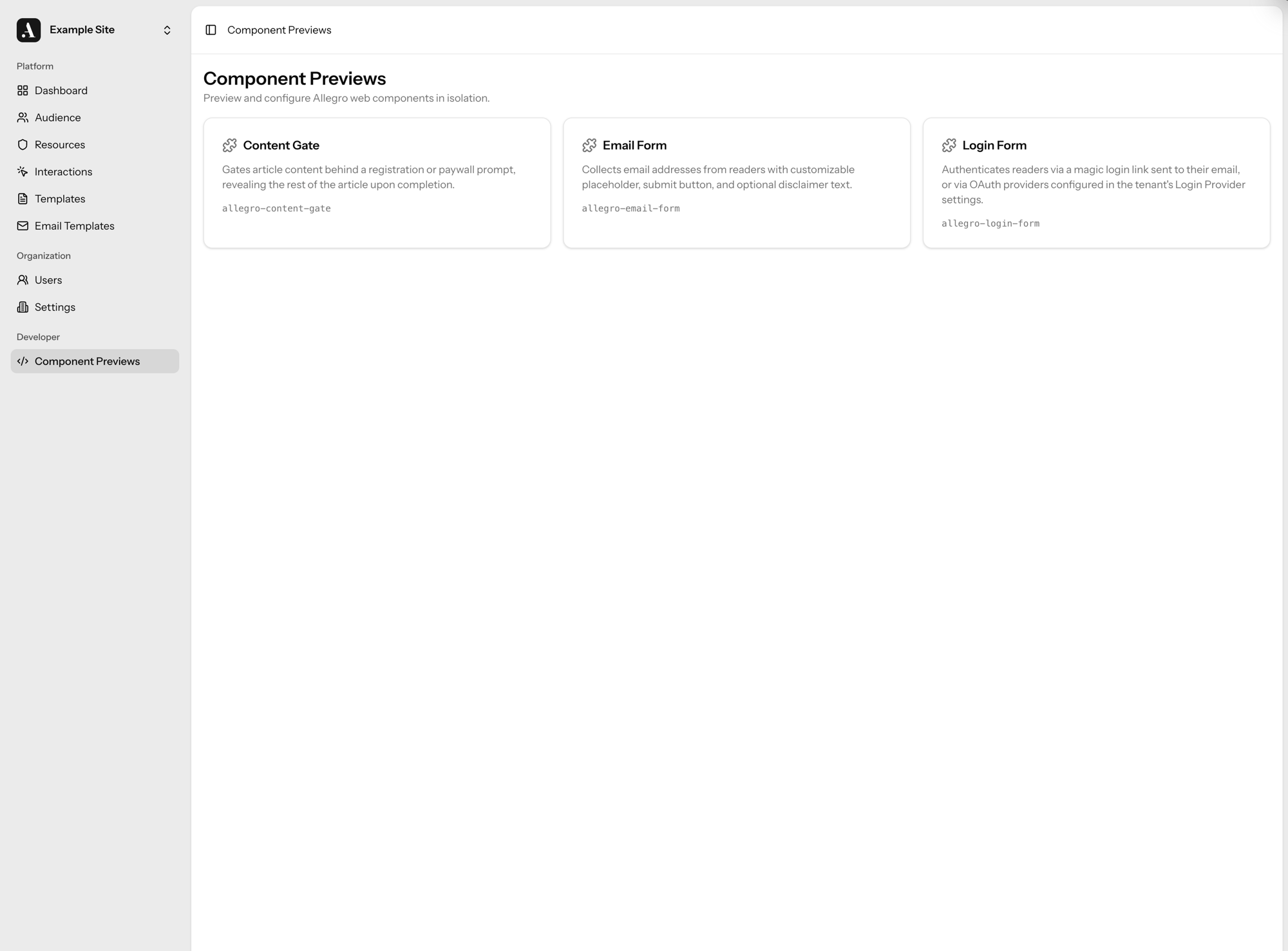
##### Previewing as a signed-in member[](#previewing-as-a-signed-in-member "Direct link to Previewing as a signed-in member")
Some components behave differently for an authenticated reader — the [Form](/developer/components/form.md) component, for example, renders the current member's saved values. The preview sandbox includes a **Preview as** selector so you can render a component as if a specific audience member were signed in, without leaving the admin or touching your live site.
Pick a member from the selector (search by email or display name) to render the component inside an authenticated session for that member. Choose **Logged out** to return to the anonymous view.
Previews use the member's real record
A component previewed as a member acts on that member's real data. If you submit the Form component while previewing as someone, their stored attribute values are updated for real.
The selector only appears for roles that can edit audience members, and outside a production environment it is limited to super admins.
##### Attribute suggestions[](#attribute-suggestions "Direct link to Attribute suggestions")
Text attributes that map to existing data offer autocomplete suggestions as you fill them in. The Form component's `slug` attribute, for instance, suggests the slugs of forms already defined in your organization, so you can preview a real form without copying its slug by hand.
---
### BottomDrawer
`` is a panel that rises from the bottom of the screen and sits over the page without blocking it, such as a donation or newsletter prompt. The reader can keep reading and scrolling, collapse the panel to a short bar, or close it.
The Bottom Drawer opens as soon as it renders. It has no delay, trigger or frequency options: the [interaction](/developer/guides/interactions.md) that places it decides whether and when it shows. Once the reader dismisses it, it stays closed for the rest of the visit, and it reopens collapsed or expanded as the reader left it (see [Remembering state for the visit](#remembering-state-for-the-visit)). It never takes focus when it opens, never traps focus and never locks page scroll.
#### Usage[](#usage "Direct link to Usage")
```html
Support Acme News
Your gift keeps local reporting free for everyone.
Donate
```
A Bottom Drawer that can collapse to a one-line bar, and starts collapsed:
```html
Support Acme News
Your gift keeps local reporting free for everyone.
```
The panel always spans the width of the screen, up to a maximum width set in Branding. Its height follows the content up to `--bottomDrawer--max-height`, and taller content scrolls inside the panel. The component does not lay out its content. Style the slotted markup in the template's CSS field.
##### Accessibility[](#accessibility "Direct link to Accessibility")
The Bottom Drawer is a labelled region, so screen reader users can reach it from the landmarks list. It names itself from the first of these that exists:
1. The `label` attribute.
2. An element in its content marked `data-allegro-title`.
3. The first `h1`–`h6` in its content.
When it opens, it announces itself once, politely, as "{name}, panel opened at the bottom of the page", where {name} is its accessible name. It does not announce collapse or expand: the toggle's `aria-expanded` covers that. The toggle is named "Collapse" or "Expand", and the close button, when there is one, "Close".
While it is on the page, the Bottom Drawer sets `scroll-padding-bottom` on the page to its own height, so an element the reader tabs to is not hidden under the panel. It restores the page's previous value when it closes.
When the Bottom Drawer closes with focus inside it, focus returns to the element on the page the reader came from, so keyboard users don't land at the top of the page.
When a collapse or expand hides the element that has focus, such as a `data-allegro-expand` button in the collapsed bar, focus moves to the toggle.
##### Closing[](#closing "Direct link to Closing")
Every close records a `method`, which says how the Bottom Drawer was closed. It is sent with the `dismiss_bottom_drawer` event and the `allegro:bottom-drawer:closed` event.
| Method | Cause |
| -------------- | --------------------------------------------------------------------------------------------- |
| `escape` | The reader presses Escape while focus is inside the Bottom Drawer. |
| `close-button` | The reader clicks the built-in close button. |
| `action` | A click on or inside a `data-allegro-close` element, or a slotted form's **Continue** button. |
| `api` | `close()` or the `allegro:bottom-drawer:close` event. |
The Bottom Drawer does not close when the reader logs in.
```js
const bottomDrawer = document.querySelector('allegro-bottom-drawer');
bottomDrawer.collapse();
bottomDrawer.expand();
bottomDrawer.close();
```
With `dismissible="false"`, the Bottom Drawer has no close button and ignores Escape, so only `action` and `api` closes happen. Give it a `data-allegro-close` button or a form so the reader can still close it.
```html
Support Acme News
Your gift keeps local reporting free for everyone.
Donate
```
##### Remembering state for the visit[](#remembering-state-for-the-visit "Direct link to Remembering state for the visit")
When an interaction places the Bottom Drawer, it remembers what the reader did until the browser closes:
| Reader action | On later pages in the same visit |
| ------------------ | ----------------------------------------------------------------------------- |
| Closes it | It doesn't open, so it doesn't announce itself or track `view_bottom_drawer`. |
| Collapses it | It opens collapsed, even without the `collapsed` attribute. |
| Expands it | It opens expanded, even with the `collapsed` attribute. |
| Nothing remembered | It opens collapsed or expanded as the `collapsed` attribute says. |
Every close method counts, and so do `collapse()` and `expand()` calls from site code.
* Each interaction is remembered separately, by its slug. Closing one interaction's Bottom Drawer does not hide another's.
* The state is kept in a session cookie named `allegro_bottom-drawer_{slug}`, shared across tabs and set on your organization's cookie domain when it has one.
* A Bottom Drawer that your site's code or theme renders directly, rather than through an interaction, has no slug and remembers nothing.
To see a closed Bottom Drawer again while testing, close the browser or delete its cookie.
note
The interaction still runs on later pages, so its frequency caps still count those deliveries even though the Bottom Drawer does not show.
#### Attributes[](#attributes "Direct link to Attributes")
Components read their attributes once, when they connect. Changing `collapsed` after the Bottom Drawer opens has no effect: use `expand()` and `collapse()`.
| Attribute | Type | Default | Description |
| --------------- | --------- | --------- | ------------------------------------------------------------------------------------------------------------------------------------------------------------------------------------------------------------- |
| `collapsed` | `boolean` | `false` | Start collapsed. Ignored when there is no `collapsed` slot, and when the reader already collapsed or expanded it earlier in the visit. The component then keeps the attribute in step with the current state. |
| `dismissible` | `boolean` | `true` | Show the close button and close on Escape. Turn off to keep the Bottom Drawer open until a `data-allegro-close` element, a slotted form's **Continue** button or site code closes it. |
| `label` | `text` | *(empty)* | Accessible name. Overrides the title element and the first heading. |
| `tracking-data` | `text` | *(empty)* | JSON object of custom data merged into every tracked event, e.g. `"{'campaign': 'donate'}"`. |
#### States[](#states "Direct link to States")
| State | Trigger | Description |
| --------- | ------------------------------------------------------------------------------------------------------------------------------- | ------------------------------------------ |
| Expanded | Opening without `collapsed` or after the reader expanded it earlier in the visit, the toggle, `data-allegro-expand`, `expand()` | Shows the default slot. |
| Collapsed | Opening with `collapsed` or after the reader collapsed it earlier in the visit, the toggle, `collapse()` | Shows the `collapsed` slot as a short bar. |
Only the toggle button collapses or expands the panel. Clicks elsewhere in the panel do not.
#### Slots[](#slots "Direct link to Slots")
| Slot | Appears in | Description |
| ----------- | ---------- | ---------------------------------------------------------------------------------------------------------------------------------------- |
| *(default)* | Expanded | The expanded content. |
| `collapsed` | Collapsed | The short bar. Without it, the Bottom Drawer cannot collapse and shows only the close button, or no controls with `dismissible="false"`. |
```html
Support Acme News
```
#### Events[](#events "Direct link to Events")
##### Dispatched[](#dispatched "Direct link to Dispatched")
| Event | Bubbles | Detail | Description |
| ------------------------------ | ------- | ------------------------ | ---------------------------------------------------------- |
| `allegro:bottom-drawer:open` | yes | *(none)* | Fired on the element once the Bottom Drawer opens. |
| `allegro:bottom-drawer:toggle` | yes | `{ collapsed: boolean }` | Fired on the element after each collapse or expand. |
| `allegro:bottom-drawer:closed` | no | `{ method: string }` | Fired on `window` once the Bottom Drawer has been removed. |
##### Listened to[](#listened-to "Direct link to Listened to")
| Event | Detail | Description |
| ----------------------------- | -------- | -------------------------------------------------------------------- |
| `allegro:bottom-drawer:close` | *(none)* | Dispatch on the element, or from inside it, to close it. |
| `allegro:content-gate:close` | *(none)* | A slotted Email Form's **Continue** button closes the Bottom Drawer. |
| `allegro:login-form:continue` | *(none)* | A slotted Login Form's **Continue** button closes the Bottom Drawer. |
```js
document
.querySelector('allegro-bottom-drawer')
.dispatchEvent(new CustomEvent('allegro:bottom-drawer:close'));
```
#### Tracked Events[](#tracked-events "Direct link to Tracked Events")
The component records the following events via the Allegro SDK.
| Event | When | Data |
| ------------------------ | ------------------------------------------------------------------------------------ | ---------------------------------------- |
| `view_bottom_drawer` | Fired when it opens. | `{ collapsed: boolean }` |
| `dismiss_bottom_drawer` | Fired when it closes. | `{ collapsed: boolean, method: string }` |
| `collapse_bottom_drawer` | Fired when the reader collapses it with the toggle. | *(none)* |
| `expand_bottom_drawer` | Fired when the reader expands it with the toggle or a `data-allegro-expand` element. | *(none)* |
`expand()` and `collapse()` dispatch `allegro:bottom-drawer:toggle` but are not tracked, so changes made from site code don't count as reader actions.
#### CSS Variables[](#css-variables "Direct link to CSS Variables")
Set the variables in the template's CSS field. All of them can also be set for your whole organization in [Branding](/product/administration/branding.md).
```css
allegro-bottom-drawer {
--bottomDrawer--background: #fffaf0;
--bottomDrawer--max-width: 48rem;
}
```
Don't set them with a `style` attribute on the element. Components accept only their own attributes and log an error for `style`, `class` and `id`.
Defaults written below as `u(n)` mean `n` times `--bottomDrawer--base-font-size`, the component's sizing unit: `u(0.5)` is half that unit, `u(1.5)` is one and a half. The unit defaults to `--allegro--font-size`, then the page's `rem`. If the host page sets a root `font-size` other than the usual 16px, pin it so the Bottom Drawer sizes the same either way:
```css
allegro-bottom-drawer {
--bottomDrawer--base-font-size: 16px;
}
```
##### Panel[](#panel "Direct link to Panel")
| Variable | Default | Description |
| ------------------------------------- | --------------------------------- | -------------------------------------------------------------------------- |
| `--bottomDrawer--base-font-size` | `var(--allegro--font-size, 1rem)` | Base sizing unit for the component. |
| `--bottomDrawer--background` | `#fff` | Panel background. Falls back to `--allegro--color-background`. |
| `--bottomDrawer--color` | `#000` | Panel text color. Falls back to `--allegro--color-text`. |
| `--bottomDrawer--font-family` | *(none)* | Panel font family. Falls back to `--allegro--font-family`. |
| `--bottomDrawer--padding` | `u(1.5)` | Padding around the content. |
| `--bottomDrawer--border-radius` | `u(0.375)` | Radius of the top corners. Falls back to `--allegro--radius`. |
| `--bottomDrawer--max-width` | `u(64)` | Maximum panel width. Use `none` with a `0` gutter for an edge-to-edge bar. |
| `--bottomDrawer--max-height` | `calc(100dvh - u(3))` | Maximum panel height. Leaves a strip of page visible above it. |
| `--bottomDrawer--gutter` | `u(1)` | Space between the panel and the sides of the screen. |
| `--bottomDrawer--z-index` | `9997` | Stacking order. |
| `--bottomDrawer--transition-duration` | `0.35s` | Length of the slide animation. Capped at `0.15s` under reduced motion. |
##### Close button[](#close-button "Direct link to Close button")
These also size and color the collapse and expand toggle.
| Variable | Default | Description |
| ------------------------------ | -------------- | ----------------- |
| `--bottomDrawer--close--size` | `u(2.5)` | Width and height. |
| `--bottomDrawer--close--color` | `currentColor` | Icon color. |
##### Buttons in your content[](#buttons-in-your-content "Direct link to Buttons in your content")
The Bottom Drawer does not style your buttons. It resolves a button color for you to use in the template's CSS, from `--bottomDrawer--button--background` and `--bottomDrawer--button--color`, then the global button tokens.
| Variable | Default | Description |
| ------------------------------------ | ------- | ------------------------------------------------------------------------------------- |
| `--bottomDrawer--button--background` | `#000` | Set in Branding. Read it as `var(--bottom-drawer-button-background)` in template CSS. |
| `--bottomDrawer--button--color` | `#fff` | Set in Branding. Read it as `var(--bottom-drawer-button-color)` in template CSS. |
##### Parts[](#parts "Direct link to Parts")
Style the component's own elements with `::part()`.
| Part | Element |
| ----------- | ---------------------------------------------------------- |
| `panel` | The panel. |
| `body` | The area around the expanded content. |
| `collapsed` | The area around the collapsed bar. |
| `controls` | The group of buttons in the top corner. |
| `toggle` | The collapse and expand button. |
| `close` | The close button. Not rendered with `dismissible="false"`. |
##### Motion[](#motion "Direct link to Motion")
The panel slides up from below the screen and slides back down on close. When the reader has asked for reduced motion, it only fades. Browsers without `@starting-style` show it without animation.
#### Example: Edge-to-edge bar[](#example-edge-to-edge-bar "Direct link to Example: Edge-to-edge bar")
```css
allegro-bottom-drawer {
--bottomDrawer--gutter: 0;
--bottomDrawer--max-width: none;
--bottomDrawer--border-radius: 0;
--bottomDrawer--background: #1f2937;
--bottomDrawer--color: #f9fafb;
}
```
---
### ContentGate
`` is a full-page dialog that renders immediately and blocks interaction with the page beneath it. Slotted children are displayed inside the dialog. Use it to build registration walls, subscription prompts, or any other gated experience.
#### Usage[](#usage "Direct link to Usage")
```html
Subscribe to continue reading
```
With a dismiss button and centered position:
```html
Sign in to access premium content.
```
The dialog is modal: focus stays inside it and the page beneath is inert. Give it a name with `label`, or start the slotted content with a heading. When the dialog closes, focus returns to whatever had it before the dialog opened. A non-dismissible dialog (a roadblock) ignores Escape.
#### Revealing gated content after login[](#revealing-gated-content-after-login "Direct link to Revealing gated content after login")
When a content gate sits inside an [interaction](/developer/guides/interactions.md) that also blurred or truncated the article behind it, closing the gate after a successful login reveals that content instead of leaving it hidden. The gate finds its host interaction, removes the blur or truncation, and the full article is shown in place. To react to this yourself, listen for [`allegro:interaction:ungated`](/developer/guides/javascript-events.md) on `window`.
#### Attributes[](#attributes "Direct link to Attributes")
| Attribute | Type | Default | Description |
| --------------- | --------- | --------- | -------------------------------------------------------------------------------------------------------------- |
| `allow-scroll` | `boolean` | `false` | Leave the page scrollable while the dialog is open. By default the page scroll is locked. |
| `dismissible` | `boolean` | `false` | Show a close button allowing the user to dismiss the dialog. Escape also dismisses it. |
| `label` | `text` | *(empty)* | Name screen readers announce for the dialog. Defaults to the first slotted heading, then "Continue reading". |
| `position` | `text` | `bottom` | Dialog position on screen. `bottom` anchors to the bottom edge; `center` floats in the middle of the viewport. |
| `tracking-data` | `text` | *(empty)* | JSON object of custom data merged into every tracked event, e.g. `"{'placement': 'article'}"`. |
#### Events[](#events "Direct link to Events")
##### Dispatched[](#dispatched "Direct link to Dispatched")
| Event | Bubbles | Detail | Description |
| --------------------------- | ------- | -------- | --------------------------------------------------------------- |
| `allegro:content-gate:open` | yes | *(none)* | Fired immediately after the dialog renders and becomes visible. |
##### Listened to[](#listened-to "Direct link to Listened to")
| Event | Detail | Description |
| ---------------------------- | -------- | --------------------------------------------------------------- |
| `allegro:content-gate:close` | *(none)* | Dispatch on the element to programmatically dismiss the dialog. |
```js
document
.querySelector('allegro-content-gate')
.dispatchEvent(new CustomEvent('allegro:content-gate:close'));
```
#### Tracked Events[](#tracked-events "Direct link to Tracked Events")
The component records the following events via the Allegro SDK.
| Event | When | Data |
| ---------------------- | ----------------------------------------------------------------------- | --------------------------------------------------------------------- |
| `view_content_gate` | Fired when the dialog first renders. | `{ position: string, interactionType: 'dismissible' \| 'roadblock' }` |
| `dismiss_content_gate` | Fired when the user dismisses the dialog via the close button or event. | `{ position: string }` |
#### CSS Variables[](#css-variables "Direct link to CSS Variables")
All visual properties are exposed as CSS custom properties so the component can be themed from the host page without piercing the shadow DOM.
```css
allegro-content-gate {
--contentGate--background: #fff;
--contentGate--max-width: 40rem;
}
```
##### General[](#general "Direct link to General")
| Variable | Default | Description |
| ----------------------------- | -------- | ------------------------------------------------------------------ |
| `--contentGate--background` | `#fff` | Dialog background color. |
| `--contentGate--color` | `#000` | Dialog text color. Also used as the close button icon color. |
| `--contentGate--font-family` | *(none)* | Dialog font family. Falls back to `--allegro--font-family` if set. |
| `--contentGate--margin` | `0` | Dialog margin. |
| `--contentGate--max-width` | `100%` | Max width of the dialog content wrapper. |
| `--contentGate--padding` | `0` | Dialog padding. |
| `--contentGate--children-gap` | `1rem` | Gap between slotted children inside the dialog. |
---
### ContentGateInline
`` is placed directly inside an article body to hide the content that follows it. Readers see a registration or login prompt inline; once they authenticate the hidden content is revealed and the gate removes itself from the DOM.
#### Usage[](#usage "Direct link to Usage")
Place the component at the point in the article where you want content to be gated:
```html
This paragraph is always visible.
Sign in to keep reading
This paragraph and everything below is hidden until the reader authenticates.
```
Speedbump (dismissible) mode with a specific position and container:
```html
Create a free account to continue reading.
```
#### Attributes[](#attributes "Direct link to Attributes")
| Attribute | Type | Default | Description |
| ----------------------- | --------- | --------- | ---------------------------------------------------------------------------------------------------------------------------------------------------------------------- |
| `dismissible` | `boolean` | `false` | Show a close button allowing the reader to dismiss the gate without authenticating. When `false` the gate is a roadblock; when `true` it is a speedbump. |
| `element-position` | `text` | *(empty)* | Zero-based index of the child element inside the article body after which content should be hidden. When omitted, all next siblings after the gate element are hidden. |
| `article-body-selector` | `text` | *(empty)* | CSS selector for the article body container used when `element-position` is set. When omitted, the gate's direct parent is used. |
| `tracking-data` | `text` | *(empty)* | JSON object of custom data merged into every tracked event, e.g. `"{'placement': 'article'}"`. |
#### States[](#states "Direct link to States")
| State | Trigger | Description |
| --------- | --------------------- | ----------------------------------------------------------------------------------------------- |
| Roadblock | `dismissible="false"` | Host class `gate-is-roadblock` is applied. No close button is rendered. |
| Speedbump | `dismissible="true"` | Host class `gate-is-speedbump` is applied. A close button lets the reader dismiss without auth. |
The hidden content is moved into a `
` after the gate. `inert` keeps keyboard and screen-reader users out of it until it is released, whichever way you style the overlay (hidden, faded, or blurred).
#### Slots[](#slots "Direct link to Slots")
| Slot | Appears in | Description |
| ----------- | ---------- | --------------------------------------------------------------------------------- |
| *(default)* | Always | Content rendered inside the gate — typically a heading and a login or email form. |
```html
Subscribe to keep reading
```
#### Events[](#events "Direct link to Events")
##### Dispatched[](#dispatched "Direct link to Dispatched")
| Event | Bubbles | Detail | Description |
| ---------------------------------- | ------- | -------- | ----------------------------------------------------------- |
| `allegro:content-gate-inline:open` | yes | *(none)* | Fired immediately after the gate renders and hides content. |
##### Listened to[](#listened-to "Direct link to Listened to")
| Event | Detail | Description |
| ---------------------------- | -------- | ----------------------------------------------------------------------------------------------------------------------------------------------------------------------------------- |
| `allegro:content-gate:close` | *(none)* | Dispatch on the element to programmatically release content and remove the gate. Also fired automatically by child login and email form components after successful authentication. |
```js
document
.querySelector('allegro-content-gate-inline')
.dispatchEvent(new CustomEvent('allegro:content-gate:close'));
```
#### Tracked Events[](#tracked-events "Direct link to Tracked Events")
The component records the following events via the Allegro SDK.
| Event | When | Data |
| ----------------------------- | ----------------------------------- | --------------------------------------------------- |
| `view_content_gate_inline` | Fired when the gate renders. | `{ interactionType: 'dismissible' \| 'roadblock' }` |
| `dismiss_content_gate_inline` | Fired when the reader clicks Close. | `{ interactionType: 'dismissible' }` |
#### CSS Variables[](#css-variables "Direct link to CSS Variables")
All visual properties are exposed as CSS custom properties so the component can be themed from the host page without piercing the shadow DOM.
```css
allegro-content-gate-inline {
--contentGateInline--background: #fff;
--contentGateInline--max-width: 40rem;
}
```
##### General[](#general "Direct link to General")
| Variable | Default | Description |
| ----------------------------------- | -------- | ---------------------------------------------------------------- |
| `--contentGateInline--background` | `#fff` | Gate background color. |
| `--contentGateInline--color` | `#000` | Gate text color. |
| `--contentGateInline--font-family` | *(none)* | Gate font family. Falls back to `--allegro--font-family` if set. |
| `--contentGateInline--margin` | `0` | Gate margin. |
| `--contentGateInline--max-width` | *(none)* | Max width of the gate content wrapper. |
| `--contentGateInline--padding` | `0` | Gate padding. |
| `--contentGateInline--children-gap` | `1rem` | Gap between slotted children inside the gate. |
#### Example: Dark Background[](#example-dark-background "Direct link to Example: Dark Background")
```css
allegro-content-gate-inline {
--contentGateInline--background: #111;
--contentGateInline--color: #f5f5f5;
}
```
---
### EmailForm
`` is a web component that renders an email subscription form. On success it transitions to a confirmation state. Both states are fully customizable via attributes, slots, CSS variables, and shadow parts.
#### Usage[](#usage "Direct link to Usage")
```html
```
With custom attributes:
```html
```
#### Attributes[](#attributes "Direct link to Attributes")
| Attribute | Type | Default | Description |
| ---------------------- | --------- | ---------------------------------- | ----------------------------------------------------------------------------------------------------------------------------------------------------------------------------------------------------------------------------------------- |
| `show-form-label` | `boolean` | `true` | Whether to show the email field's label. When `false`, the label is still rendered for screen readers but visually hidden. If `placeholder-text` is empty, the label text is used as the placeholder so the field still has visible text. |
| `form-label-text` | `text` | `Email Address` | Label text for the email input field. |
| `placeholder-text` | `text` | `Enter your email` | Placeholder text for the email input field. |
| `submit-text` | `text` | `Submit` | Label for the submit button. |
| `show-disclaimer` | `boolean` | `false` | Whether to show the disclaimer paragraph below the form. |
| `disclaimer-text` | `text` | *(empty)* | HTML for the disclaimer paragraph. Links and inline formatting are kept; other markup is stripped. |
| `confirmation-heading` | `text` | `Thank you!` | Heading shown in the confirmation state. |
| `confirmation-text` | `text` | `Thanks for providing your email.` | Body text shown in the confirmation state. |
| `continue-text` | `text` | `Continue` | Label for the continue button in the confirmation state. |
| `user-attributes` | `text` | *(empty)* | JSON object of user attribute values stored against the reader on submit, e.g. `"{'wants-newsletter': true}"`. |
| `tracking-data` | `text` | *(empty)* | JSON object of custom data merged into every tracked event, e.g. `"{'campaign': 'footer'}"`. |
##### Storing user attributes[](#storing-user-attributes "Direct link to Storing user attributes")
`user-attributes` sets user attribute values on the reader when they submit their email, keyed by attribute slug. A value is only stored when the reader doesn't already have one for that attribute, so existing values are never overwritten. Every slug must be an attribute readers can edit; if one isn't, or a value fails the attribute's rules, the form shows the error and nothing is saved.
```html
```
#### States[](#states "Direct link to States")
| State | Trigger | Description |
| -------------- | -------------------------- | ------------------------------------------------ |
| `email` | Initial render | The default state showing the email input form. |
| `confirmation` | Successful form submission | Shown after the email is successfully submitted. |
#### Slots[](#slots "Direct link to Slots")
| Slot | Appears in | Description |
| -------------- | -------------- | --------------------------------------------------------------------------------------------------------------------------- |
| `header` | `email` | Rendered above the email input. Use for a title or description. Hidden once the form transitions to the confirmation state. |
| `after-form` | `email` | Rendered below the email input and above the disclaimer. Use for supplementary inputs such as newsletter opt-in checkboxes. |
| `footer` | `email` | Rendered below the disclaimer. Use for supplementary links. Hidden once the form transitions to the confirmation state. |
| `success` | `confirmation` | Replaces the default confirmation state UI. When present, the default content is not rendered. |
| `confirmation` | `confirmation` | Same as `success`, kept for existing pages. If both are present, `success` is used. |
```html