Interactions
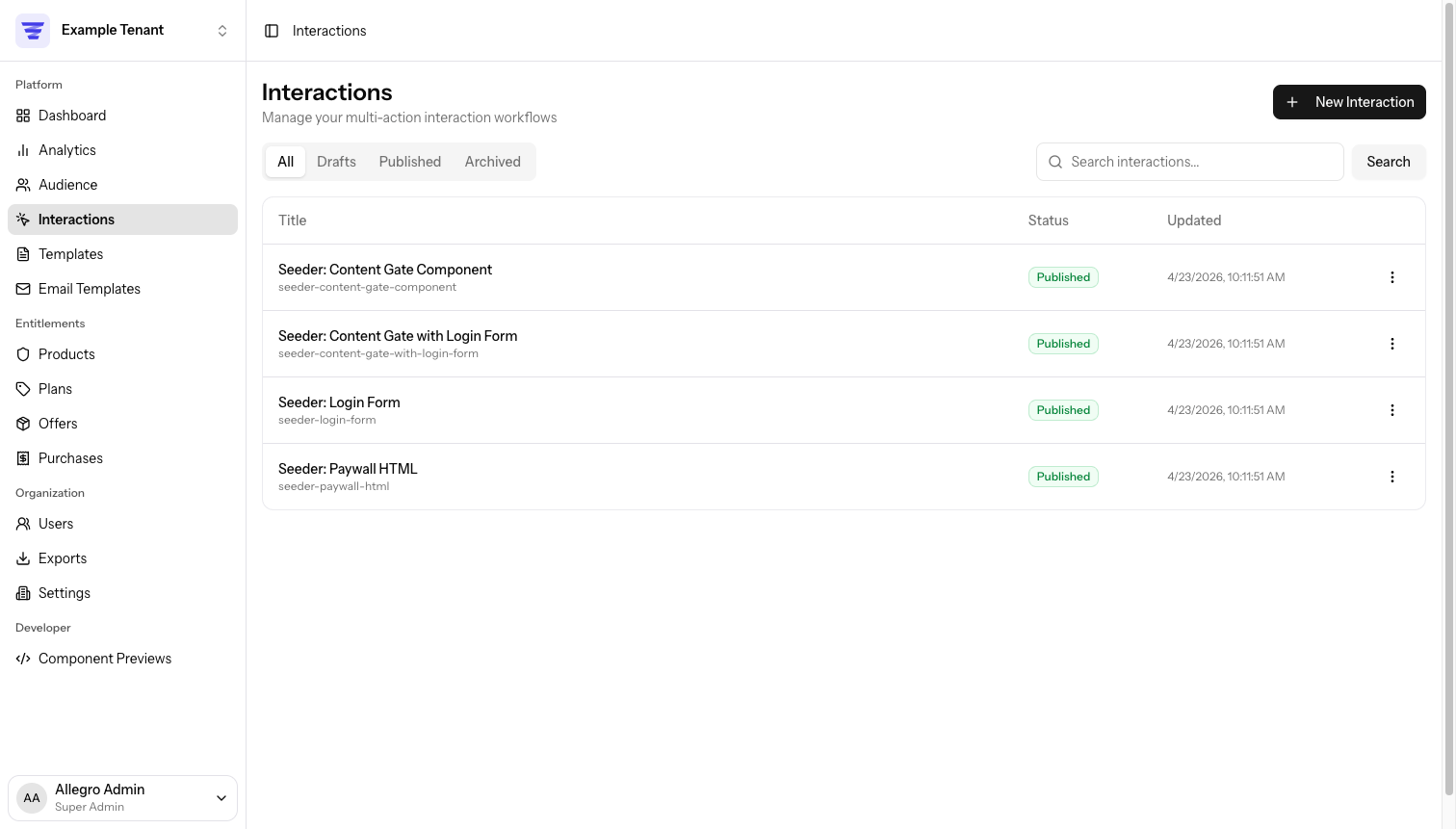
Interactions are how you deploy experiences to your site. Each Interaction bundles one or more actions — template injections, JavaScript, cookies, and CSS — and decides when they run on a visitor's page.
An Interaction runs in one of two modes:
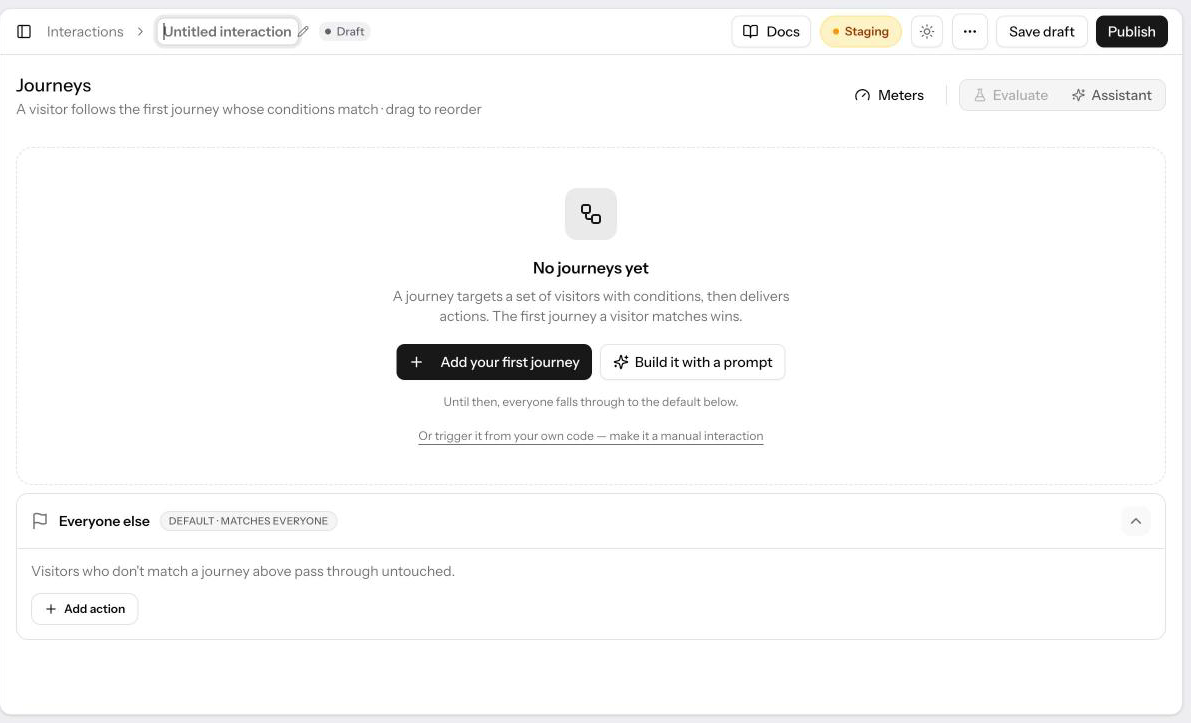
- Automatic targeting — Allegro evaluates the Interaction on every page view and runs the actions of the first journey the visitor matches. No code changes on your site are needed.
- Manual embed — your site triggers the Interaction by its slug from your own code, and every action runs in the order you defined.
How Interactions Relate to Templates
Templates are reusable content blocks. An Interaction uses a Template by referencing it in a Template action and filling in its field values. The same Template can appear in many Interactions, each with different field values and placement settings.
Template  ──used by──►  Action  ──belongs to──►  Journey  ──belongs to──►  Interaction
(content block)          (what & where)           (who sees it)             (the deployable unit)
You must publish a Template before you can select it in an action.
Trigger Modes
| Mode | How the Interaction fires | What the editor shows |
|---|---|---|
| Automatic targeting | Allegro evaluates every published automatic Interaction on each page view. The visitor follows the first journey whose conditions match, or Everyone else. | The Journeys builder, with the Meters, Evaluate, Assistant, and Potential reach tools |
| Manual embed | Your site calls allegro.interaction.trigger('slug'). All actions run in order. | A single action list and the slug field, with Show snippet in the ⋯ menu once the Interaction is published |
New Interactions start in Automatic targeting. To switch to Manual embed, click Or trigger it from your own code — make it a manual interaction in the empty builder; the option is offered only while the Interaction has no journeys. A Manual embed Interaction has a Use automatic targeting button above its action list to switch back. Switching keeps the journeys: they stop being used in Manual embed mode and come back when you switch back. In Manual embed mode, journey errors are not shown inline; a banner asks you to switch to Automatic targeting to fix them.
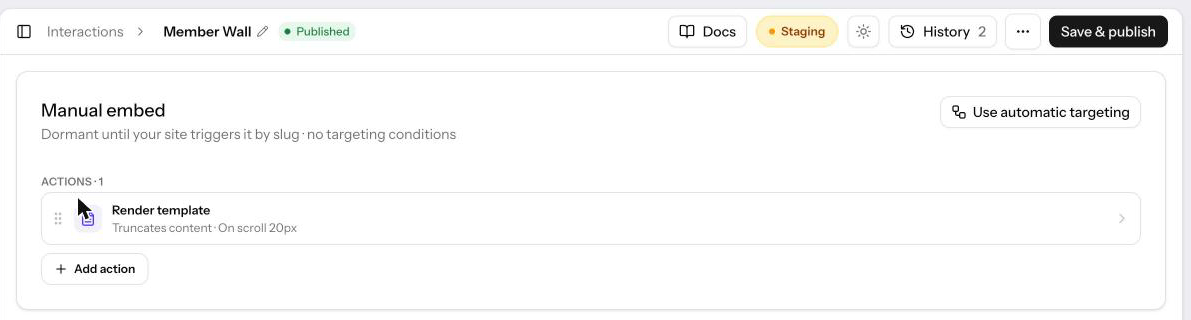
In Automatic targeting mode the slug is generated for you and hidden, in the editor and in the Interactions list. In Manual embed mode you can edit the slug while the Interaction is still a draft.
The Interactions list has a trigger filter beside the search box. Choose All triggers, Manual, or Automatic to narrow the list by mode.
Lifecycle
| Status | Meaning |
|---|---|
| Draft | Work in progress. A draft never fires on your site, in either mode. |
| Published | Live. An automatic Interaction is evaluated on every page view; a manual one runs when your site triggers it. |
| Archived | Soft-deleted. Removed from normal listings, can be restored or permanently deleted. |
New Interactions start as Draft. Publish when you are ready to go live. You can unpublish a live Interaction at any time to return it to Draft.
Archiving an Interaction does not affect the Templates it references. Those Templates remain intact.
Creating an Interaction
- Go to Interactions → New Interaction. The Interaction opens as an Untitled interaction in Draft, in Automatic targeting mode.
- Click the title in the header, or choose Rename from the ⋯ menu, to name the Interaction.
- Click Add your first journey to build your first journey, or Build it with a prompt to let the Assistant draft one. Add actions to the Everyone else card for visitors who match no journey.
- For Manual embed instead, click make it a manual interaction in the empty builder, then click Add action and configure each action.
- Click Save draft to save without publishing, or Publish to go live.
Editing Safely
Several safeguards protect an Interaction while you work on it.
Edit lock. Opening an Interaction that someone else is editing shows a banner. Click Start editing to claim it, or Take over editing if the other editor has gone idle. While you hold the lock, other editors see the Interaction read-only.
Undo and redo. Every change in the editor can be undone with Cmd/Ctrl+Z and redone with Cmd/Ctrl+Shift+Z (or Ctrl+Y). Undo and redo buttons appear in the header once there is something to undo. Inside a text field the shortcut edits the text as usual, and while a dialog is open the shortcuts are paused.
Reset. When the header shows Unsaved changes, click Reset beside it to return to the last saved version. Reset is itself undoable.
Revision notes. When you save a published Interaction, the Update Interaction dialog asks for an optional revision note before the save completes. Click Write a note with AI (the sparkle button in the note field) to have the assistant draft a one-line summary of what changed, which you can edit or replace before saving.
Publishing and Unpublishing
To publish a draft Interaction, click Publish on the edit page. Once it is published, the button reads Save & publish and saves your changes straight to the live version.
To unpublish a live Interaction, choose Unpublish from the ⋯ menu on the edit page or from its actions menu in the Interactions list. Unpublishing returns the Interaction to Draft status — it stops firing on your site.
Only published Interactions in Automatic targeting mode are evaluated on your site. Publishing an automatic Interaction is all it takes to go live; there is no snippet to install.
Activation Code (Manual Embed)
For an Interaction in Manual embed mode, choose Show snippet from the ⋯ menu in the header after publishing to see the JavaScript that triggers it on your site. Copy it and place it wherever you want the Interaction to fire — for example, inside a post template or a tag manager rule.
window.allegro = window.allegro || [];
window.allegro.push(function () {
    window.allegro.interaction.trigger('your-interaction-slug');
});
Replace your-interaction-slug with the slug shown in the dialog. Automatic
Interactions have no snippet and do not need one.
Measuring Performance
Once a published Automatic targeting Interaction has been running, choose View report from the ⋯ menu to see how often it ran, broken down by journey and by day, with CSV and PDF downloads. Each journey header in the builder also shows an activity pill that links to the same report. See Report.
Previewing a Draft on Your Site
A draft Interaction in Manual embed mode can be previewed on any live page that has the Allegro SDK loaded, without publishing it.
- Open the draft Interaction and click the Preview icon in the header.
- In the Preview on site dialog, enter the URL of a page on your site.
- Click Generate preview link.
- Open the link in your browser. A floating Draft preview badge appears on the page, and the draft Interaction fires when triggered as normal.
The preview link expires after 30 minutes. The badge can be dismissed, which ends the preview session.
The preview URL must begin with https://. The draft content is served only to
the browser that holds the preview token — regular visitors see the published
version (or nothing, if the Interaction is not yet published).
To check an automatic Interaction on your site, use Debug on site instead.
Duplicating
Choose Duplicate from an Interaction's actions menu in the list to create a draft copy. The copy keeps the trigger mode, every journey, and every action.
Archiving and Deletion
To archive an Interaction, open its actions menu in the Interactions list and choose Archive.
Archived Interactions:
- Do not appear in the default list view
- Can be restored to Draft status
- Can be permanently deleted by Admins only
To view archived Interactions, switch to the Archived tab on the Interactions list. To restore one, open its actions menu and choose Restore.
Permanently deleting an Interaction removes it and all its revision history. This cannot be undone.
Revision History
Every save that changes an Interaction records a revision. Click History in the header (beside it, the number of revisions) to open the panel. Each revision is listed with who saved it, when, and a short summary such as "Everyone else" actions changed. Each revision has a Changes tab that summarizes what changed — including the trigger mode, journeys, conditions, and actions — and a Configuration tab that shows the full state at that point.
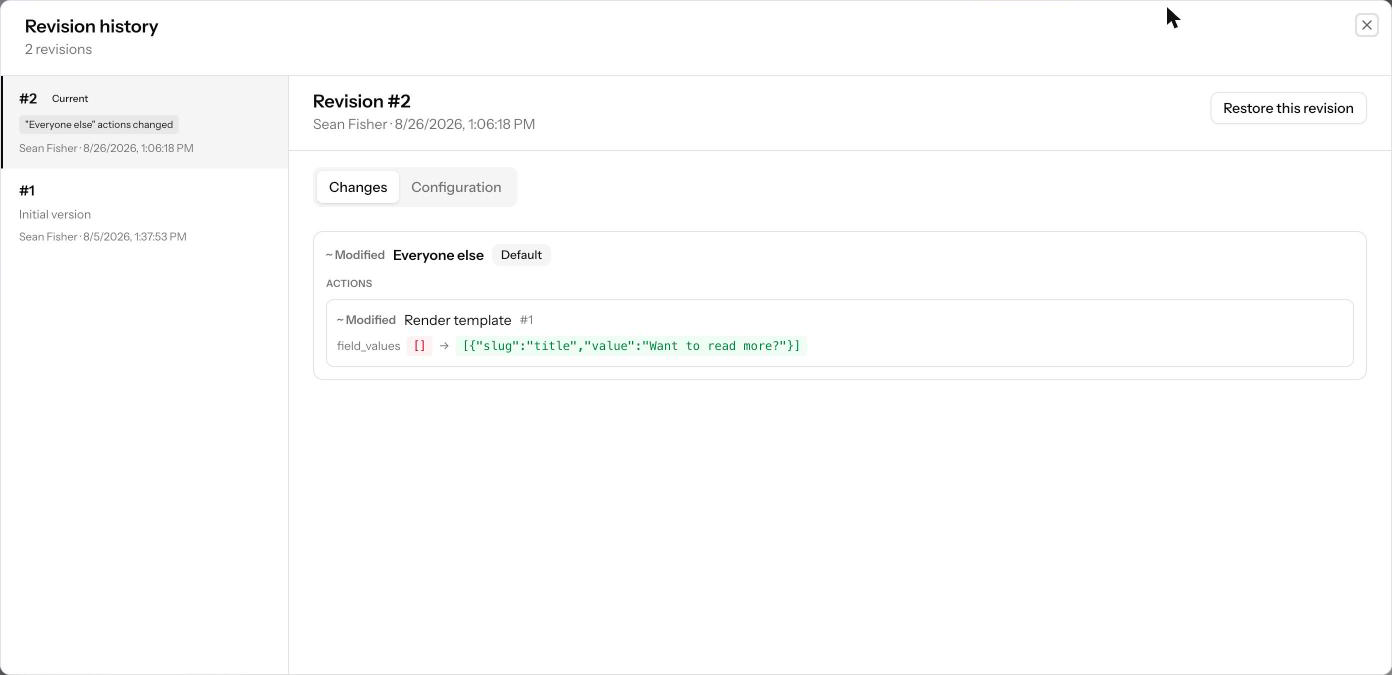
Restoring a revision that predates automatic targeting returns the Interaction to Manual embed mode with no journeys, so an old snapshot never leaves an Interaction silently running its current journeys.
See Revisions for how revisions and rollback work.
Authorization
For details on who can manage interactions, see Permissions.
Related
- Actions — What an Interaction does, where, and when
- Journeys — Who sees which actions in Automatic targeting
- Cohorts — Reusable condition sets, under Interactions → Cohorts in the sidebar
- A/B Tests — Split visitors into variants, under Interactions → A/B tests in the sidebar
- Testing Journeys — Simulate visitors and debug on your site
- Report — How an automatic Interaction actually performed
- Templates — Reusable content blocks consumed by Template actions
- Revisions — Full version history and rollback