A/B Tests
An A/B test splits an audience into named variants by weight. The variant is only a label: it decides nothing on its own. Journeys read it through the A/B test variant condition, so the same test can drive several interactions, and each interaction decides what a variant sees.
Creating a Test
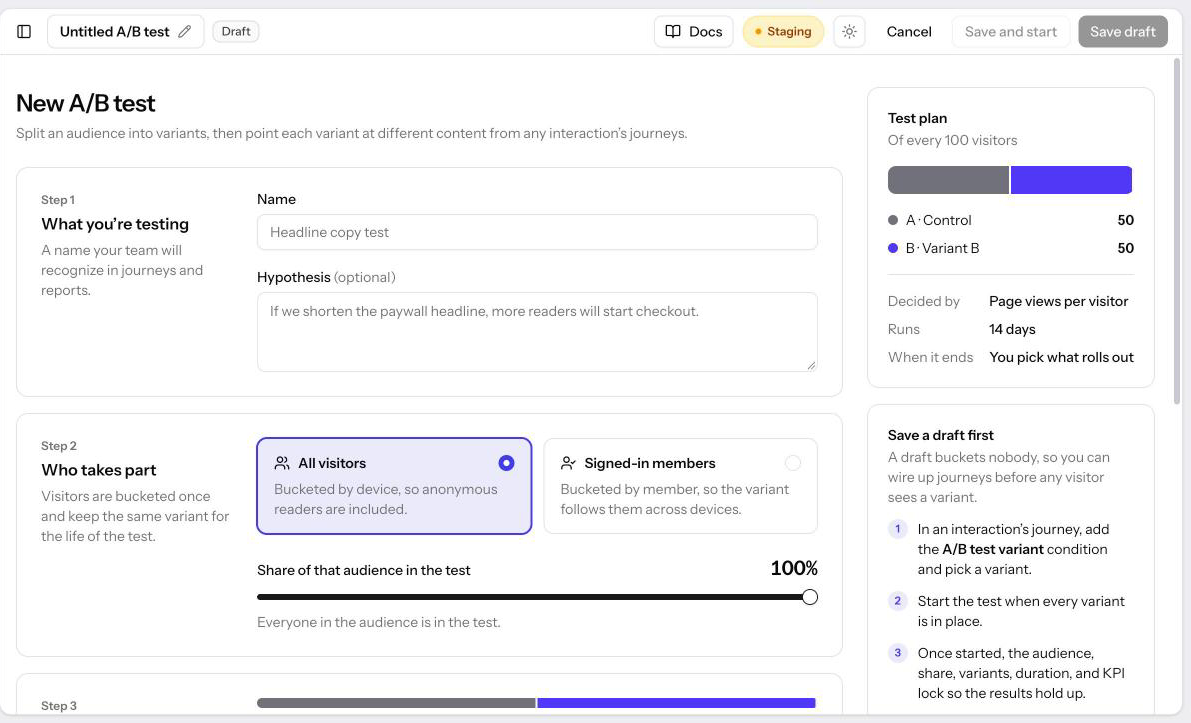
Open Interactions → A/B tests in the sidebar, then click New A/B test. The list has All, Drafts, Running, and Concluded tabs. The form walks through four steps, with a Test plan summary beside it:
- What you're testing. A name your team will recognize in journeys and reports, and an optional hypothesis.
- Who takes part. All visitors buckets everyone by their device, so anonymous readers take part and a bucket survives signing in on the same device. Signed-in members buckets by member, so the variant follows them across devices and anonymous visitors are never in the test. Share of that audience in the test sets how many take part; visitors outside it are not in the test and match none of its variants.
- Variants. Two to ten named variants with whole-number percent weights of at least 1 that add up to 100. A is the control every other one is compared against. Split evenly balances the weights.
- How a winner is picked. Conversion rate, the share of visitors who complete one of the event types you choose (purchase, sign up, and so on), or Page views per visitor. Run for sets how many days the test runs once started: 7 days, 14 days, 30 days, or a number you enter. Roll out the winner automatically gives every eligible visitor the winning variant once the test ends with a clear winner.
Save draft keeps the test without bucketing anyone; Save and start starts it right away.
Assignment is deterministic: the same visitor lands in the same variant on every page view, with nothing stored on the server. Changing the audience, share, or variants of a draft re-randomizes assignments.
Targeting a Variant
In a journey, add the A/B test variant condition, choose the test, then choose the variants with is any of or is none of. A visitor who is not in the test, whether outside the traffic share, ineligible for the audience, or because the test is still a draft, matches neither operator. "Is none of Control" therefore means "in the test, in another variant", not "anyone but the control group".
A draft test can already be referenced, so you can build journeys before starting it. Journeys match no one until the test starts.
Lifecycle
- Draft. Fully editable. Nobody is bucketed.
- Running. Click Start test on the test's page. The audience, share, variants, duration, and KPI freeze so the results keep meaning something; the name, hypothesis, and Roll out the winner automatically stay editable. End now finishes early.
- Concluded. At the scheduled end, Allegro fetches results from the analytics service and records the winner. Assignments keep resolving the same way until you roll a variant out, so nothing changes under visitors by surprise.
A concluded test never restarts; create a new one instead. A test can't be archived while an interaction's journeys still reference it.
Results and the Winner
The test's page shows, per variant, how many visitors were exposed, the KPI value, lift over the control, and, for conversions, the confidence that the variant really differs from the control.
A winner is declared only when every variant has reached the minimum exposure (100 visitors by default) and, for the conversions KPI, the leader beats the control at 95% confidence. Otherwise the test completes with no clear winner and nothing rolls out automatically; you can still Roll out any variant by hand.
Every event the site tag sends carries the visitor's current assignments, so the analytics service can count page views and conversions per variant. Variant ids are opaque labels; no rule or profile data leaves the server.
Sharing a Report
Once a test is running, click View report on its page for a summary you can share with stakeholders. It shows the test's setup and dates, the headline result, total participants and conversions, and for each variant its participants, planned and actual split, conversions, conversion rate with a 95% confidence range, lift, and confidence. A page-views test shows page views and page views per participant instead of conversions and conversion rate, with no confidence range.
If participants didn't land in each variant in the proportions the test was set up with, the report warns that the split is off from plan. That usually means assignment or tracking is broken, so treat the results with caution.
- Download PDF opens your browser's print dialog. Choose Save as PDF as the destination.
- Download CSV saves one row per variant, with rates and shares as decimals for spreadsheets.
Anyone in the organization can open a report, including viewers.
Simulating and Debugging
The journey builder's Evaluate panel lets you pick a variant per test for
the simulated visitor, with Not in test as the default. The on-site debug
workbench shows the assignments the server resolved for the current visitor, and
allegro.interaction.experiments() returns them to page scripts as
{ "<test id>": "<variant id>" | null }.