Assistant
The assistant writes and rewrites journeys — their conditions and their actions — from a description in plain language, and can draft a meter to go with them. Instead of assembling condition groups by hand, describe who you want to reach and what they should see.
Nothing the assistant produces is saved until you click Save Draft or Publish. Its changes land in the editor exactly as if you had made them, so undo, revision history, and the edit lock all behave as usual.
The assistant is on by default and can be turned off for your organization. It is available only in Automatic targeting mode and on wider screens.
Opening the Assistant
- With no journeys yet, click Build it with a prompt in the empty state.
- Otherwise, click Assistant in the side panel switcher in the Journeys header.
The panel docks to the right of the editor. New conversation clears the transcript; Close the assistant or Esc closes the panel. Switching the Interaction to Manual embed closes the assistant and stops any turn in progress.
Writing a Prompt
Type into Describe the journeys you want… and click Send (or press Cmd/Ctrl+Enter). Starter prompts appear in the empty state, for example:
- "Show the newsletter signup to first-time visitors on article pages."
- "Ask readers who visit often but have not donated yet to support us."
- "Show one message to visitors arriving from a paid campaign, and something else to everyone else."
While it works, the assistant shows its reasoning and a step log with entries such as Looking up template fields, Reading recent page views, Drafting 2 journeys, Preparing template options, Drafting the template, and — when Potential Reach is enabled — Checking projected reach, which it uses to flag proposals that would match almost nobody or almost everybody. When you ask it to review an interaction, you also see Reading live activity, Checking A/B test results, and Looking at other live interactions. Click Stop to abandon a turn.
The assistant may ask a question before it proposes anything, for example for the URL of a typical article page so it can match your real content structure and find the right spot on the page. Answer in the composer and the turn continues.
Reviewing an Interaction
Besides writing journeys, the assistant can review one that is already running. Ask it something like:
- "How is this interaction doing?"
- "Review this — any gaps or suggestions?"
- "Is this too aggressive?"
It gathers evidence first — each journey's activity from the report, any A/B test results, projected reach, and other live interactions that could compete for the same visitors — then replies in prose with a one-sentence verdict and up to five findings, most important first. Each finding cites the numbers behind it and names the change it would make. A review proposes nothing on its own; it ends by offering to make the changes, so you decide.
To keep its read honest, the assistant holds back where the data is thin: it won't judge a journey with only a handful of matched pages, and it won't score an interaction that changed in the last 7 days, because the numbers still mix the old and new targeting. If you have unsaved edits, it notes that the numbers describe the last saved version.
What the Assistant Can Change
| Can change | Cannot change |
|---|---|
| Add, remove, reorder, and rename journeys | The title of an Interaction you have named, or its slug |
| Rewrite condition groups and conditions | The trigger mode or publish status |
| Add, remove, and edit actions in journeys and Everyone else | Anything outside this Interaction |
| Action names | JavaScript actions (it will not write scripts) |
| Offer template choices for an action, and draft a new template | Save a drafted template to your library without approval |
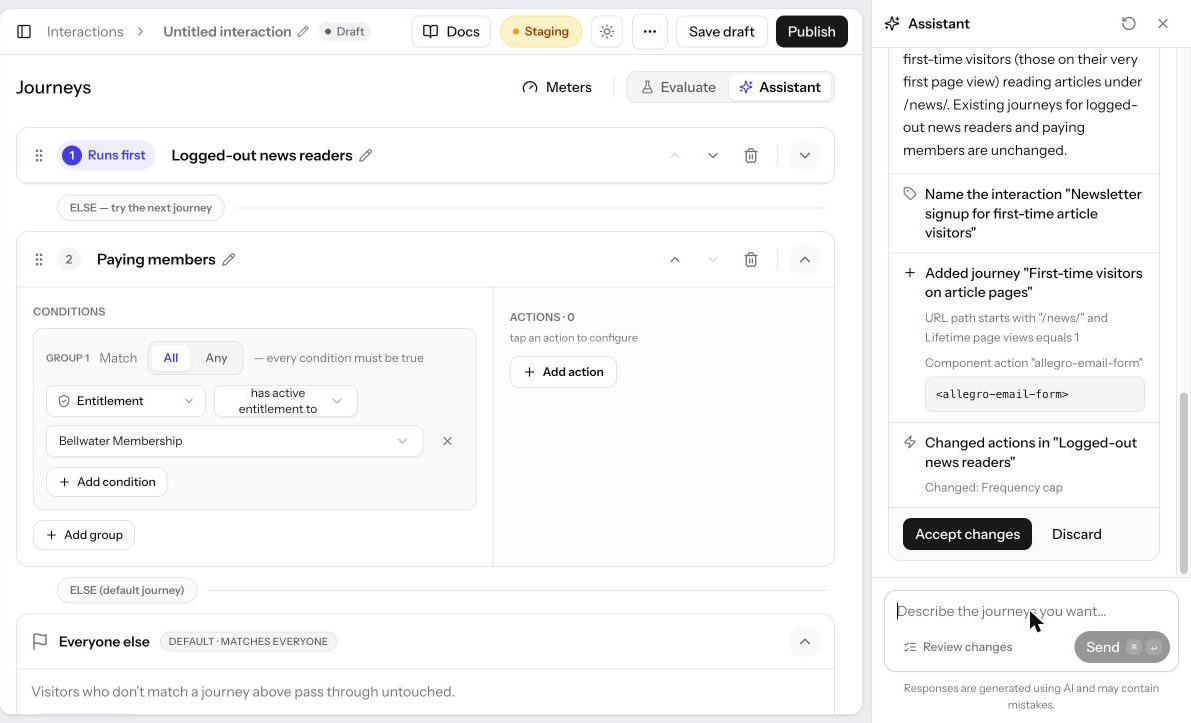
While the Interaction is still untitled, a proposal can also name it; the change shows as Name the interaction "…". A drafted meter is never saved for you: see The Proposed Changes Card.
When an action needs a template, the assistant suggests a few of your published templates as clickable pills, each with a one-line reason, rather than silently picking one. If none fits, it can also draft a new template — title, markup, styling, and fields — and show it for your approval. A drafted template is never added to your Templates library until you accept it.
Each proposal is a complete picture of the journeys, not a patch, so asking for a small change returns the whole list with that change applied.
Autopilot and Review Changes
A toggle beside Send controls how a finished turn lands:
| Mode | Behavior |
|---|---|
| Autopilot | The change applies to the editor as soon as the turn finishes. The turn shows what changed and offers Undo. |
| Review changes | The change is held in a Proposed changes card until you click Accept changes or Discard. |
The default depends on how much there is to lose:
| Situation | Default |
|---|---|
| A new or draft Interaction with no journeys | Autopilot |
| A draft Interaction that already has journeys | Review changes |
| A published Interaction | Review changes |
Your choice sticks for the rest of the session. Undo stays available on a turn until the next turn applies, and restores only the journeys and actions — a title you edited in the meantime is untouched.
The Proposed Changes Card
The card summarizes the turn in one line and lists each change: the Interaction's name, if it was untitled; journeys added, removed, reordered, or renamed; conditions changed; actions changed; Everyone else actions changed. Any CSS or code the assistant wrote is shown in full so you can read it before accepting.
A meter the assistant drafts arrives in a Proposed meter card instead, with a one-line summary of its settings. Meters belong to your organization rather than to this Interaction, so click Open in Meters and save it from the Meters drawer.
When the assistant needs a template for an action, it shows its suggestions as clickable template pills — pick one to use it, or ask it to draft a new one. A template it drafts arrives in its own card with the title, fields, and a preview; open the full-screen preview to check it at different device sizes before you accept. Accepting adds the template to your library and wires it into the action; discarding leaves your library untouched.
After you act, the card records the outcome: Applied to this interaction (with Undo), Undone — nothing was changed., or Discarded.
Read-Only Situations
When someone else holds the edit lock, the composer reads Someone else is editing this interaction and neither Accept nor Autopilot can apply changes. Claim the lock first; see Editing Safely.
Responses are generated using AI and may contain mistakes. Review conditions and actions before publishing, and use Testing Journeys to confirm the behavior you expect.
Related
- Journeys — What the assistant is building
- Cohorts — Where the assistant drafts conditions only, with no actions
- Actions — Finding a page area with Find it for me
- Potential Reach — The counts the assistant checks