Journeys
In Automatic targeting mode, an Interaction is a list of journeys. A journey pairs a set of conditions (who this is for) with a set of actions (what they get). On every page view, Allegro checks the journeys top to bottom and the visitor follows the first one whose conditions match. Visitors who match no journey fall through to Everyone else.
Journey 1: Conditions ──match──► Actions        (Runs first)
   ELSE — try the next journey
Journey 2: Conditions ──match──► Actions
   ELSE (default journey)
Everyone else ─────────────────► Actions
How Evaluation Works
Targeting runs on Allegro's servers, not in the visitor's browser:
- When a page loads, the Allegro SDK sends the page's URL, query string, referrer, content type, section, and the visitor's timezone to Allegro. If the visitor is logged in, their session is included.
- Allegro resolves everything else it needs — device, location, session state, and member profile data — and evaluates every published automatic Interaction.
- The browser receives only the actions to run. Your targeting rules, segment membership, and member data never leave the server.
Each published automatic Interaction is evaluated independently. If a visitor matches journeys in several Interactions, all of them run, in the order the Interactions were created. There is no priority between Interactions; use conditions to keep them from overlapping when that matters.
By default the SDK evaluates once per page load. Sites built as single-page apps can re-evaluate on navigation; see the developer guide.
The Journeys Builder
An Interaction in Automatic targeting mode shows the Journeys section. Its header offers Meters (see Meters) and a switcher with Evaluate, Assistant, and, when it is enabled, Potential reach. Each opens a side panel; see Testing Journeys, Assistant, and Potential Reach.
A new Interaction has no journeys yet. Its empty state offers Add your first journey, Build it with a prompt, and a link to make it a manual Interaction instead.
Journeys appear as cards. The first card is marked Runs first; the pills between cards read ELSE — try the next journey, and the last pill before the default card reads ELSE (default journey). Hover a pill to reveal Insert journey, which adds a journey at that position. The pill above Everyone else adds one at the end of the list.
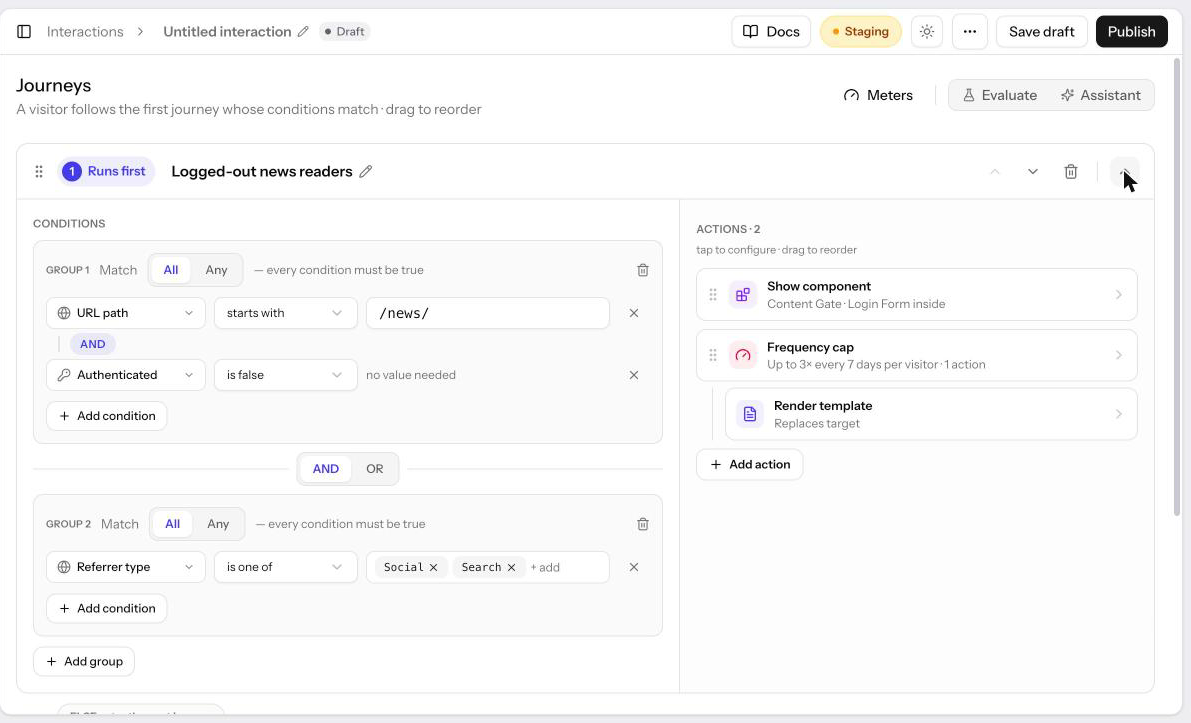
On each journey card you can:
- Drag the handle, or use Move up and Move down, to reorder
- Click the name to rename the journey
- Expand or Collapse the card
- Delete journey (this cannot be undone once saved)
An expanded card has two columns: Conditions on the left and Actions on the right. Click an action to configure it and drag to reorder. You can also drag an action from one journey into another, or into Everyone else; see Actions.
Everyone Else
The Everyone else card at the bottom holds the actions for visitors who match no journey. It cannot be deleted or reordered. It may be left with no actions, in which case unmatched visitors pass through untouched.
Conditions
Conditions live in groups. A new journey starts with one group; click Add group for more and Add condition inside a group to add a row.
Each condition row reads left to right: an attribute (what to check), an operator (how to compare), and a value. Attributes that need a key — Query parameter, Cookie, Custom data, and External profile data — add a key box before the operator. Some operators, such as is set or is true, need no value.
The full list of attributes, operators, and value formats is in the Targeting Conditions reference.
Matching Within a Group
Each group has a Match toggle:
| Match | The group is true when… |
|---|---|
| All | every condition in the group is true |
| Any | at least one condition in the group is true |
Combining Groups
Between consecutive groups an AND / OR toggle sets how the lower group joins the one above. AND binds tighter than OR: the groups are read as runs of AND-joined groups, and the journey matches if any run is entirely true.
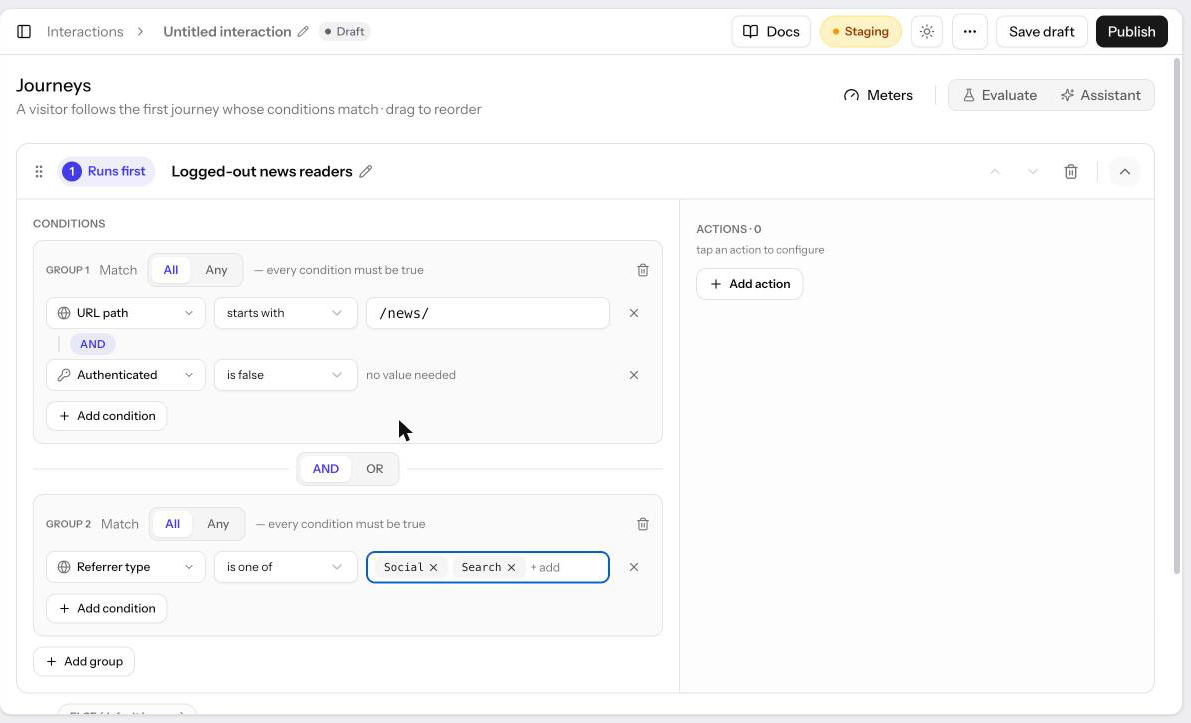
| Groups | Reads as |
|---|---|
G1 AND G2 | G1 and G2 |
G1 OR G2 AND G3 | G1, or (G2 and G3) |
G1 AND G2 OR G3 AND G4 | (G1 and G2), or (G3 and G4) |
Picking an Attribute
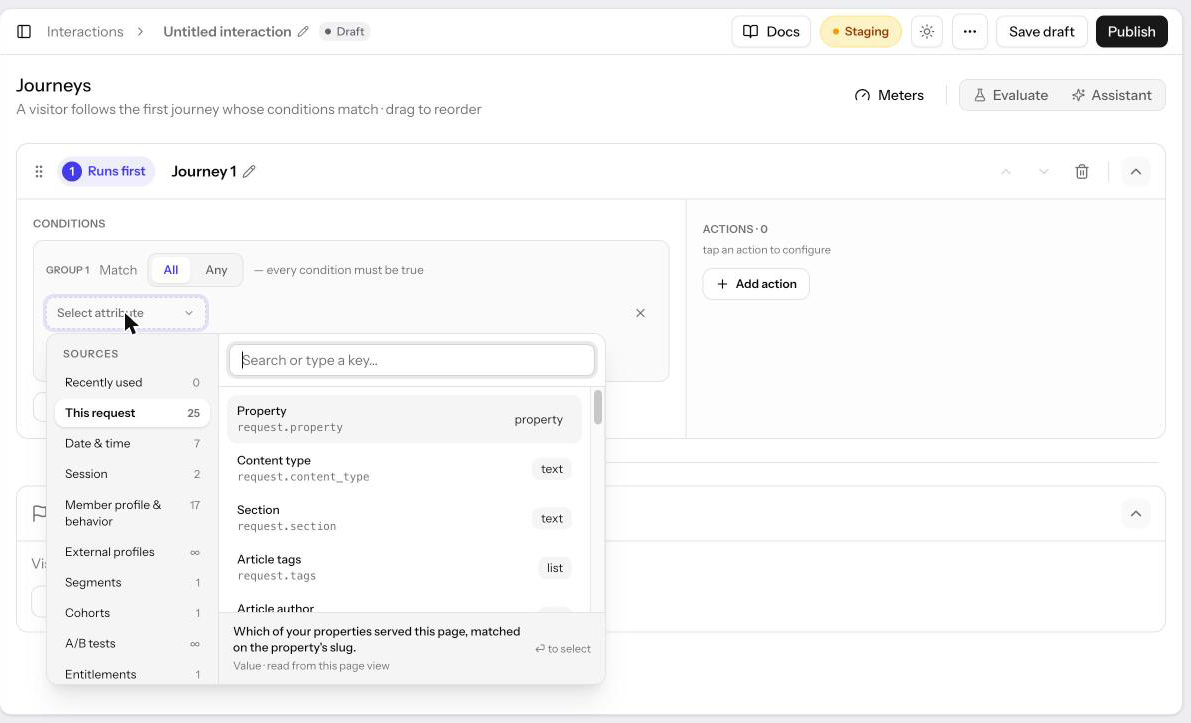
Click Select attribute to open the picker; a newly added row opens it for you. The left rail lists the sources — Recently used, This request, Date & time, Session, Member profile & behavior, External profiles, Segments, Cohorts, A/B tests, Entitlements, Custom data, User attributes, and Meters once your organization has one — with a count for each. ∞ marks a source whose attribute takes a key you type. Recently used holds the attributes you picked last.
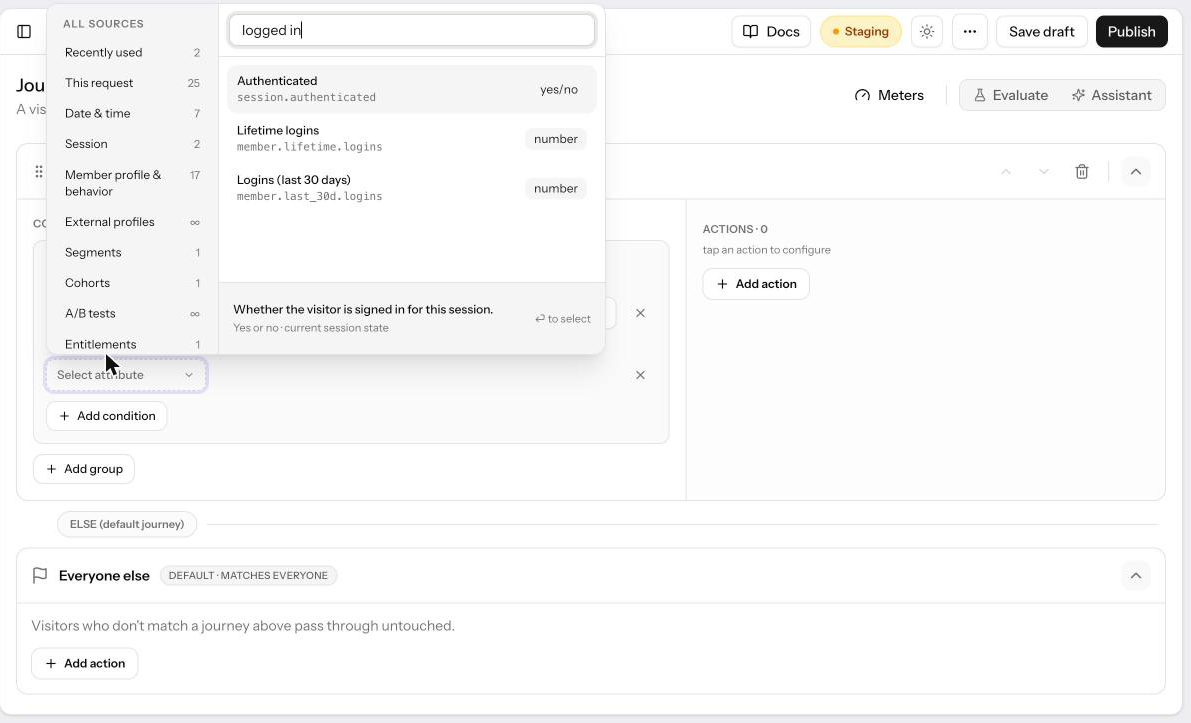
Type in Search or type a key… to filter across every source; the search also matches common synonyms, so "state" finds Region and "logged in" finds Authenticated. Each attribute shows a type badge, such as text, choice, or key/value, and a one-line description of where its value comes from when highlighted.
Value Suggestions
Free-text values autocomplete from what your site has actually sent: recent paths, sections, content types, UTM values, custom data keys, and your content catalog. Suggestions are hints, not limits — you can always type a value the site has not sent yet, for example a section you are about to launch. Short lists open when you focus the field; longer lists (such as timezones) wait until you start typing.
When a Value Is Unknown
If Allegro cannot determine an attribute for a visitor, every condition on that attribute is false — including negative operators such as is not, is not one of, is in none of, and does not have. This keeps rules from accidentally matching everyone.
| Situation | Effect |
|---|---|
| Visitor is not logged in | Member profile, external profile, user attribute, segment, and entitlement conditions are false, even "is in none of segment X" |
| The member's profile could not be loaded | Member profile and segment conditions are false; entitlement conditions still resolve |
| The SDK did not report a timezone | Visitor-local time, date, and day-of-week conditions are false |
| Location could not be resolved | Country, region, city, postal code, continent, and privacy law conditions are false |
| A query parameter, cookie, or custom key was not sent | key exists is false; other operators on that key are false |
Two things are always known:
- Session attributes. An anonymous visitor is definitively Authenticated is false, so that is a reliable "logged out" rule.
- A logged-in member with no segments genuinely matches Segment is in none of.
Member profile, external profile, user attribute, segment, and entitlement conditions resolve only for visitors who are logged in. A visitor who has only been identified (for example by submitting an email form) is treated as anonymous for targeting purposes.
Limits
| Limit | Value |
|---|---|
| Journeys per Interaction | 25 |
| Condition groups per journey | 10 |
| Conditions per group | 25 |
| Minimum per journey | 1 group with at least 1 condition |
| Actions in Everyone else | May be empty |
A journey with an empty group cannot be saved. Validation errors appear inline on the condition row they belong to.
Repeat Visits
An automatic Interaction shows on every page view it matches. To limit repeats, wrap its actions in a frequency cap, or add a Cookie action with Set readable cookie turned on and a Cookie → key exists condition on that cookie's name to a journey above it that does nothing.
Related
- Targeting Conditions — Every attribute, operator, and value format
- Cohorts — Save a set of conditions once and reuse it across journeys
- Potential Reach — See how many visitors each journey would reach
- Assistant — Draft journeys from a plain-language prompt
- Testing Journeys — Simulate a visitor or debug on your site